> For the complete documentation index, see [llms.txt](https://help.flowerbuddy.co/llms.txt). Markdown versions of documentation pages are available by appending `.md` to page URLs; this page is available as [Markdown](https://help.flowerbuddy.co/reference/workspace-settings/subscription/manage-workspace-seats.md).
# Manage Workspace Seats
Workspace seats determine how many accepted members and pending invitations the workspace can support. Use the seat count when your team is adding people or when the **Members** tab reports that the workspace has more people than available seats.
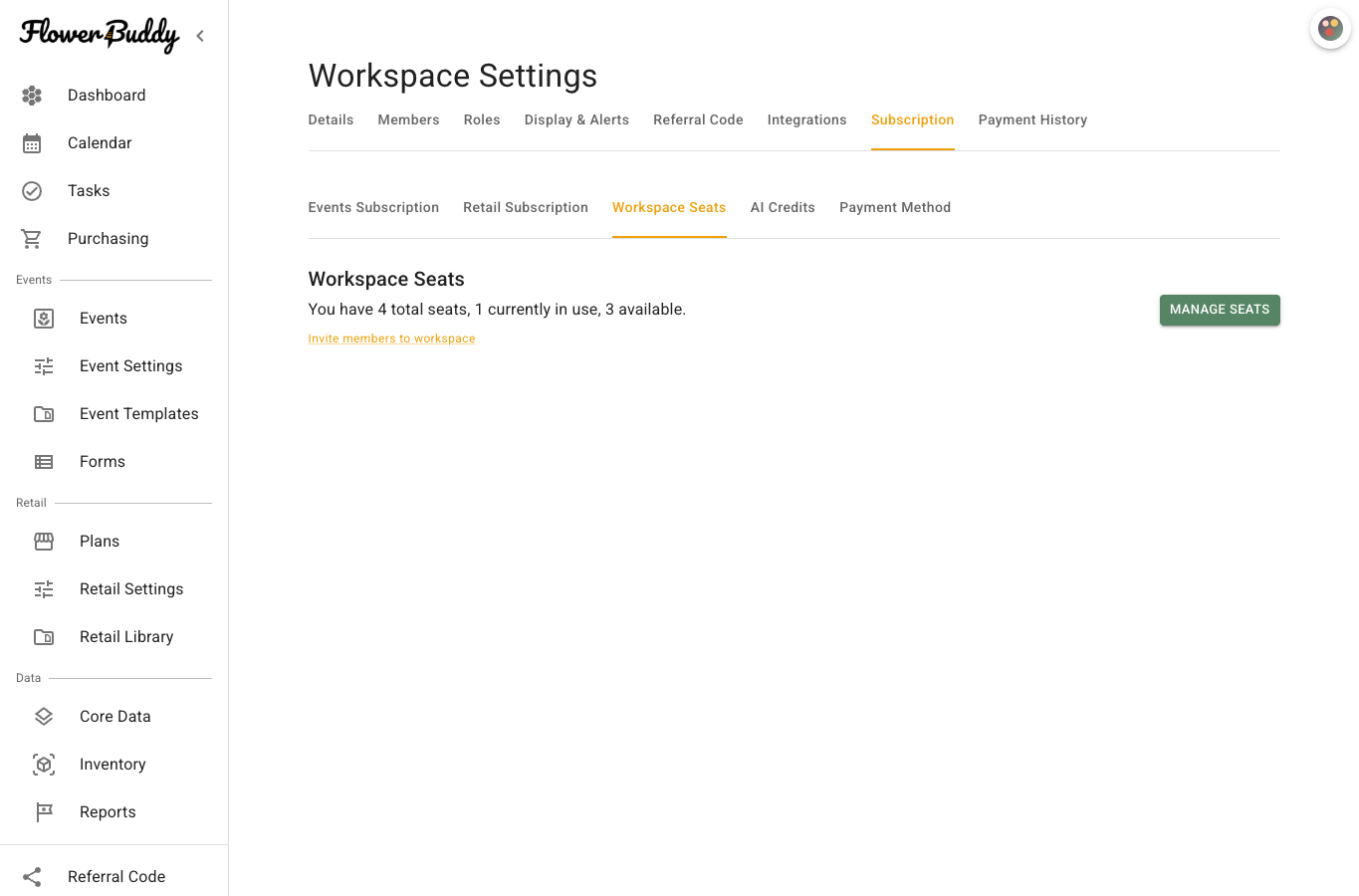
The Workspace Seats tab is beside the plan tabs in Subscription.
## Review seat usage
Open **Workspace Settings**, select **Subscription**, then select **Workspace Seats**. The summary shows seats in use, available seats, and the current seat subscription. Pending invitations count toward the seat capacity because they reserve access when accepted.
Compare the seat total with both the accepted members and the invitations still awaiting a response. A workspace can be over capacity even when the team has not added another accepted member. Use [Members](/reference/workspace-settings/members.md) to review invitations and [Manage workspace member access](/reference/workspace-settings/members/manage-workspace-member-access.md) before lowering the seat count.
## Preview a seat change
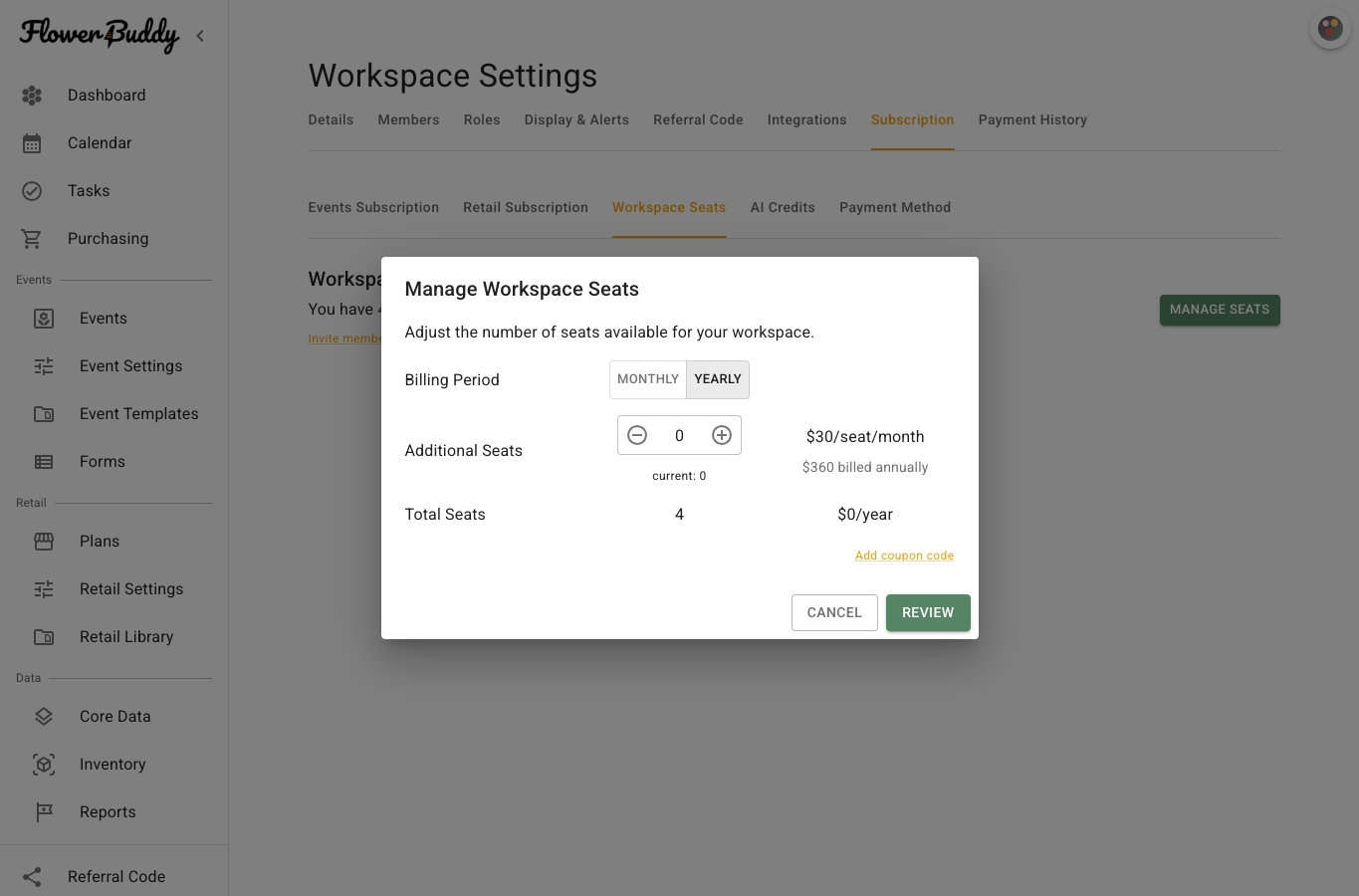
The **Manage Workspace Seats** dialog lets you review the change before opening its confirmation.
1. Select **Manage Seats**.
2. Choose **Monthly** or **Yearly** when both periods are offered.
3. Increase or decrease **Additional Seats**.
4. Review the total seat count and any promotion code.
5. Select **Review**.
FlowerBuddy opens **Confirm Update to Workspace Seats** and loads the amount due now and future billing details. A decrease that would leave fewer seats than people in use needs extra review. Remove unneeded members or invitations first when the workspace is over capacity.
Selecting **Confirm** updates the workspace seat subscription and can require payment verification. It does not remove members automatically.
## Recover a seat payment
When a workspace seat payment is past due, or additional seats are waiting for payment verification, the Workspace Seats area shows a warning with **Complete payment**. Select it to open **Confirm Update to Workspace Seats**.
1. Review the **Due Today** lines and **Total due today** amount.
2. Select **Confirm** to submit the seat payment or verification.
3. If the payment is still processing, select **Check status** instead of submitting again.
4. If verification fails, select **Update payment method** in the dialog, replace the saved card, and retry **Confirm**.
Reducing seats can follow a scheduled billing path instead of requiring payment immediately. Review the dialog's amount and billing date before confirming.
## When capacity needs attention
If the summary reports more people than available seats, first decide whether each pending invitation is still needed. Canceling an unneeded invitation or removing a former team member can make a lower seat count possible, but those are access changes and should be considered separately. The seat preview helps identify the billing effect of a change; it does not show which person should lose access or make that choice for you.