> For the complete documentation index, see [llms.txt](https://help.flowerbuddy.co/llms.txt). Markdown versions of documentation pages are available by appending `.md` to page URLs; this page is available as [Markdown](https://help.flowerbuddy.co/reference/workspace-settings/subscription/apply-a-subscription-coupon-code.md).
# Apply a subscription coupon code
A coupon code applies a discount to an eligible FlowerBuddy subscription purchase. Enter it before confirming the purchase, then check the price shown in the confirmation. A coupon code is different from a [referral code](/reference/workspace-settings/referral-code/use-a-referral-code.md).
## Add a code to a subscription
1. Open **Workspace Settings** and select **Subscription**.
2. Select **Events Subscription** or **Retail Subscription**, choose the plan and billing period, and select **Select** to open **Subscription Confirmation**.
3. Select **Add coupon code**.
4. Enter your code in **Promotion Code**, then select the checkmark at the end of the field.
5. Wait for the confirmation to refresh. Review the **Coupon** discount and **Total Due** before selecting **Confirm**.
Applying the code checks the offer and updates the preview. Selecting **Confirm** is the separate step that completes the subscription purchase and may charge the saved payment method. See [Review and change subscriptions](/reference/workspace-settings/subscription/review-and-change-subscriptions.md) for billing and payment-verification details.
## Add a code to Workspace Seats
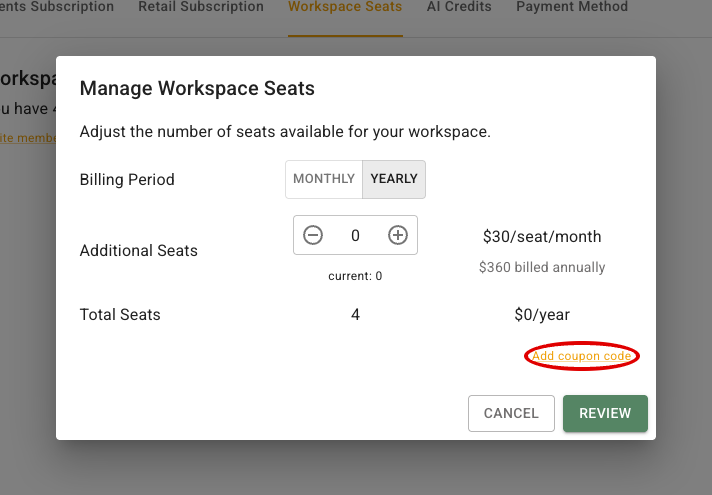
For an eligible seat purchase, select **Workspace Seats**, then **Manage Seats**. Choose the seat count and billing period you intend to review. **Add coupon code** is near the bottom of the dialog.
Select **Add coupon code**, enter the code in **Promotion Code**, and select the field's checkmark. The example below shows where to type; EXAMPLE is not a discount offer.
When the code is accepted, the dialog shows its discount description. Select **Review** and check the amount due and future billing details. Only confirm when both the seat change and price are correct. See [Manage Workspace Seats](/reference/workspace-settings/subscription/manage-workspace-seats.md).
## Check the result or a rejected code
Do not assume a discount was applied because you entered a code. Wait for the accepted discount and updated price before continuing. FlowerBuddy can report that a code was not found or has reached its redemption limit. Check the spelling and the offer's conditions; if it still fails, contact FlowerBuddy support before purchasing.
After completing the purchase, use [Payment History](/reference/workspace-settings/payment-history.md) to review the billing record. The price preview before confirmation is where to verify that the intended discount is included.