> For the complete documentation index, see [llms.txt](https://help.flowerbuddy.co/llms.txt). Markdown versions of documentation pages are available by appending `.md` to page URLs; this page is available as [Markdown](https://help.flowerbuddy.co/reference/workspace-settings/roles/workspace-roles/create-and-manage-workspace-roles.md).
# Create and manage workspace roles
Custom workspace roles let you define the access a member needs without changing the access of everyone else. Start with the person's work, such as designing assigned events or reviewing reports, then choose only the pages and records they need.
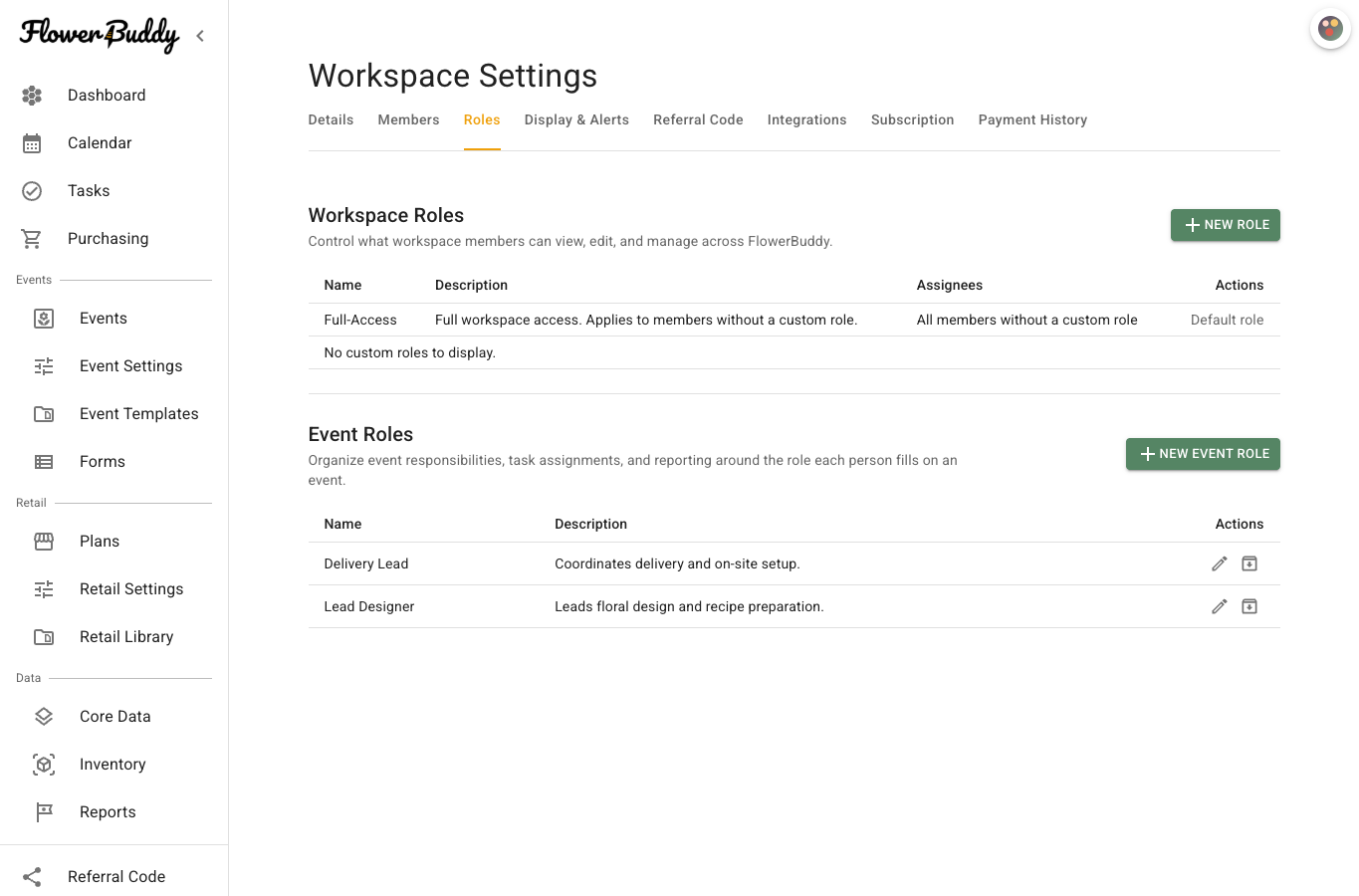
Use **New Role** in the Workspace Roles section to open the role editor.
## Create or edit a role
1. Open **Workspace Settings** and select **Roles**.
2. In **Workspace Roles**, select **New Role**, or select the pencil icon with the **Edit role** label beside an existing custom role.
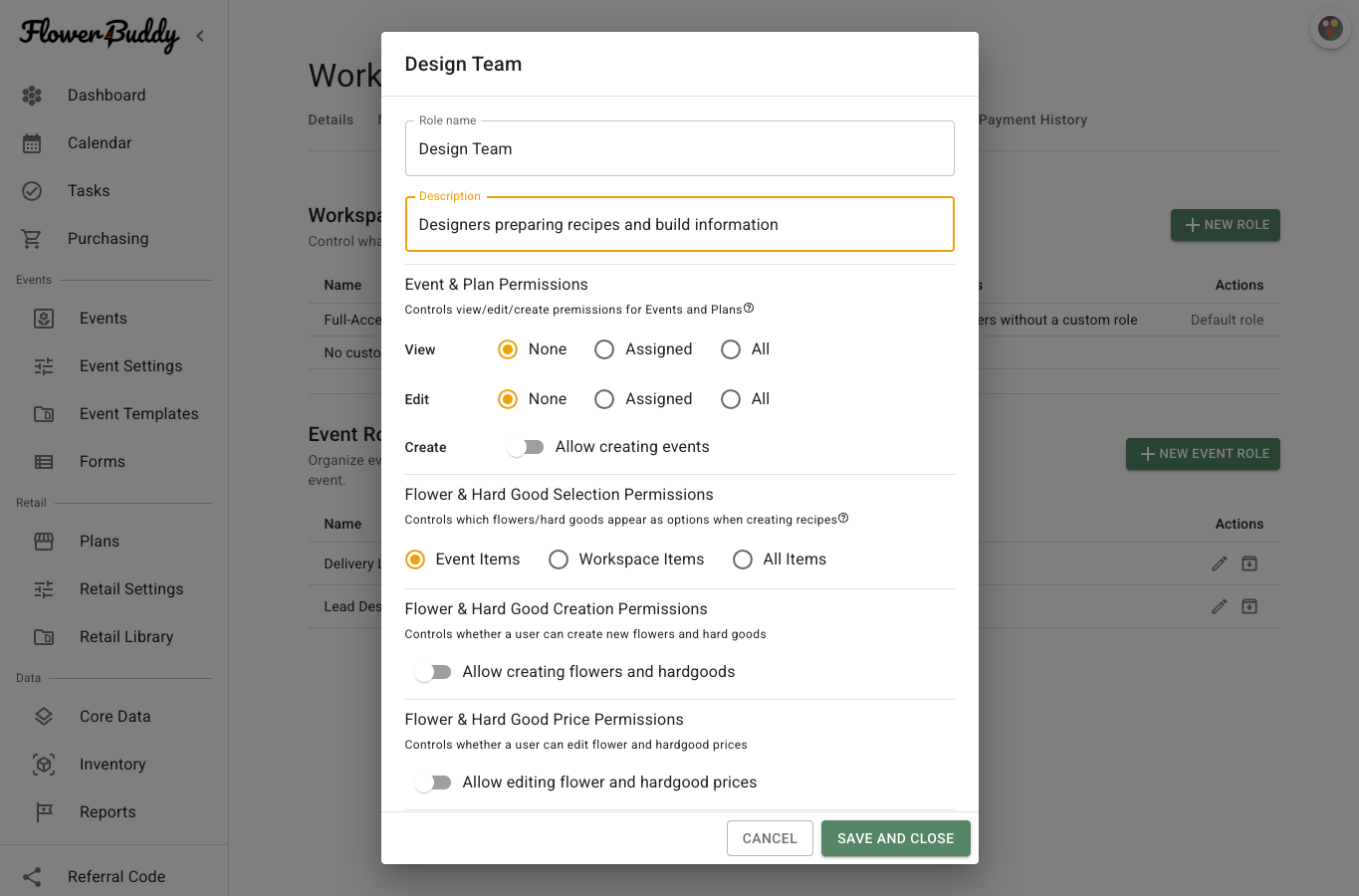
3. Enter a clear **Role name** and optional **Description**.
4. Choose the record, item, and page access for the role.
5. Select **Save and Close**.
The role becomes available from the **Role** menu on **Members**. You can edit a custom role later. A role with assignees cannot be deleted until it has no assigned members.
## Choose event and retail-plan access
The **Event & Plan Permissions** section controls access to both events and retail plans. Set **View** and **Edit** separately:
* **None** does not allow that action.
* **Assigned** allows that action only for events and plans assigned to the member.
* **All** allows that action across the workspace's events and plans.
For example, a designer could view all records but edit only assigned records. Edit access cannot be broader than View access; FlowerBuddy adjusts those choices to keep them consistent.
The creation switch is labeled **Allow creating events** within this shared section. Enabling it also requires at least **Assigned** View and Edit access, so a member can work with records they create.
## Choose item and pricing access
**Flower & Hard Good Selection Permissions** controls which items appear when building recipes:
* **Event Items** limits choices to flowers and hard goods already in the current event or plan.
* **Workspace Items** includes items in your workspace.
* **All Items** also includes FlowerBuddy's built-in flower and hard-good catalog.
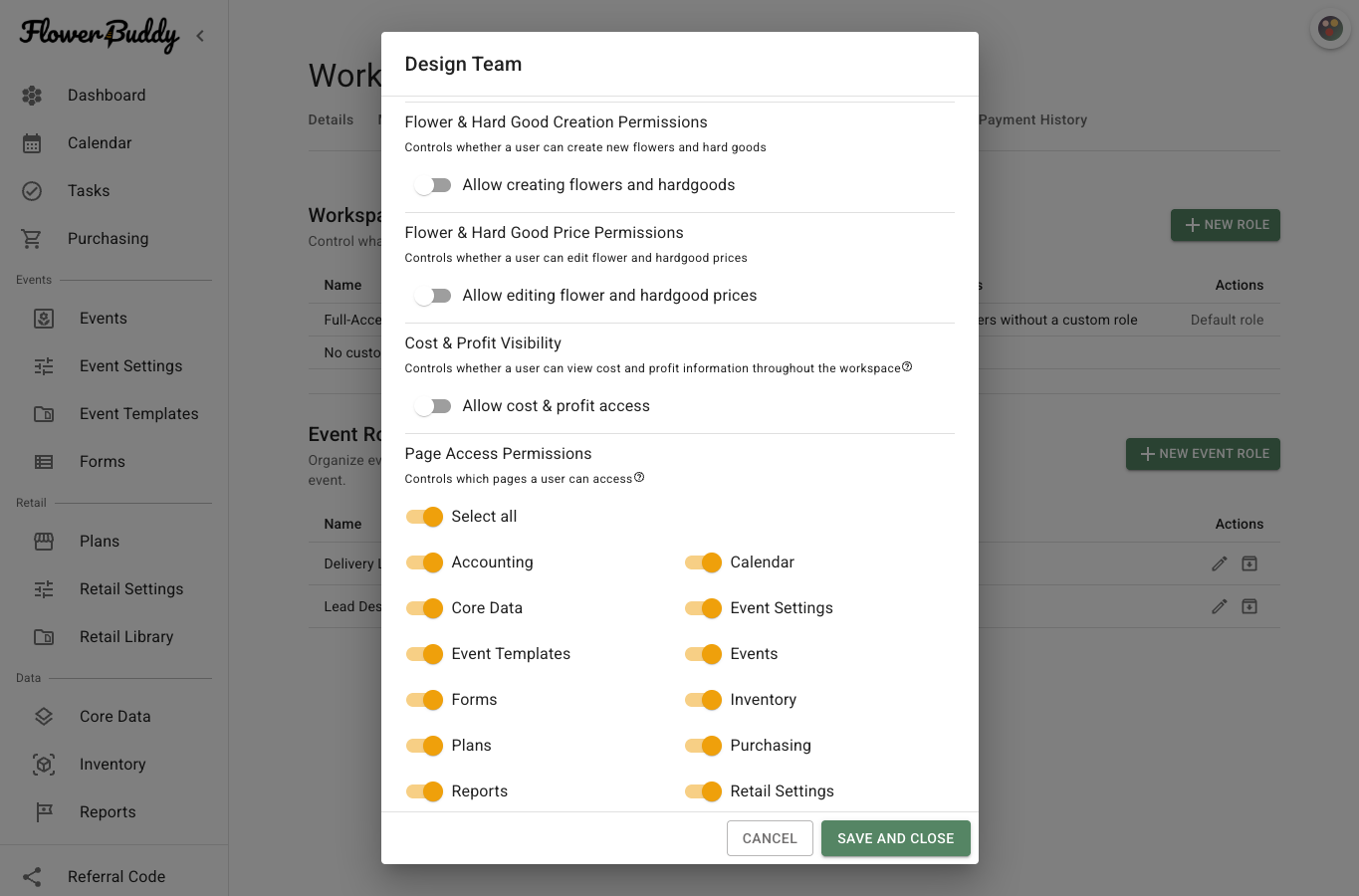
**Allow creating flowers and hardgoods** separately controls whether the member can create new flower and hard-good records.
**Allow editing flower and hardgood prices** permits price changes. Turning it on also enables **Allow cost & profit access**. Turning cost and profit access off disables price editing. Selling-price information remains visible when cost and profit information is hidden.
## Choose tag-creation access
In **Tag Creation Permissions**, turn on **Allow creating tags** when members with this role should be able to create new named tags. Turning it off prevents new tag creation, but it does not remove existing tags or their colors, disable automatic tagging, or prevent imports from keeping their tags.
Members without tag-creation permission can still choose existing tags where their other record permissions allow it. Use this switch to keep the shared tag list consistent without preventing members from organizing their work with labels that already exist.
## Restrict page access
The **Page Access Permissions** controls list the pages that can be restricted: **Workspace Settings**, **Core Data**, **Event Settings**, **Tasks**, **Purchasing**, **Events**, **Event Templates**, **Forms**, **Inventory**, **Reports**, **Accounting**, **Plans**, **Retail Settings**, **Retail Templates**, and **Calendar**.
Use **Select all** to change the page switches together, then adjust individual pages. Turning a page off hides it from navigation and prevents access through a direct link. Pages left allowed remain available to the role.
Page access does not replace record-level choices. For example, allowing **Events** does not by itself give a role permission to edit every event. Review both sets of choices before assigning the role.
## Delete a custom role
Use the trash icon with the **Delete role** label only after the role has no assignees. FlowerBuddy disables deletion while people are assigned, so move those members to another role or **Full-Access** first.