> For the complete documentation index, see [llms.txt](https://help.flowerbuddy.co/llms.txt). Markdown versions of documentation pages are available by appending `.md` to page URLs; this page is available as [Markdown](https://help.flowerbuddy.co/reference/workspace-settings/members/manage-lite-workspace-members.md).
# Manage Lite Workspace Members
**Lite Workspace Members** identify designers who do not have a FlowerBuddy account. Add one when you need to assign that person to an arrangement on an event's **Build** tab. Regular workspace members and Lite Workspace Members appear together in the recipe's **Assignee** choices, and the selected name appears on printed and digital Build instructions.
Adding a lite member does not create a login, send an invitation, use a subscription seat, or make the person available for **Tasks**. The email address identifies the person in the list; entering it is not an invitation to join the workspace.
## Add a Lite Workspace Member
When the feature is available in your workspace, open **Workspace Settings**, select **Members**, and find **Lite Workspace Members**. Select **Add Lite Workspace Member**.
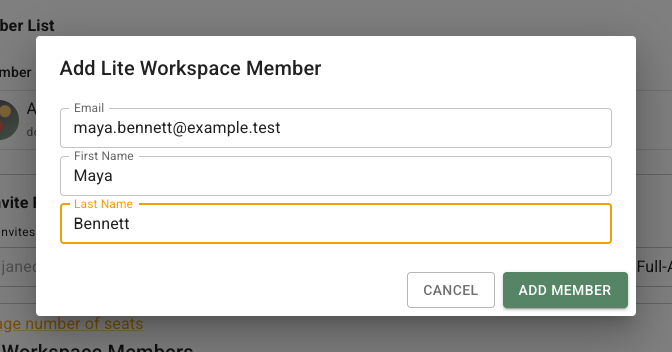
The dialog collects the information used to identify the person in the Members list, Build assignments, and Build instructions:
1. Enter the person's address in **Email**.
2. Enter the person's given name in **First Name**.
3. Enter the person's family name in **Last Name**.
4. Select **Add Member**.
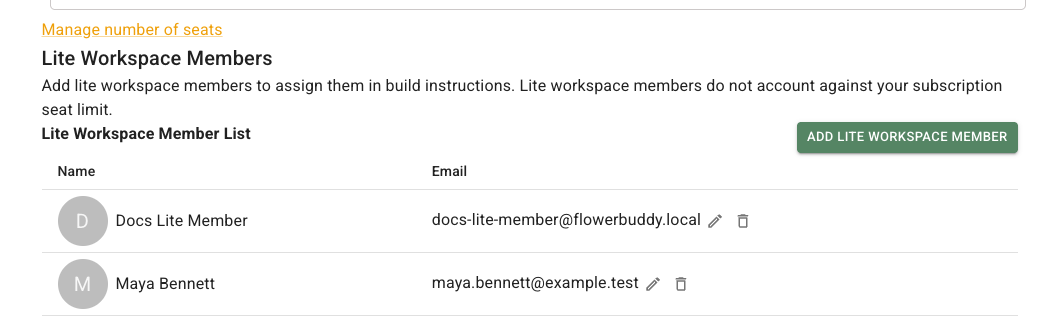
All three fields are required. After saving, FlowerBuddy adds the person to the **Lite Workspace Member List**. Saving this record does not create an account or send an invitation.
The saved row shows the member's name, email, avatar, and edit and delete controls. For example, the row below identifies Maya Bennett without adding her to the regular **Member List**:
## Assign the member on Build
Open the event and select **Build**. On the recipe card for the arrangement, use **Assignee** and select the lite member. The menu combines regular workspace members and Lite Workspace Members, so you can choose the person responsible for the arrangement from one list.
Assignment identifies responsibility for that recipe. It does not give the lite member workspace access or assign a **Task** to them. The selected name appears in the event's digital Build view and in printed Build instructions. For the recipe details and assignment steps, see [Recipe details and locations in Build](/reference/event-page/build/recipe-details-and-locations.md).
## Update member details
Select the pencil icon beside the member's email to open **Update Lite Workspace Member**. Change **Email**, **First Name**, or **Last Name**, then select **Update Member**. If the member is assigned to arrangements, the updated details are applied to the Build instructions where that member is assigned.
Select the member's avatar to add or replace the profile image used to identify the person. A profile image is optional.
## Delete a Lite Workspace Member
Select the trash icon beside the member's email. In the **Delete Lite Workspace Member** confirmation, review the warning and select **Delete Member** only when you are ready. Deletion removes the person from the Lite Workspace Member List and from Build instructions where they are assigned. The dialog warns that this action cannot be undone.