> For the complete documentation index, see [llms.txt](https://help.flowerbuddy.co/llms.txt). Markdown versions of documentation pages are available by appending `.md` to page URLs; this page is available as [Markdown](https://help.flowerbuddy.co/reference/workspace-settings/integrations/flowerbuddy-api/manage-flowerbuddy-api-keys.md).
# Manage FlowerBuddy API keys
Use the **FlowerBuddy API** tab to create, copy, regenerate, or revoke the workspace API key. These actions affect any external integration using that key, so coordinate the change with the person responsible for that integration.
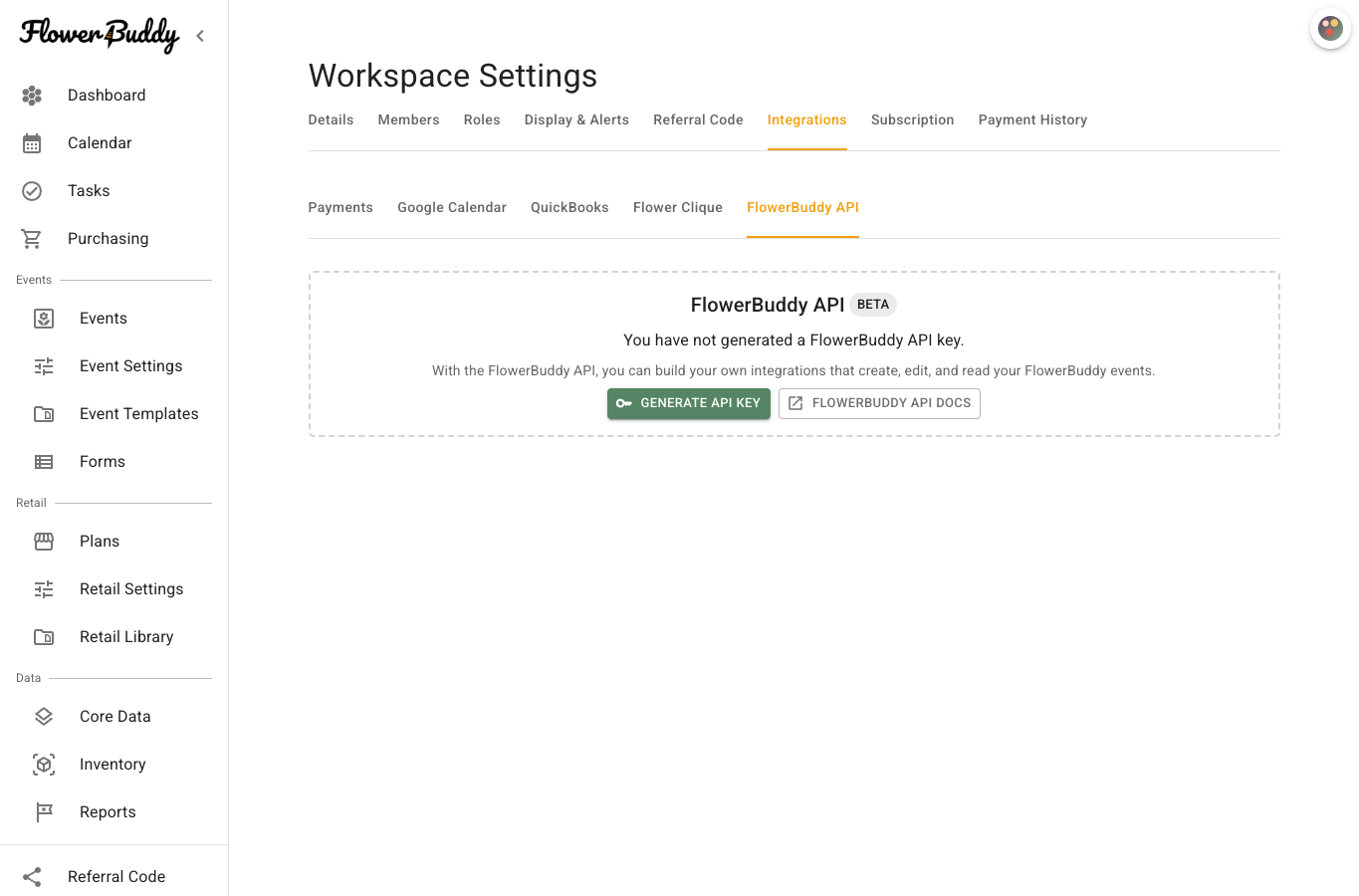
Before you create a key, the API tab shows **Generate API Key** and a link to the developer documentation.
## Create or copy a key
1. Open **Workspace Settings**, select **Integrations**, then select **FlowerBuddy API**.
2. Select **Generate API Key**.
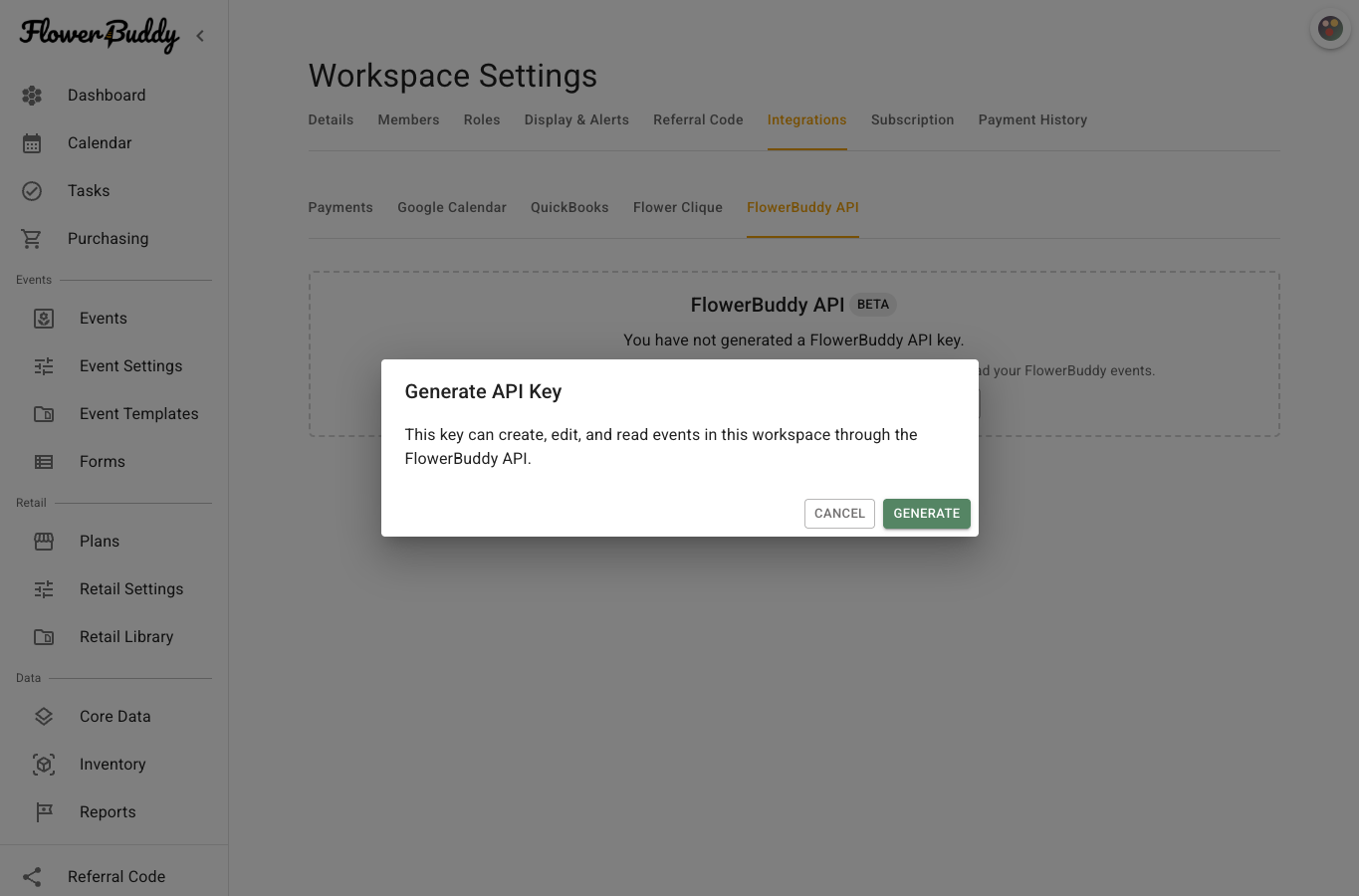
The confirmation below appears before FlowerBuddy creates a key. Selecting **Cancel** closes it without creating one.
3. Read the confirmation: the key allows an integration to create, edit, and read events in this workspace. Select **Generate** to continue.
4. In **New API Key**, select **Copy API Key** and store it securely before selecting **Done**.
Store the copied secret in the secure credential store used by the integration. The full secret is shown only at generation time. Later, FlowerBuddy shows the key's status and identifying information, not the original secret.
## Regenerate a key
Select **Regenerate API Key** when a key may have been exposed or the integration needs a replacement. Read the warning, then select **Regenerate** to confirm.
Regeneration immediately disables the current key. Integrations using it will stop working until they are updated with the new key. Coordinate the timing with the person managing the integration, copy the new key, and update every integration that used the old one. There is no overlap period in which both keys remain valid.
## Revoke a key
Select **Revoke API Key** when the workspace should no longer allow API access. Read the confirmation, then select **Revoke**. Revocation immediately stops requests that rely on the workspace key, not just one integration's requests.
FlowerBuddy displays **FlowerBuddy API key revoked.** The connected systems must be disabled or updated separately; revoking their access does not remove those systems or undo their earlier changes.
For endpoint details, authentication examples, and request formats, open the [FlowerBuddy API documentation](https://api.flowerbuddy.co/v1/docs/).