> For the complete documentation index, see [llms.txt](https://help.flowerbuddy.co/llms.txt). Markdown versions of documentation pages are available by appending `.md` to page URLs; this page is available as [Markdown](https://help.flowerbuddy.co/reference/tasks/set-task-due-date.md).
# Set a task due date and completion dependency
Set a due date when the timing of a task matters. FlowerBuddy can calculate a date from an event milestone, use a specific date, or wait for another task or task group to be completed.
## Choose a due-date source
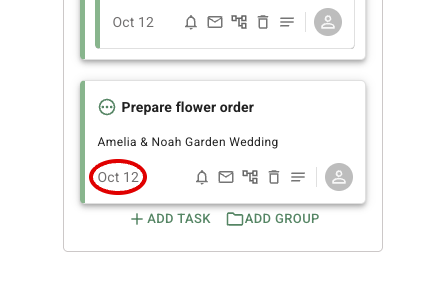
On the task card or List row, select the current due-date value, or **N/A** when the task has no active date, to open the **Due Date** dialog. The circled date on this task card opens those settings.
Choose one of these sources:
* **Event creation date**
* **Proposal date**
* **Booking date**
* **Event date**
* **Specific date**
* **Another task is completed**
* **A task group is completed**
For an event milestone, enter the number of days and choose the available direction. For example, a preparation task can be due seven days before the **Event date**. Sources based on event creation, proposal, booking, or completion use a date after that anchor. A **Specific date** uses the calendar date you choose.
After choosing the source, complete the fields that appear for it, such as the number of days, direction, calendar date, task, or task group. Select **Close** to apply the field changes and close the **Due Date** dialog. The task card or List row then shows the calculated date, the saved rule, or **N/A** when the task is not currently required. There is no separate **Save** action in this dialog.
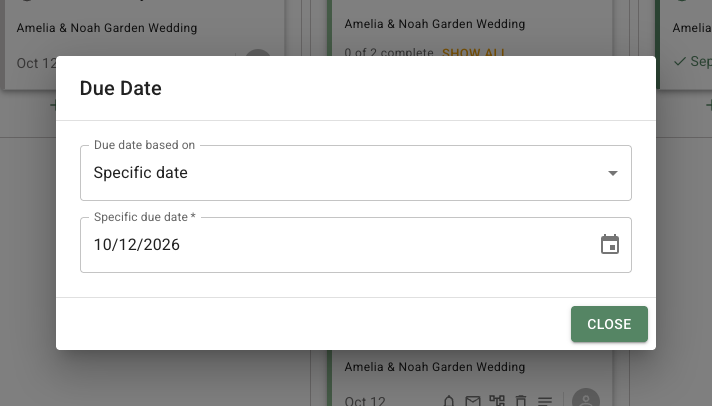
The dialog below shows **Specific date**, which lets you choose a calendar date instead of calculating it from an event milestone or another task.
## Set a completion dependency
Choose **Another task is completed**, then select the earlier task from the same event. Choose **A task group is completed** when all work in a group must finish before the next task receives its date. Enter the number of days after completion, complete the remaining fields, and select **Close**.
A task can have one completion dependency. It cannot depend on itself, depend on a task or group from another event, or create a cycle in the dependency chain. If the selected work is not complete, the dependent task shows its due-date rule instead of a calendar date.
## Calculated due dates
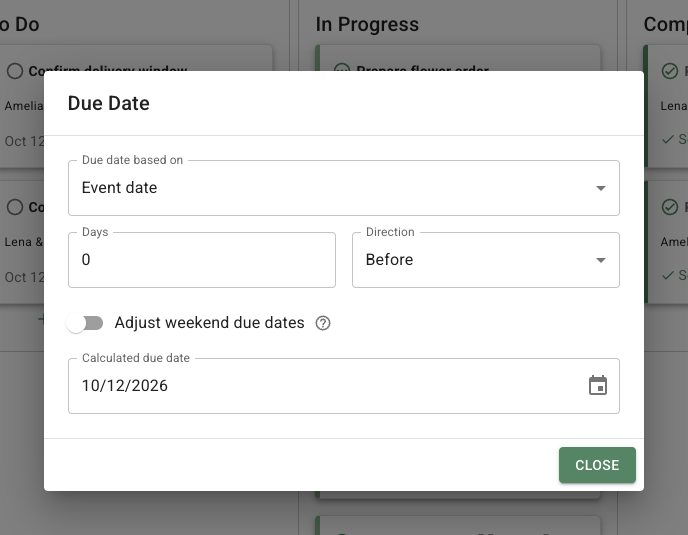
For a date based on an event milestone, task, or task group, turn on **Adjust weekend due dates** in the **Due Date** dialog to move a Saturday or Sunday result to the previous Friday. For an after-only rule, FlowerBuddy uses the following Monday if Friday would fall before the date the task is based on.
For example, a task due seven days before a Sunday event moves from Sunday to the preceding Friday. This setting adjusts the resulting date; it does not count the offset in working days. It does not apply to **Specific date**, and it does not account for public holidays.
The weekend setting appears below the date rule when you choose a calculated due date.
A calculated task date appears on the task card or List row. A date in the past is shown as overdue while the task is unfinished and still required. A completed task can show its completion date. A task that is no longer required because its completed group remains complete can show **N/A** instead of an active due date.
Changing a due-date rule does not complete the task or change its assignee. It changes when FlowerBuddy calculates the task to be due.