> For the complete documentation index, see [llms.txt](https://help.flowerbuddy.co/llms.txt). Markdown versions of documentation pages are available by appending `.md` to page URLs; this page is available as [Markdown](https://help.flowerbuddy.co/reference/tasks/configure-and-use-email-template.md).
# Configure and use a task email template
Use a task **Email template** when the task includes a message you want to prepare with event and contact information. An Email template prepares text for manual sending. Selecting a template does not send or schedule the email automatically.
## Attach an email template
On a task card or List row, open the three-dot menu and select **Task email**. In **Configure Email**, choose an existing template, then save the selection. If no templates exist, create one from the dialog's **Create Template** link before returning to the task.
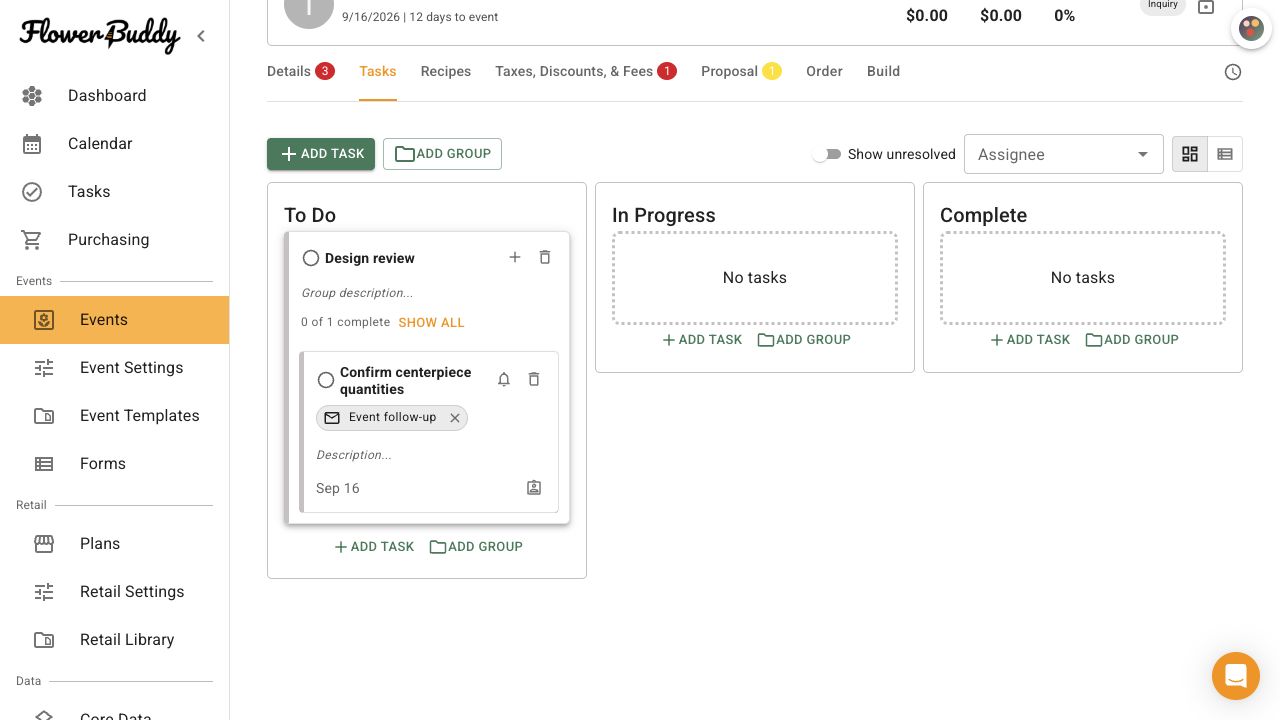
The selected template appears on the task. You can open it again to preview the message or remove the template from the task.
The configured task shows its selected template before you open the prepared message.
## Prepare the message
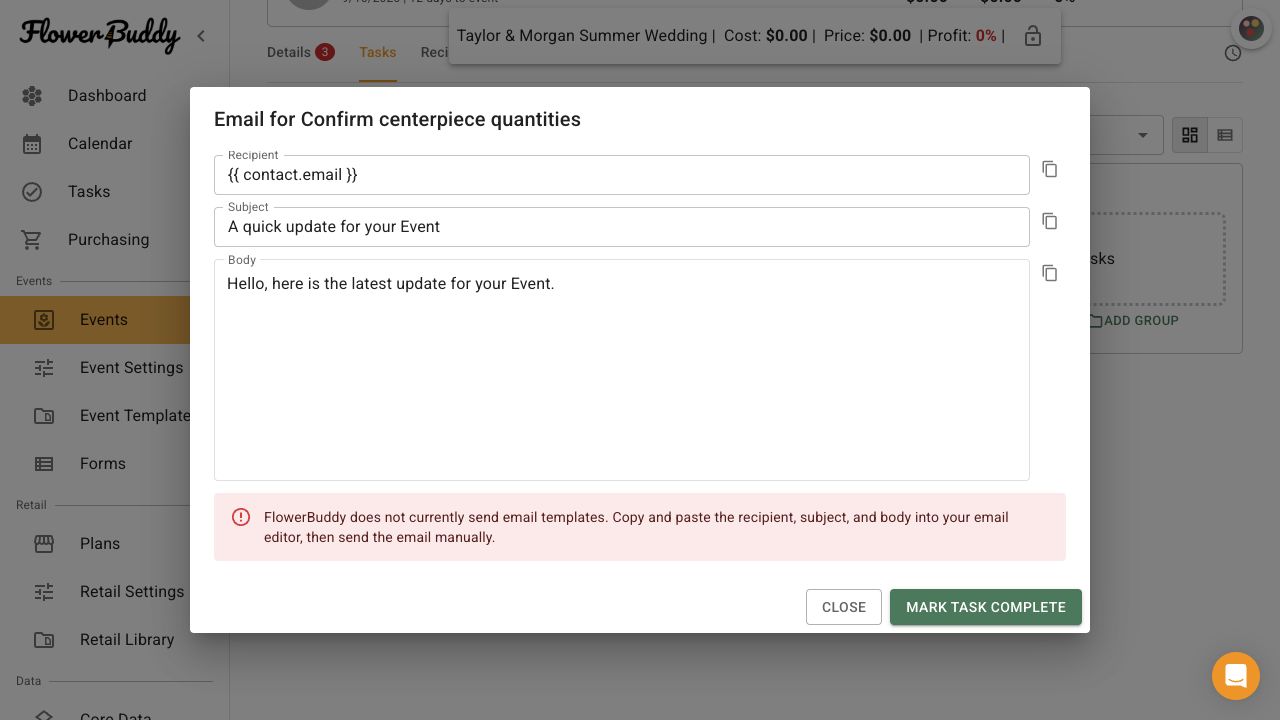
Open the selected template on the task. FlowerBuddy loads the event's clients and professional contacts. Choose a **Contact**, then review the read-only **Recipient**, **Subject**, and message body fields. The template variables are filled with the selected contact, event, proposal, sender, and workspace information supported by the template.
Use **Copy recipient email**, **Copy subject**, and **Copy body** to move the prepared content into your email application. If the selected contact has no email address, the recipient field shows that the address is unavailable. If no contact is available, the preview preserves the contact placeholder rather than inventing an address.
The email preview keeps the recipient, subject, and body together so you can copy each part into your email application.
## Copy the message to your email application
FlowerBuddy does not send the email. The task Email template prepares content for you to copy and send from your email application. It does not schedule the message or notify the contact merely because the template is attached to the task.
If you select **Mark Task Complete** in the email preview, FlowerBuddy changes the task status to **Complete**. That completion is separate from sending the email.