> For the complete documentation index, see [llms.txt](https://help.flowerbuddy.co/llms.txt). Markdown versions of documentation pages are available by appending `.md` to page URLs; this page is available as [Markdown](https://help.flowerbuddy.co/reference/tasks/assign-a-task.md).
# Assign a task to a member or Event role
Assign a task when someone needs clear responsibility for the work. FlowerBuddy supports two kinds of assignment: a direct workspace-member assignment and an Event role assignment.
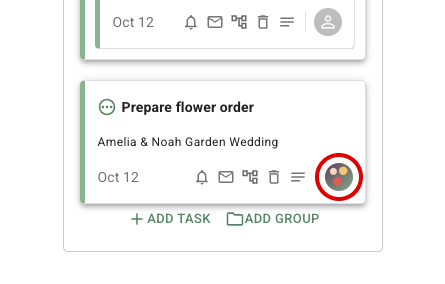
Select the person icon or profile picture on the task card or List row to open its assignment menu. The circled control belongs to this task, not to the page's **Assignee** filter.
## Direct member assignments
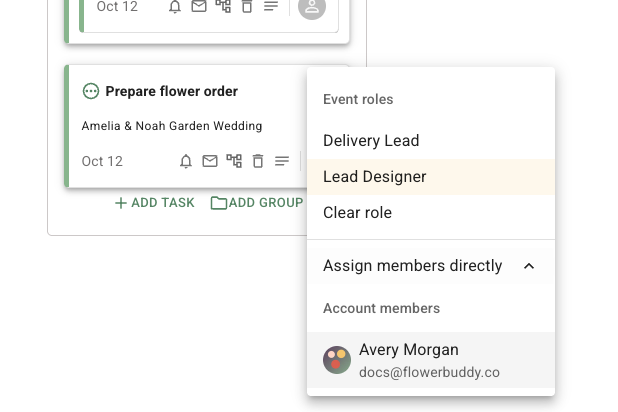
Use a direct member assignment when the task belongs to a particular person regardless of the event's role structure. In the assignment menu, select **Assign members directly** if Event roles appear first, then select a workspace member under **Account members**. You can assign more than one member, and you can remove a member from the same menu.
The task assignment menu lists direct choices under **Account members**. The screenshot shows Avery Morgan as an available direct member.
Direct member filtering is available only for workspaces with the applicable subscription. If the **Assignee** filter or member choices are not available, the workspace may not have that subscription or you may not have access to the required page or event.
## Event role assignments
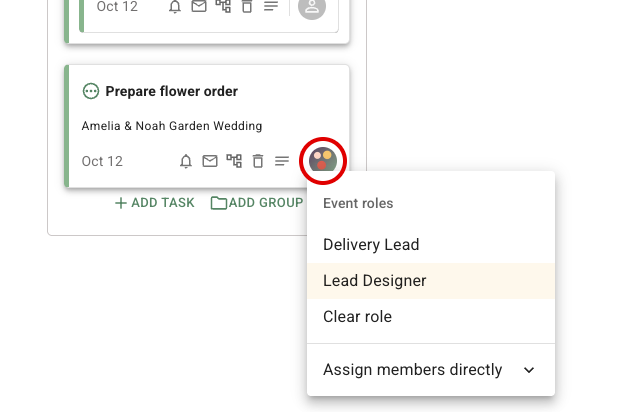
Use an Event role when responsibility should follow the role assigned on that event, such as a coordinator or designer. Choose the Event role from the task's assignment menu. The task then displays the person assigned to that role when one is assigned.
An Event role is tied to the event, not to one workspace member across every event. Changing the person's assignment for the event can change who the task points to through that role.
This example offers **Delivery Lead** and **Lead Designer**. Choosing **Lead Designer** assigns the task to whoever fills that role on this event. Event roles are defined in **Workspace Settings**, on **Roles**; the person filling each role is assigned on the event's **Details** tab.
## Assignment choices
The task displays either its direct member assignments or its selected Event role assignment. Selecting a member while an Event role is selected removes the Event role assignment before adding the member. Selecting an Event role changes the task to role-based responsibility.
After you select an assignment, the person or role appears on the task card or List row. Use the Tasks page **Assignee** filter or the **Assignee** field on an event's **Tasks** tab to review work for that responsibility.