> For the complete documentation index, see [llms.txt](https://help.flowerbuddy.co/llms.txt). Markdown versions of documentation pages are available by appending `.md` to page URLs; this page is available as [Markdown](https://help.flowerbuddy.co/reference/retail-plan-page/recipes/plan-product-quantities-and-ingredients.md).
# Plan product quantities and ingredients
The product quantity is the number you plan to sell or make. Set it on the product card before reviewing ingredients. FlowerBuddy multiplies each ingredient amount for one product by that product quantity. For example, 20 products that each use 8 roses require 160 roses.
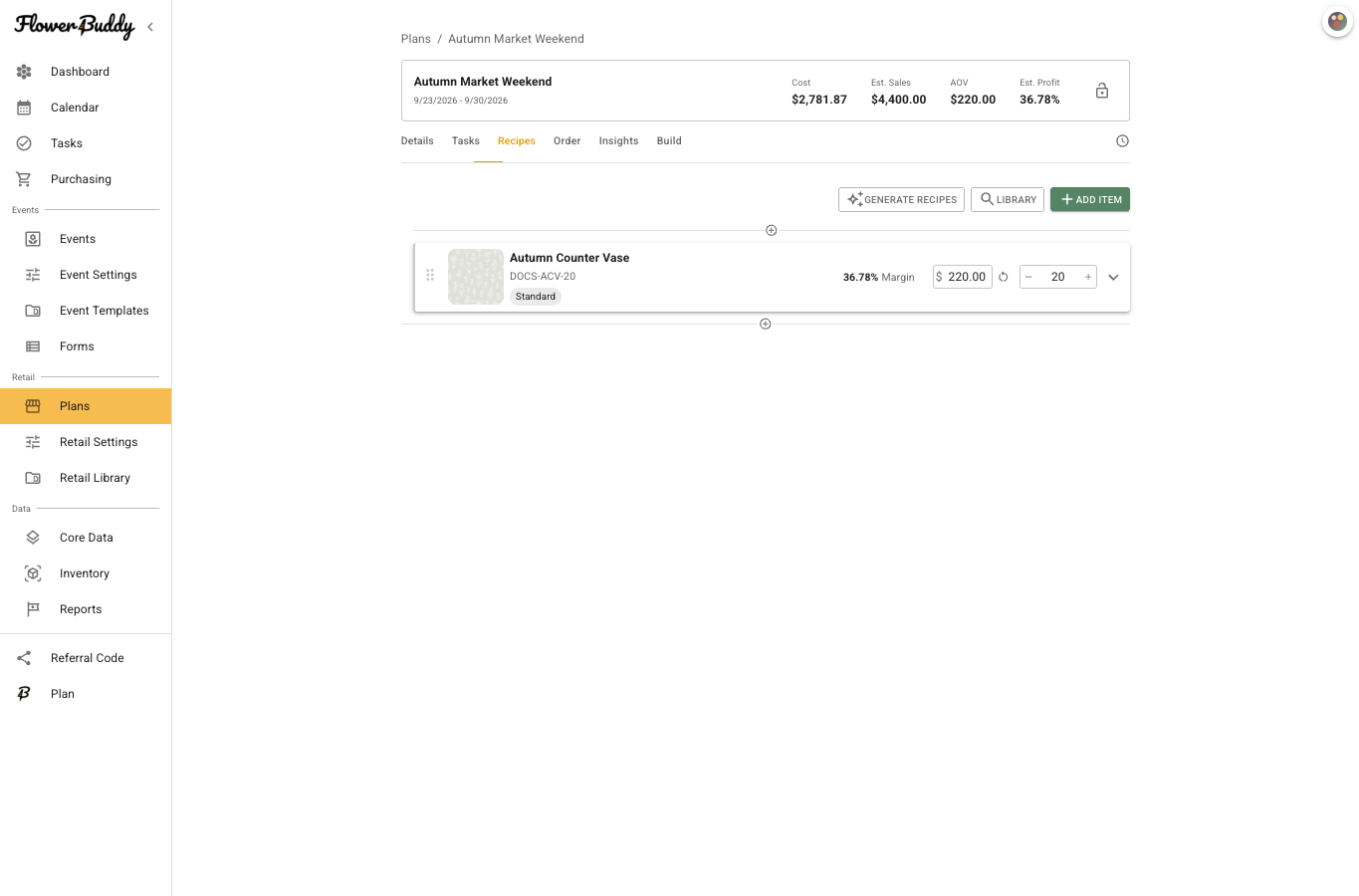
The card below shows a product with its selling price, margin, and quantity control. Change the quantity only after confirming it represents the number of complete products the plan needs.
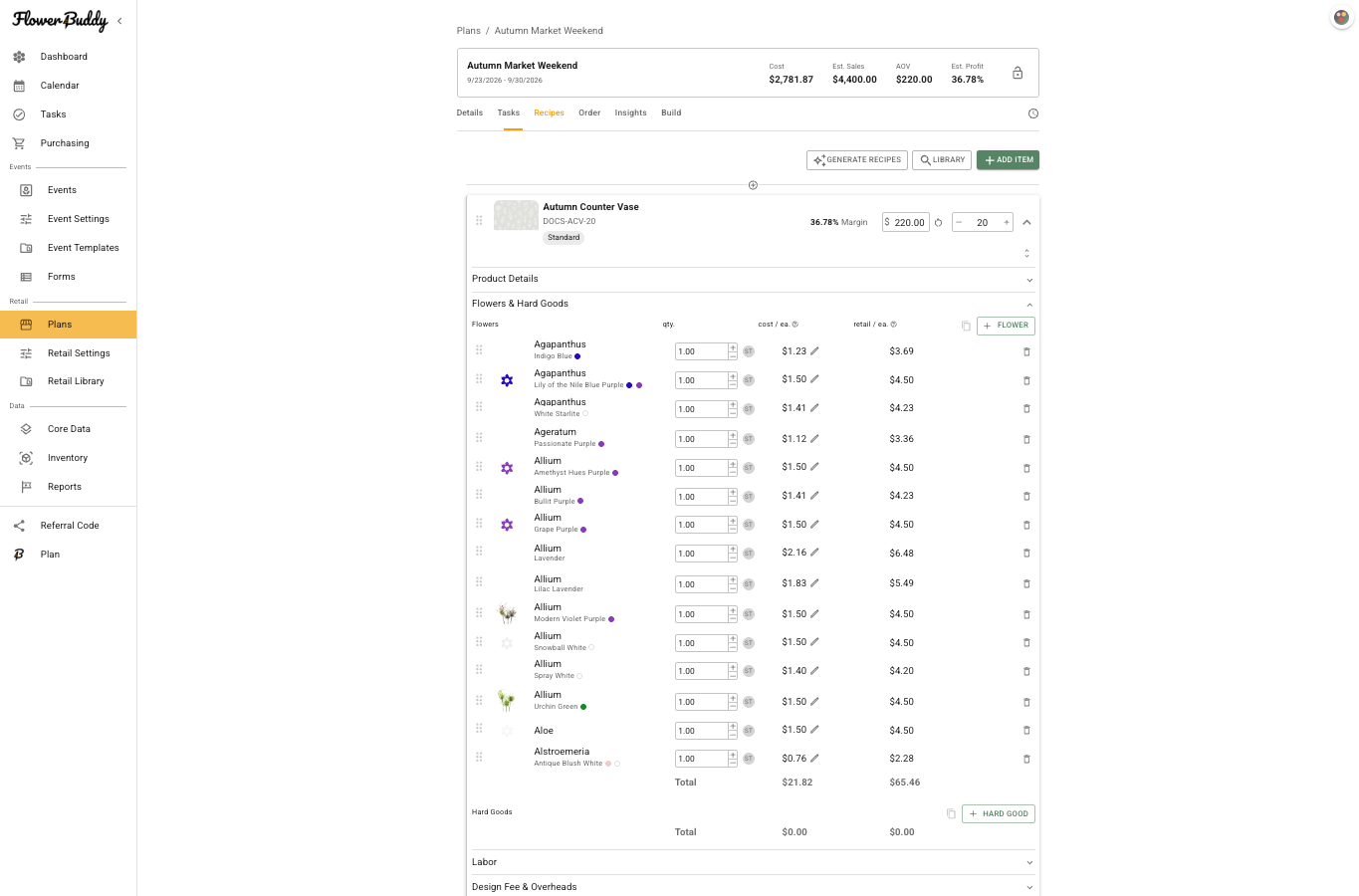
Open **Flowers & Hard Goods** to add each ingredient and its amount for one product. Choose the correct flower or hard-good item, enter the quantity and unit details shown by the item, and review its cost. Ingredient quantities support planning and ordering. They are not the same as the product quantity.
Update either level when the plan changes. If you change the product quantity, review the ingredient needs on **Order**. If you change an ingredient amount or cost, review the product's cost, suggested price, and margin before relying on the plan summary.
## Set the product quantity
1. Open **Recipes** and find the product.
2. Select its quantity control.
3. Enter the number you plan to sell or make for this plan.
4. Review the product's total cost and price summary after the change.
The product quantity does not mean the number of stems, containers, or other ingredients. Those quantities remain in **Flowers & Hard Goods**.
## Build the ingredient list
Open **Flowers & Hard Goods** on the expanded product. Add the flower or hard-good item, then enter the amount used by one product. Repeat for every material that needs to be represented in cost and buying review. Choose the correct flower or hard-good item and unit rather than using a generic substitute when the actual item is known.
After a quantity or ingredient change, open **Order** and expand the product where necessary to confirm the purchasing requirements. This is the point where a quantity entered for one product becomes a practical ingredient need for the full plan.
## Keep Quick Reference quantities separate
The quantity saved on the product card is the plan's production and purchasing quantity. In [Retail Quick Reference](/reference/retail-plan-page/build/use-retail-quick-reference.md), staff can choose a separate temporary quantity when building a pull list. That selection multiplies the product's ingredient amounts for the current pull list only. It does not change the saved product quantity, update the plan's **Order** needs, or record an Inventory movement. Clear or close the pull list when its temporary quantities are no longer needed.