> For the complete documentation index, see [llms.txt](https://help.flowerbuddy.co/llms.txt). Markdown versions of documentation pages are available by appending `.md` to page URLs; this page is available as [Markdown](https://help.flowerbuddy.co/reference/retail-plan-page/recipes/generate-retail-recipes.md).
# Generate retail recipes
**Generate Recipes** creates draft flower recipes for the products in a retail plan. Start with the flowers you intend to use, describe the collection, and review the product outline before generating. The drafts still need your review for ingredients, quantities, cost, and selling price.
## Choose flowers and describe the collection
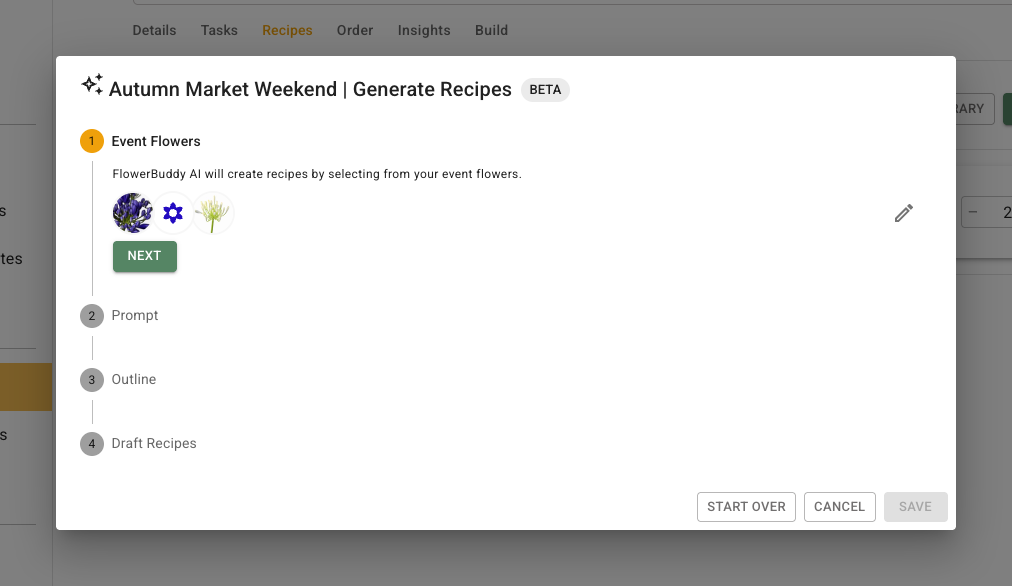
1. Open the retail plan's **Recipes** tab and select **Generate Recipes**.
2. Review the selected flowers in the first step. Add the flowers you want the generator to choose from. You need at least one flower before selecting **Next**.
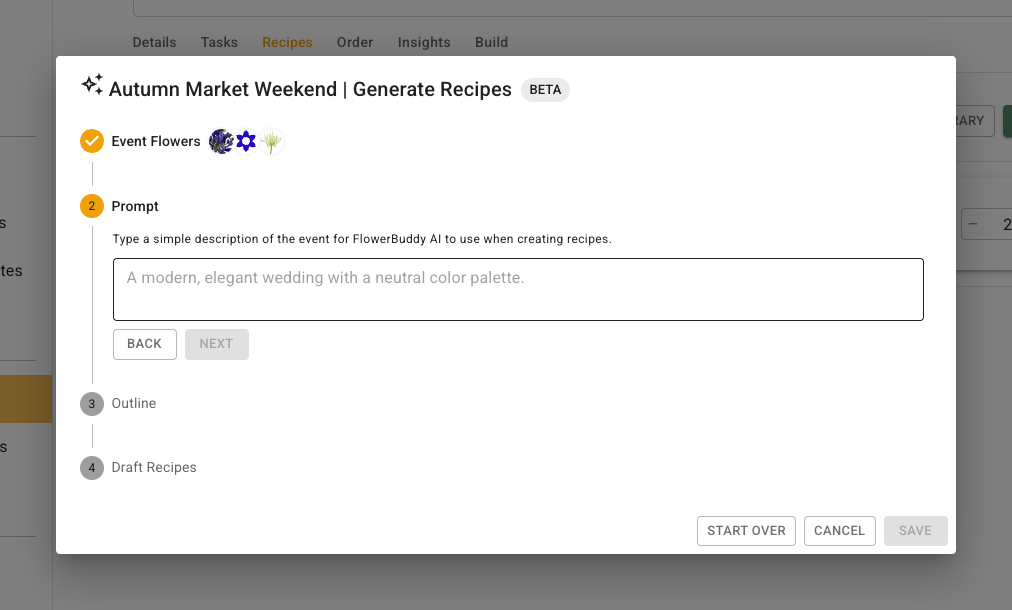
3. In **Prompt**, describe the products and the style you want. For example, "A collection of low autumn arrangements in amber vases, with warm colors and airy greenery."
4. Select **Next** to review **Outline**.
The selected flowers are the palette for generation. Include the flowers you intend to use rather than assuming that a flower mentioned only in the prompt will be available.
The **Prompt** step describes the collection you want to make with those flowers. Include the design style, colors, or container when they matter to the result.
## Set the product outline
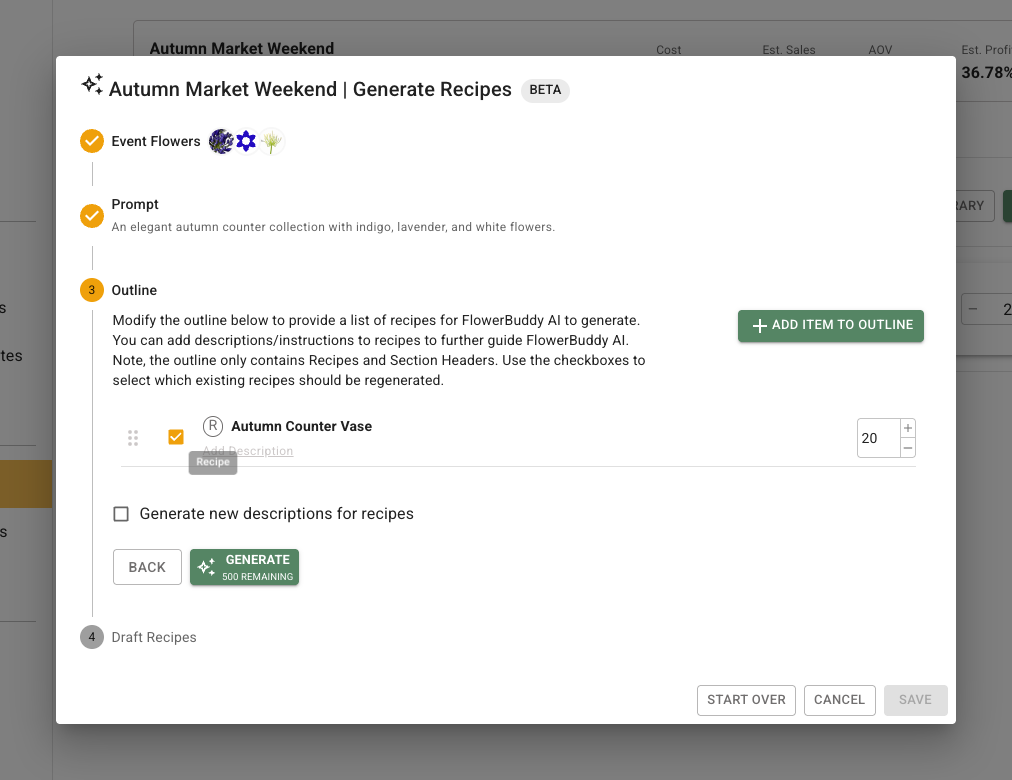
The outline starts with the plan's existing recipes and section headings. Review the whole outline, not just the products you want to change.
* Select **Add Item to Outline** > **Recipe** to add a product, or **Section** to add a heading.
* Edit each product's name, quantity, and description or instructions. The quantity is the number of complete products planned, not the number of stems in one product.
* Use the drag handle to change the order, or the delete icon to remove an outline entry.
* Use the checkboxes to choose which existing recipes should be regenerated.
* Select **Generate new descriptions for recipes** when you also want new product descriptions. Leave it cleared to keep existing descriptions.
You need a prompt and at least one recipe in the outline. Select **Generate** when they are ready. The button shows the remaining AI credits and is unavailable when there are not enough credits.
## Review and refine the drafts
In **Draft Recipes**, inspect the suggested flower choices and quantities and make corrections. A generated arrangement can need changes even when its overall style matches the prompt.
To request another version, return to **Prompt**, describe the changes, review **Outline**, and select **Refine**. For example, ask for a more compact arrangement or fewer focal flowers. Refinement uses AI credits too.
{% hint style="warning" %}
Saving draft recipes replaces the plan's existing recipes and section headings with the reviewed draft outline. Group and Cost cards are not replaced and are moved to the bottom. Check the entire outline before saving, especially if you removed an entry.
{% endhint %}
Select **Save** to apply the drafts and return to **Recipes**. Then review each product's flowers, hard goods, direct labor, quantity, and selling price before using **Order** or **Build**. Recipe generation is separate from generating a product image.