> For the complete documentation index, see [llms.txt](https://help.flowerbuddy.co/llms.txt). Markdown versions of documentation pages are available by appending `.md` to page URLs; this page is available as [Markdown](https://help.flowerbuddy.co/reference/retail-library/recipes/create-and-edit-recipes.md).
# Create and edit saved recipes
Use a saved recipe when a retail product design will be useful again. Use a group when several recipes should stay together. Neither record replaces a whole plan template.
1. Open **Retail Library** and select **Recipes**.
2. Select **Recipe** to create one reusable product, or **Group** to organize related recipe work.
3. Enter the reusable name and add the ingredients, labor, images, tags, and pricing information that belong with that saved product.
4. Open an existing card to edit it. Duplicate a card when it is a useful starting point but needs a separate saved recipe.
5. Delete a recipe only when it should no longer be available in the Library.
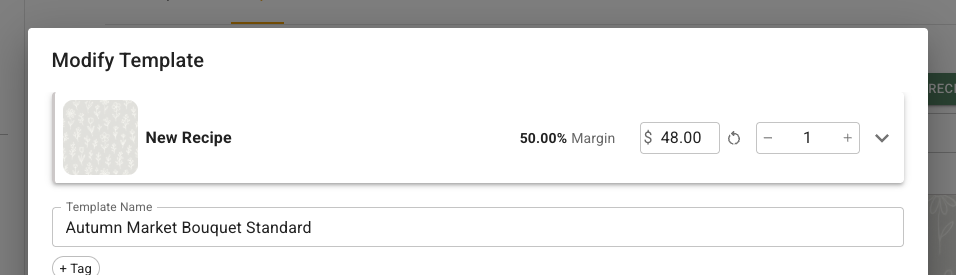
The price on a saved recipe card is its per-unit display price. It is not a total calculated from a template quantity. Changes affect the saved template you are editing. They do not rewrite recipes already copied into a plan or a plan template.
## Add a product tier
You can assign a tier directly to a saved custom recipe. A tier identifies a version of the product, such as Standard, Deluxe, or Premium. Those names are examples you can create, not built-in choices, and assigning a tier does not change the recipe's ingredients or price.
1. In **Retail Library > Recipes**, open the saved recipe's card.
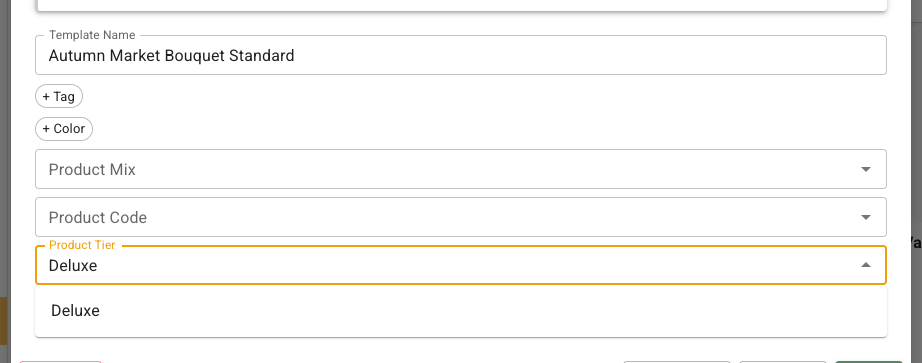
2. In **Modify Template**, scroll down to the **Product Tier** field below **Template Name** and the tag controls.
The field lets you search existing tiers or add a new name. In this example, typing `Deluxe` makes **Add 'Deluxe'** appear beneath the field.
3. Click **Product Tier** to select an existing tier. To create one, type its name, then select the **Add** option. For example, type `Deluxe` and select **Add 'Deluxe'**.
4. When the tier name appears in the field, select **Save**. Reopen the recipe to see the assigned tier in **Product Tier**.
If there are no choices yet, type a new name in the field. Select the **Add** option to create and assign it; typing alone is not enough. The new tier is then available to other products and in [Core Data > Product Tiers](/reference/core-data/product-tiers.md), where you can rename or delete it.
The saved-recipe **Product Tier** field is available when product details are enabled for your workspace. If the field is already visible, you can use it without another enabling step.
For a product already in a retail plan, expand the product and select **Edit Product Identifiers** under **Product Details**. See [Add a tier to a plan product](/reference/retail-plan-page/recipes/manage-product-details.md#add-a-product-tier).
## Save a Flower Clique recipe in the library
Add the Flower Clique recipe to a retail plan first, then use the product's **Save as Template** action to keep a reusable copy in **Retail Library > Recipes**. The **Flower Clique Recipes** tab is in the plan's **Add Templates** dialog, opened with **Library**. Follow [Add Flower Clique recipes](/reference/retail-plan-page/recipes/add-flower-clique-recipes.md) for the import and save steps.