> For the complete documentation index, see [llms.txt](https://help.flowerbuddy.co/llms.txt). Markdown versions of documentation pages are available by appending `.md` to page URLs; this page is available as [Markdown](https://help.flowerbuddy.co/reference/retail-library/editor/recipes/manage-plan-template-recipes.md).
# Manage plan template recipes
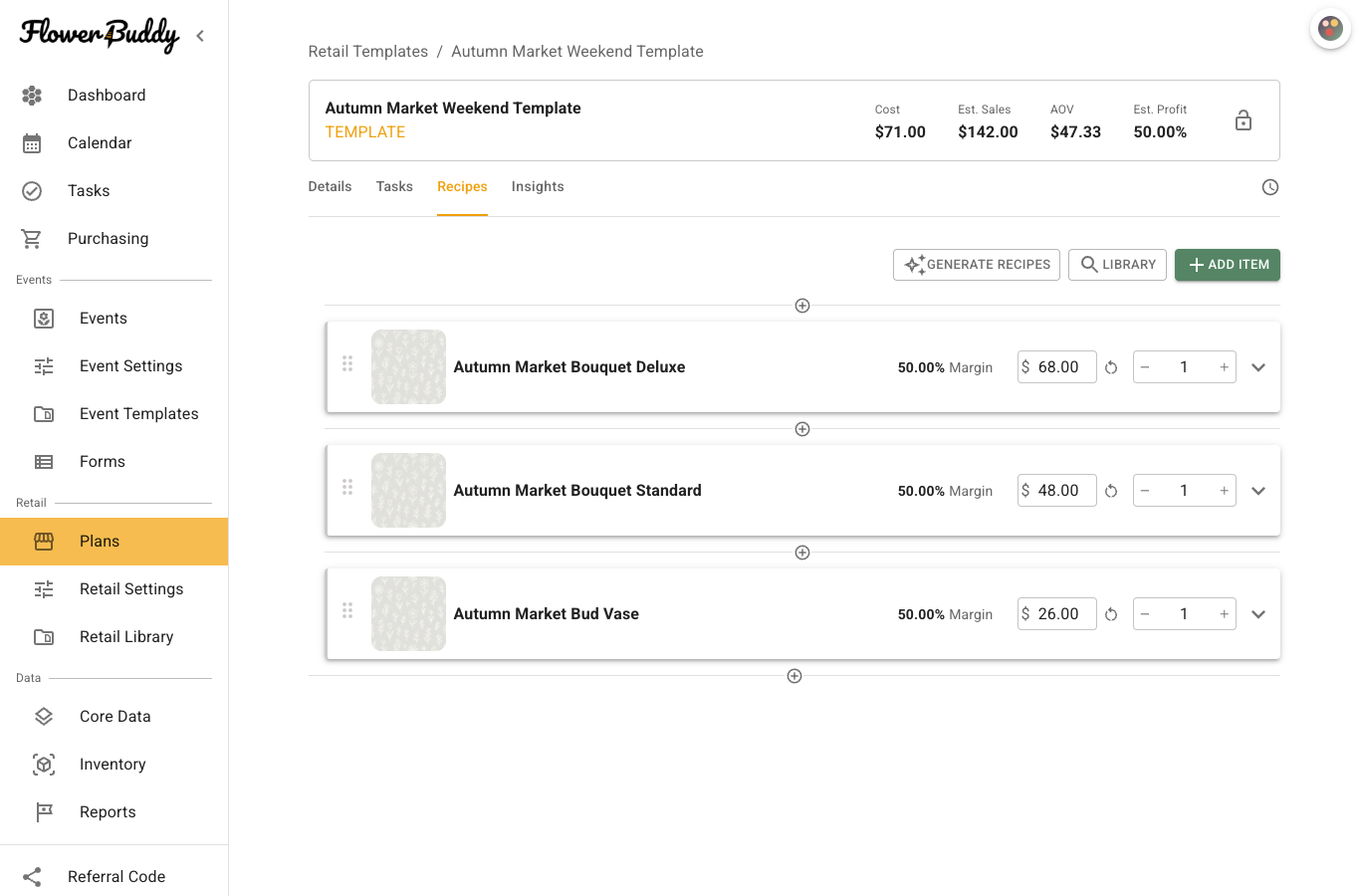
Open a plan template and select **Recipes** to prepare the products and recipe groups that future plans can receive.
1. Select **Library** to choose saved recipes from **Retail Library > Recipes**.
2. Select the saved recipes to copy, then select **Add**. The copied recipes become products in this template with a quantity of `0`.
3. Use **Add Item** to create or add a product directly in the template when it should not become a separate saved recipe first.
4. Arrange products and recipe groups in the order that helps your team prepare a future plan.
Each copied recipe is a product in this plan template. Its recipe items, images, tags, and available identifiers are copied, while its future plan quantity remains a separate choice. The saved recipe card's price is a per-unit display price, not the total price for a future plan quantity. When **Flower Clique Recipes** appears in **Add Templates**, the workspace has the required membership and connected integration. Select those recipes in the same dialog, then review the copied product before creating a retail plan from the template.
## Select recipes in Add Templates
Select each recipe card you want to copy. The footer shows the selected count, **Clear Selected**, **Cancel**, and **Add**. **Clear Selected** removes the current selection without changing the saved recipes.
The dialog below shows one selected recipe and the controls for reviewing or clearing that selection before adding it.
**Add Templates** does not offer **Select All**. The **Select All** control on the main **Retail Library > Recipes** page is for bulk maintenance of saved recipes, not for copying the whole library into a plan template.
If a retail plan already contains the products you want to reuse, [create a plan template from that plan](/reference/plans/create-a-plan-template-from-a-retail-plan.md) instead of selecting those recipes again. Review the resulting template before using it for future plans.