> For the complete documentation index, see [llms.txt](https://help.flowerbuddy.co/llms.txt). Markdown versions of documentation pages are available by appending `.md` to page URLs; this page is available as [Markdown](https://help.flowerbuddy.co/reference/reports/work-with-report-tables.md).
# Work with report tables
Every Reports tab has two levels of filtering. The controls above the table choose what FlowerBuddy loads. **Search rows** and **Filters** work within those loaded rows.
## Load the right result
Set the tab's date and **Event Status** controls, then select **Refresh**. The Events tab filters by event date, while Payments filters paid rows by payment date. A report table does not automatically reload when you change these controls. Select **Reset** when available to clear them before choosing another view.
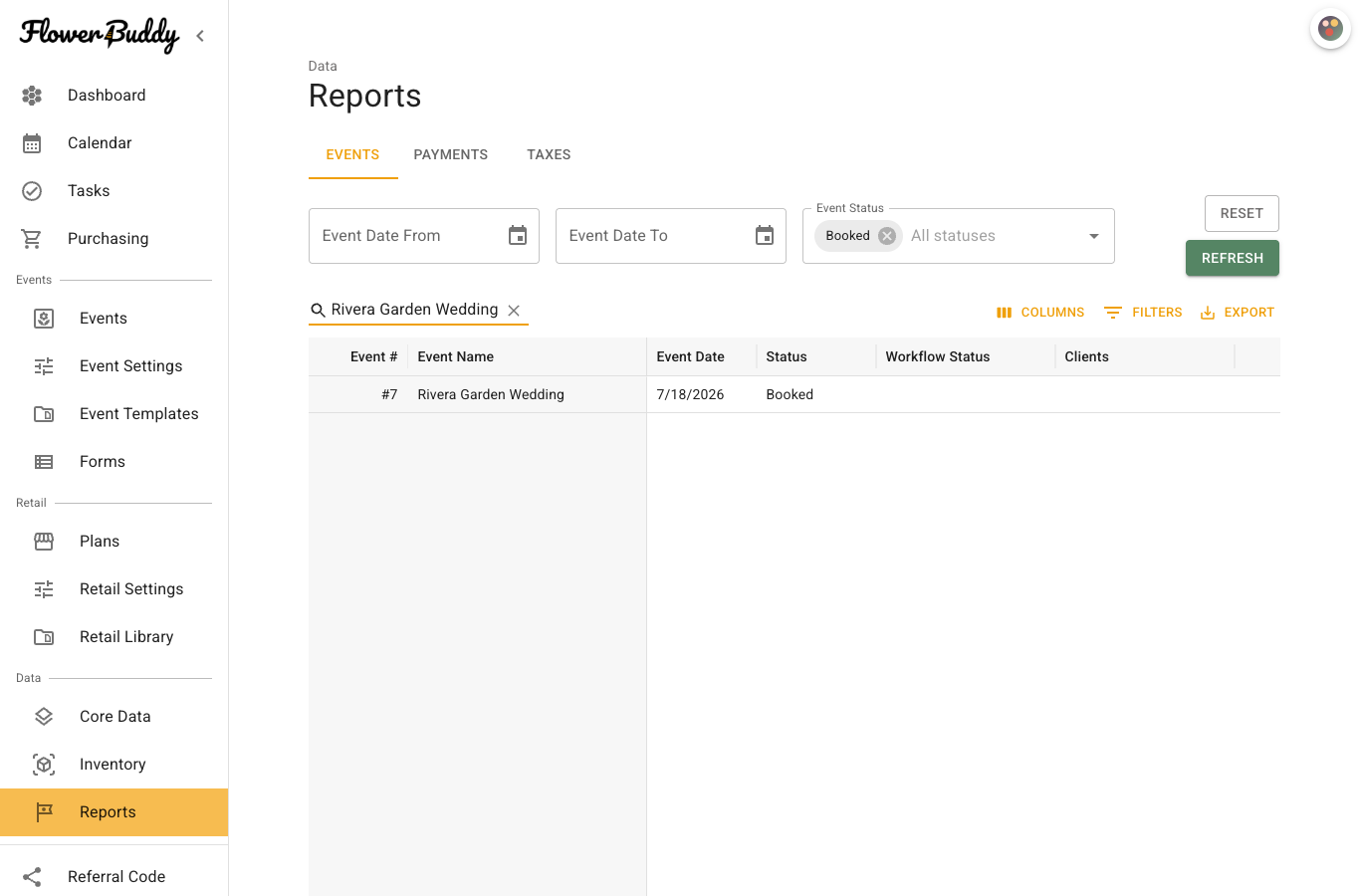
Use **Search rows** for a quick text match, such as `Rivera Garden Wedding` or a client name. Search does not change the report filters or data. Use **Filters** when you need a condition on one field, such as Status equals Booked or a balance above a chosen amount. Remove a field filter when it no longer applies.
Field filters are separate from the filters above the table. They help compare values within the results already loaded.
## Change the table view
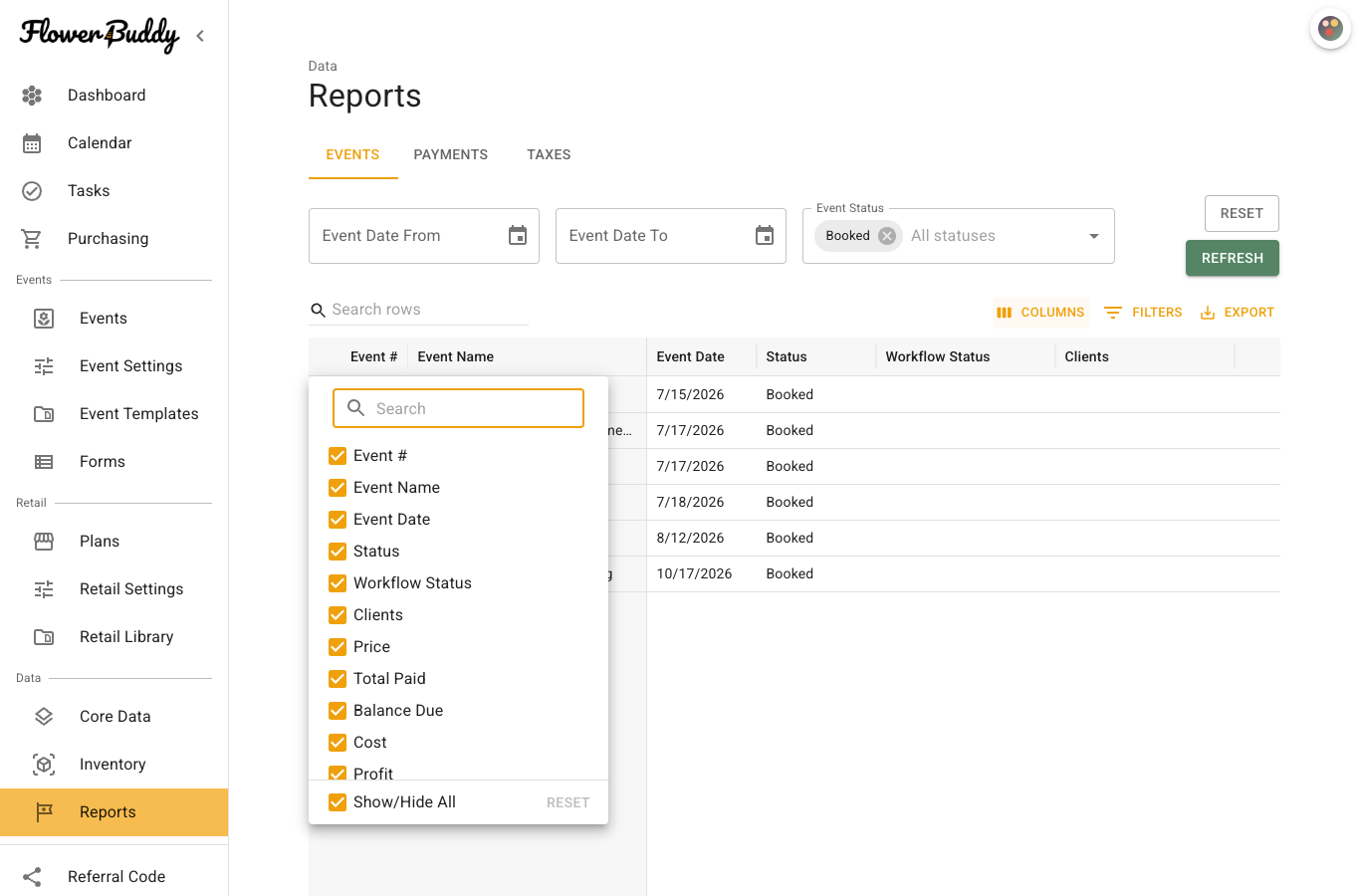
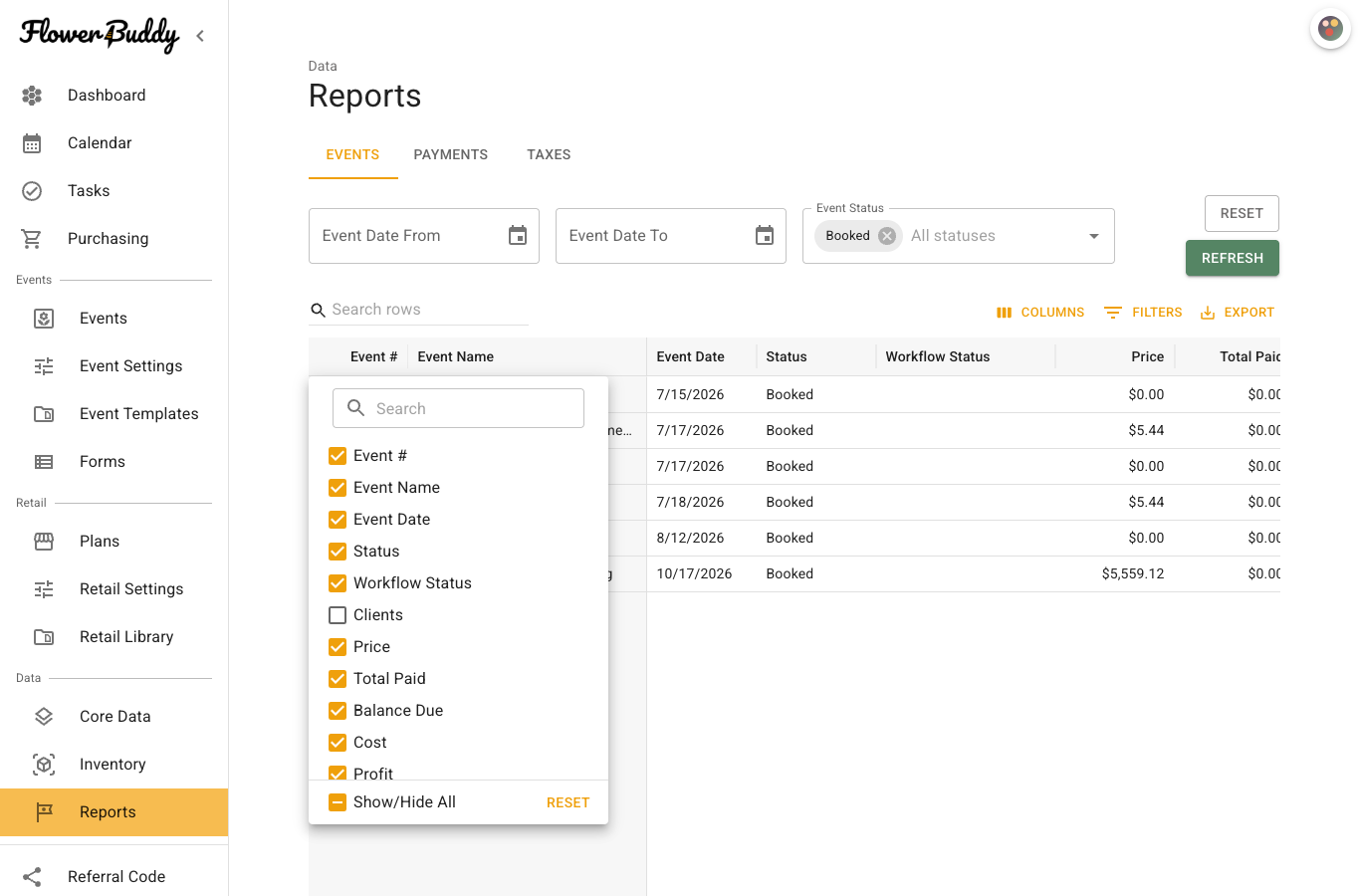
Select **Columns** to hide or restore a field. For example, hide relationship columns temporarily when comparing **Price**, **Total Paid**, and **Balance Due** across events. The choice changes your view, not the report data. Use the rows-per-page control and page buttons for longer results. Sorting, searching, and column choices do not edit events, payments, or taxes.
When a column should be omitted from an export, clear it in this menu before exporting. In the captured Events report, **Clients** was cleared, so the downloaded CSV did not include a Clients column.
## Export a CSV
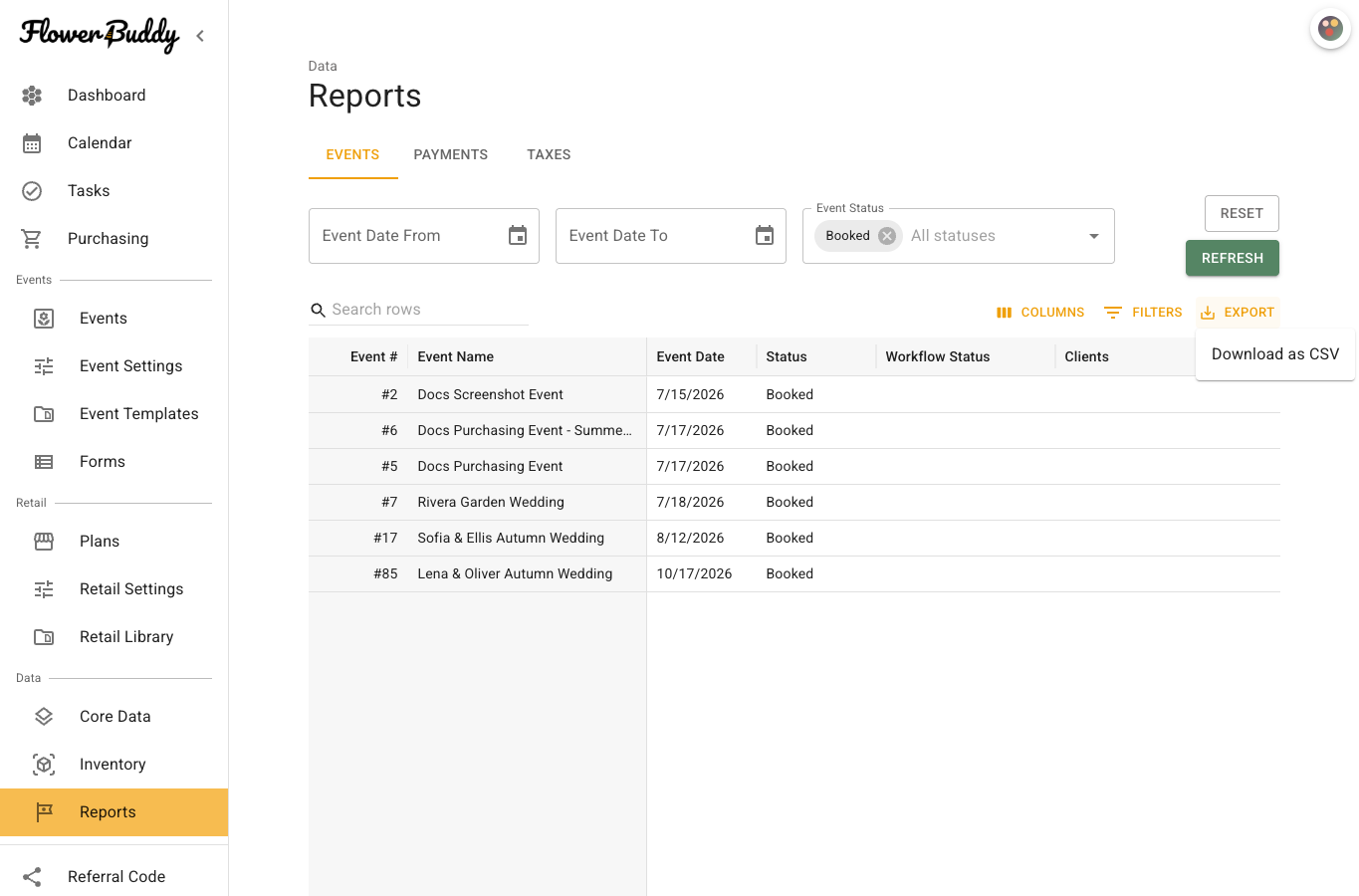
Set the report filters and visible columns, then select **Export** and **Download as CSV**. The CSV contains the loaded rows and the columns currently visible in the table. Events timestamp values are formatted for the browser time zone in the CSV. Open the file before sharing it and confirm its fields, dates, and amount context match the review you intended.