> For the complete documentation index, see [llms.txt](https://help.flowerbuddy.co/llms.txt). Markdown versions of documentation pages are available by appending `.md` to page URLs; this page is available as [Markdown](https://help.flowerbuddy.co/reference/purchasing/orders/edit-order-details-and-items.md).
# Edit purchase order details and items
Use the order editor to record what you are buying, when it will arrive, and which events it serves. These are purchase-order details, separate from the recipes' planning assumptions.
On **Purchasing > Orders**, click the order's pencil icon to edit its dates, notes, number, and status. For an order associated with an event, use **View & Manage Order** (the eye icon) to edit its items. This opens **Create & Manage Orders** with the related records and the order editor.
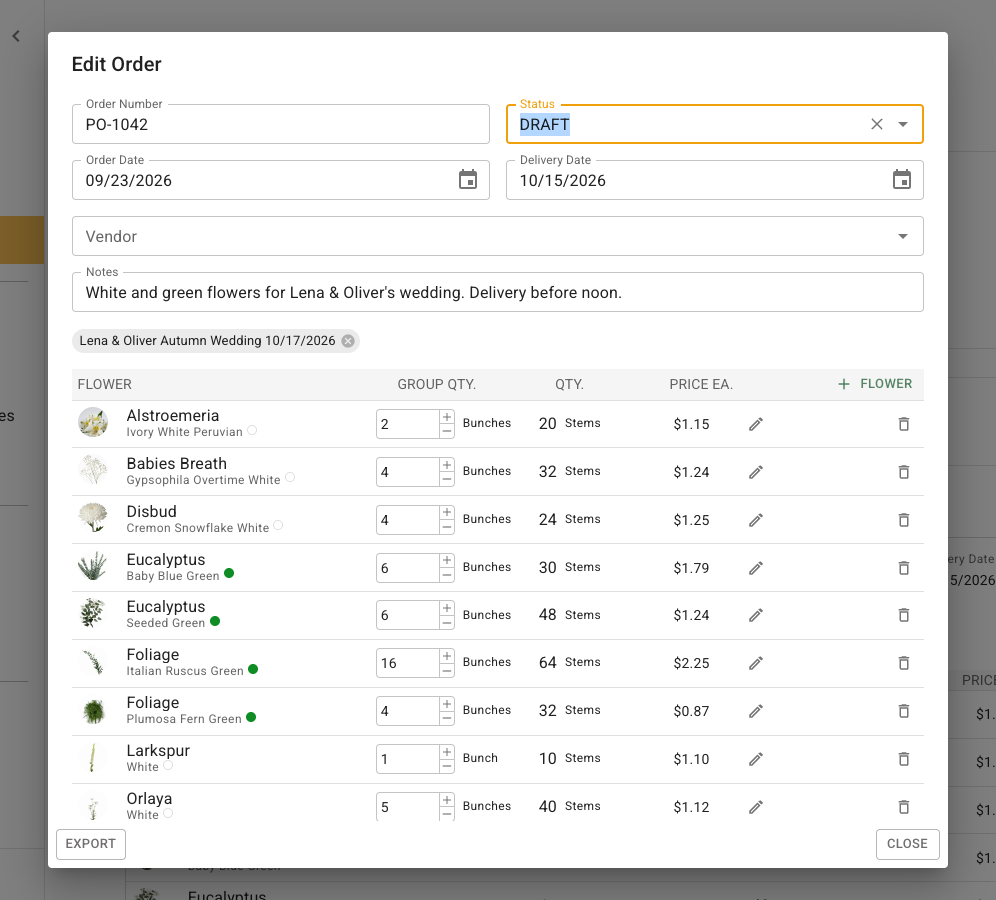
The full order editor brings the details and editable item lists together.
## Order details
* **Order Number** is the reference used to identify this purchase order.
* **Order Date** records when you placed or prepared the order.
* **Delivery Date** records when it is expected and controls the Orders tab's date filter.
* **Notes** holds instructions or reminders about the order.
* The vendor selector identifies the wholesaler location. Changing the vendor is available while the order is **Draft** and item editing is enabled; check its prices afterward.
Fields save as you finish editing them. Wait for any saving indicator before closing the dialog.
## Associated events
The associated records appear as chips. These links are set when you create an order from the selected planning items. They let FlowerBuddy include the order when retrieving those events' purchasing data. There is no event selector in the order editor for adding another association afterward.
An order associated with one event has a remove control on that chip. Removing the association leaves the order accessible from Purchasing. For an order associated with multiple events, the chips are read-only.
## Quantities and prices
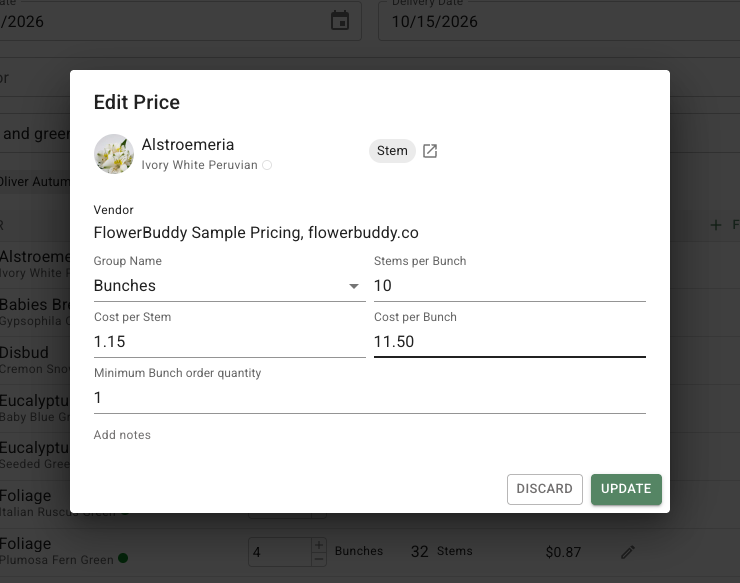
Change **Group Qty.** using the number field or plus and minus controls. **Qty.** shows the resulting stems or individual units. Click the pencil beside an item's **Price Ea.** to edit its order-specific buying price and group size.
In the price selector, click the pencil beside the current price to open **Edit Price**. Check **Group Name**, the number of individual units per group, the cost per unit or group, and the minimum order quantity. Click **Update** to save the price. For example, ten stems per bunch at $1.15 per stem gives an $11.50 bunch price.
The price editor keeps the group size and both cost amounts together so you can check that the buying units match the supplier's quote.
Use **Flower** or **Hard Good**, each marked with a plus icon, to add an item, then set the required quantity. Use the trash icon beside an item to remove it after confirming the choice. Removing it from the order does not remove it from recipes.
The Orders-table pencil dialog restricts item editing for orders with associated events. Follow **Manage Order** in that dialog, or use the eye icon in the table, to edit the order with its purchasing requirements. The same restriction applies when an order covering several events is opened from one event's Order tab.
## Create an order without a planning summary
On **Orders**, click **Order**, choose a vendor, and fill out the new order. Add flowers and hard goods directly, then click **Add Order**. You do not need to create an event solely to record an independent purchase. A standalone order's items can be edited directly from the Orders-table pencil dialog.