> For the complete documentation index, see [llms.txt](https://help.flowerbuddy.co/llms.txt). Markdown versions of documentation pages are available by appending `.md` to page URLs; this page is available as [Markdown](https://help.flowerbuddy.co/reference/purchasing/create-manage-orders/create-purchase-orders.md).
# Create purchase orders from the summary
After reviewing the [purchasing quantities](/reference/purchasing/create-manage-orders/review-quantities.md), create a purchase order to record what you will buy from a vendor. Creating an order in FlowerBuddy does not send it to the vendor or charge a payment method.
## Select the items
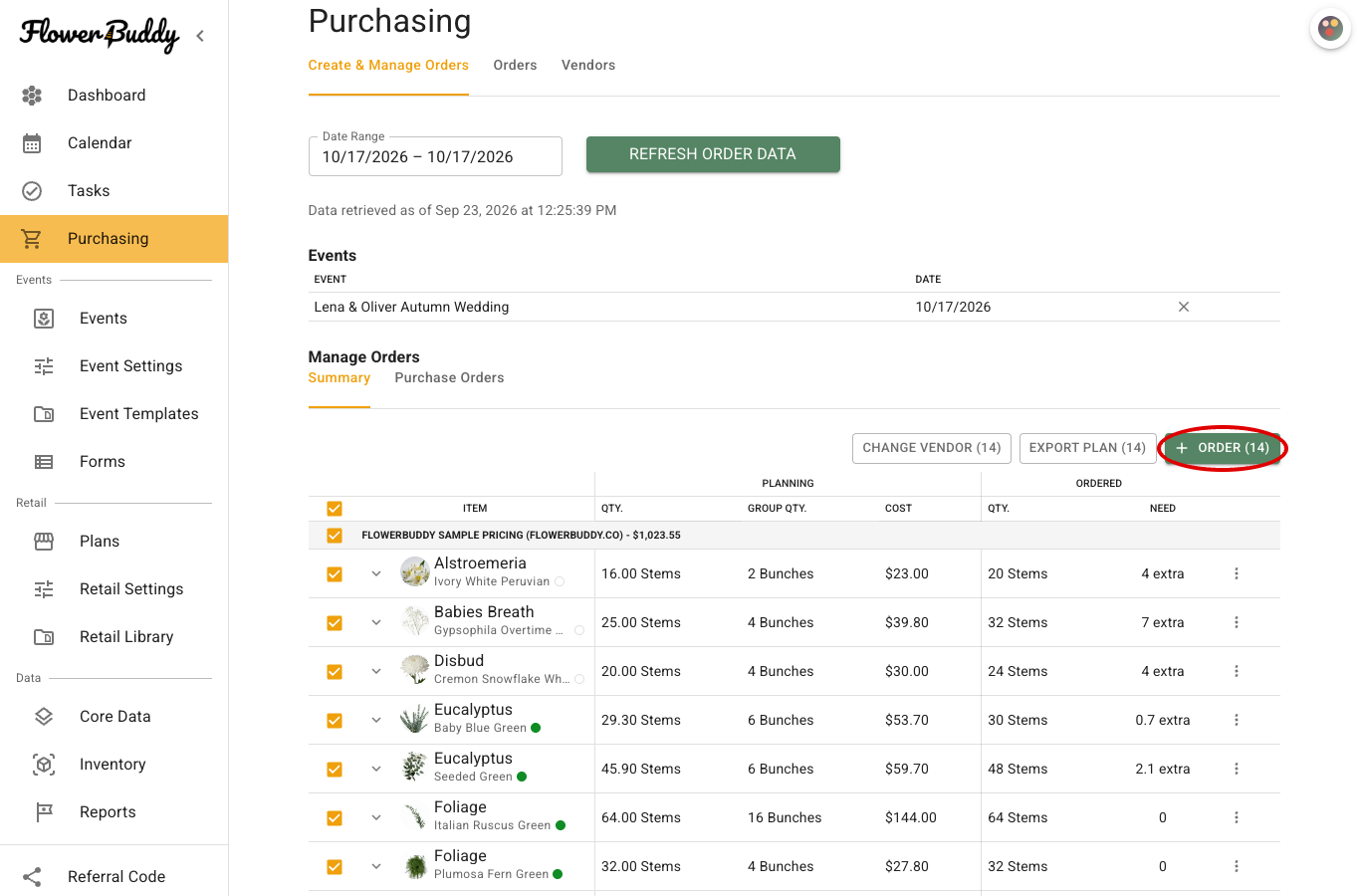
1. On **Create & Manage Orders**, retrieve your records and open **Summary**.
2. Select the checkboxes beside the items you want to order. Use the vendor-heading checkbox to select that vendor's rows together.
3. Click **Order**. If a vendor menu appears, choose the wholesaler location for this order.
Review the selection before proceeding, especially if you already have orders for these items. Creating another order adds a separate purchase record.
## Review the new order
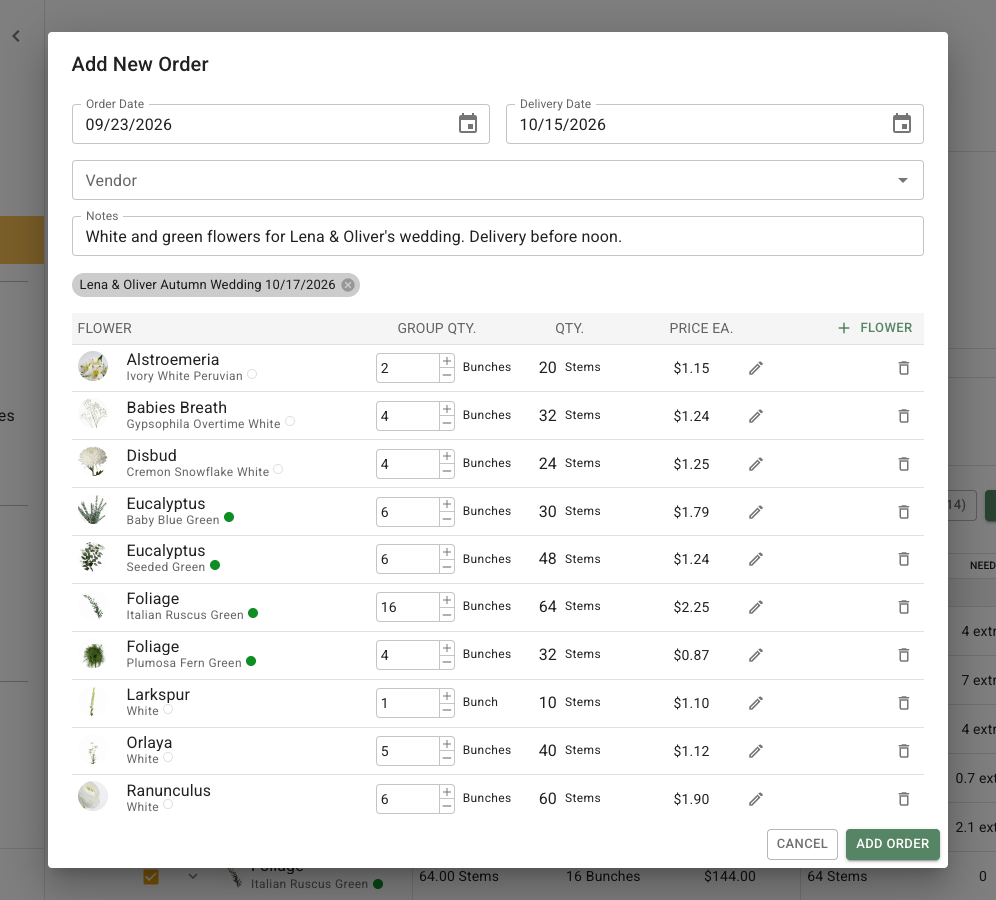
The order opens in **Add New Order**. Check its **Order Date**, **Delivery Date**, wholesaler location, notes, associated events, and item quantities. Use **Add Order** to finish. **Cancel** deletes this newly created draft; dismissing the dialog by clicking outside it does not have the same effect.
**Group Qty.** is the number of buying groups. Check the resulting **Qty.** in stems or individual units and the **Price Ea.** before closing the dialog. Add any extra flowers or hard goods using the plus buttons in their respective sections.
Click **Add Order** when you have finished reviewing the dialog.
## Check the saved result
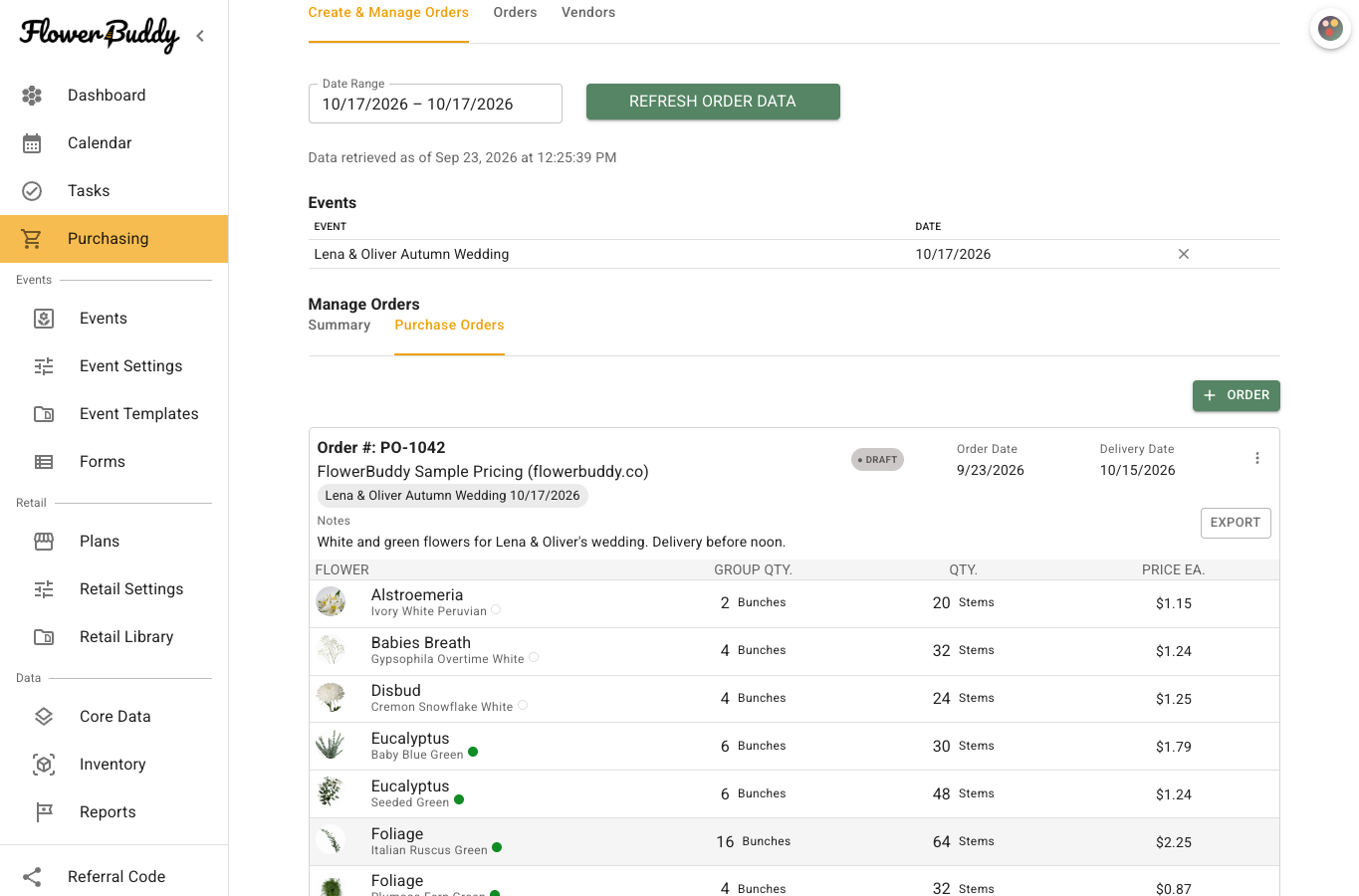
Open **Purchase Orders** to see the saved draft, then return to **Summary** to compare **Planning** and **Ordered**. Remaining needs may require another vendor or another order; extra quantities may be intentional.
The saved order shows its vendor, dates, status, and purchased quantities together.
When ready, [copy the purchase order](/reference/purchasing/orders/copy-purchase-order.md) and communicate with the wholesaler separately. Update the order status to record that progress.