> For the complete documentation index, see [llms.txt](https://help.flowerbuddy.co/llms.txt). Markdown versions of documentation pages are available by appending `.md` to page URLs; this page is available as [Markdown](https://help.flowerbuddy.co/reference/navigation-shell/use-the-sidebar.md).
# Use the sidebar
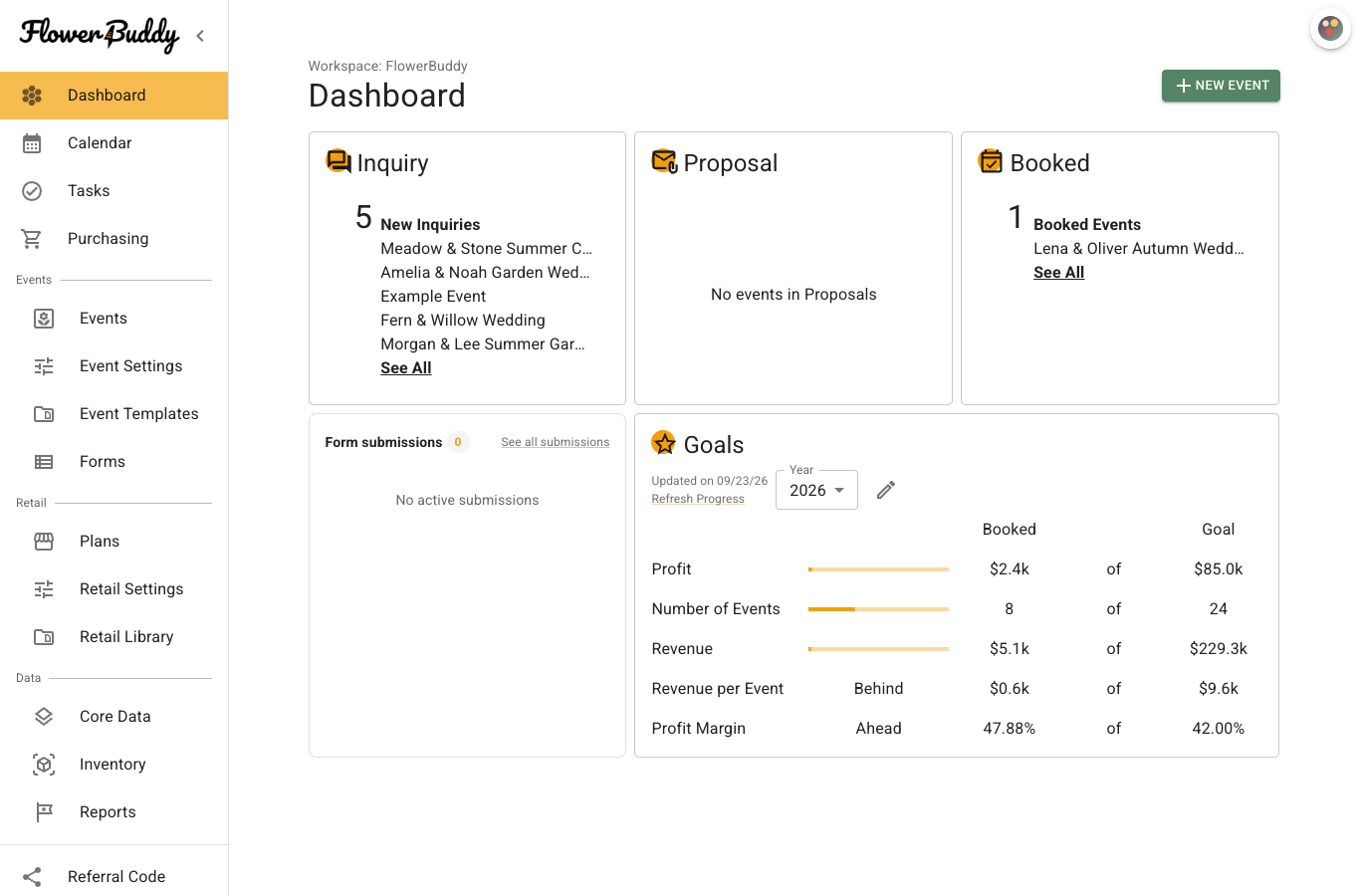
Use the sidebar to move among the FlowerBuddy pages available in your current workspace. The active page is highlighted. On a wide screen, the sidebar can show page labels or collapse to icons with tooltips.
## Open a page
Select a page name in the sidebar. On a wide screen, **Events**, **Retail**, and **Data** are group labels that separate their available child pages. Select the page link listed below the group label. For example, **Events** contains **Events**, **Event Settings**, **Event Templates**, and **Forms** when your access includes them.
The sidebar keeps **Plans**, **Retail Settings**, and **Retail Library** distinct from event pages. **Core Data**, **Inventory**, **Accounting**, and **Reports** appear in the **Data** group when available. A missing page does not necessarily mean that the page has no records. It can mean your access or the workspace's available features do not include that page.
This populated sidebar shows the groups and an active page. Your workspace can show a different set of destinations.
## Collapse the desktop sidebar
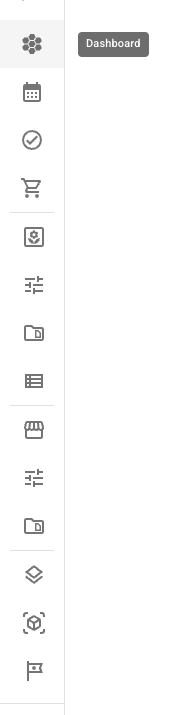
Select the arrow beside the FlowerBuddy logo to collapse the desktop sidebar. The page labels are hidden, but each available icon has a tooltip with its page name. Hover over the logo area and select the menu control to expand it again. FlowerBuddy remembers the expanded or collapsed choice in your browser.
The collapsed view keeps the same page order while using icons. Hover over an icon when you need to confirm its page name.
## Open an internal event link
FlowerBuddy can open a shared internal event link that uses an event number. This is an internal FlowerBuddy link, not a Client Portal link for a client. Open it while signed in to the workspace that contains the event. FlowerBuddy looks for the numbered event in the current workspace, then opens the event on its normal page.
If the link cannot open the event, first check the **Current workspace** named on the message. Select [Switch workspaces](/reference/navigation-shell/switch-workspaces.md) when your account belongs to the workspace that owns the event. FlowerBuddy shows **Event not found or you don't have permission to view it.** when it cannot find an event you can view in that workspace. It does not reveal whether the same event number exists elsewhere.
An expired session shows **Your session has expired. Please sign in again.** and provides **Sign in again**. Other temporary lookup failures provide **Try again**. Use **Back to Events** to return to the Events page.
Browser links copied from a specific event tab can return to that tab when the tab is available to your account. They still require FlowerBuddy account access and the correct workspace. They do not grant access to an event or expose a public client view. See [Log in and log out](/reference/account-access/log-in-and-log-out.md) when a link sends you to account access first.