> For the complete documentation index, see [llms.txt](https://help.flowerbuddy.co/llms.txt). Markdown versions of documentation pages are available by appending `.md` to page URLs; this page is available as [Markdown](https://help.flowerbuddy.co/reference/forms/form-editor/form-fields/configure-recipe-and-timeline-fields.md).
# Configure recipe quantity and timeline fields
Use **Recipe Quantity** when a recipient should provide quantities for selected recipes. **Timeline Item** collects one activity you name, while **Timeline Items** lets recipients build their own schedule. Use [Location or Locations](/reference/forms/form-editor/form-fields/configure-location-fields.md) when you need places without scheduled times.
## Add recipe quantity questions
1. In **Form Details**, link the form to an event template.
2. In **Form Fields**, select **Add Field**, choose **Recipe Quantity**, and select **Add Recipe Quantity**.
3. Select **Add Recipe from** the linked event template.
4. In **Add Recipe Options**, select the recipes recipients may quantify. Use **Select All** to include every listed recipe or **Clear Selection** to start over, then select **Add**.
5. Enter question text and turn on **Required** if the response must include quantities.
The event template supplies the available recipes. If the form has no linked event template, the editor shows a warning and cannot offer recipe options. If a selected recipe is no longer in the linked template, the field marks it with a warning and that recipe will not be available as an option.
Recipe Quantity answers are intended to populate recipe quantities in an event created from the submission. They do not add new recipes to the template.
## Add a timeline item
1. Select **Add Field**, choose **Timeline Item**, and select **Add Timeline Item**.
2. Enter question text that names the activity, such as "Ceremony". That text becomes the timeline item's name when an event is created from the response.
3. Add description text when the recipient needs a format or example.
4. Turn on **Required** when the activity is necessary for the response.
The response can include the timeline item's date, time, and location. Use the event's Details tab for the full event timeline after the response has been reviewed.
Place an **Event Date** question before timeline questions when you want that date to provide their starting value. Later timeline questions can also use the date and time entered for an earlier timeline item. Recipients can change each item's date and time; an item they have edited is not overwritten by a later change to the event date. Ask recipients to check each time rather than treating the starting value as their confirmed schedule.
For a location, the recipient can choose a Google Maps result or select **Enter location manually** and enter a **Location Name**. **Search Google Maps instead** returns to the search option. A required timeline question needs a date and time and either a selected map location or a manually entered location name.
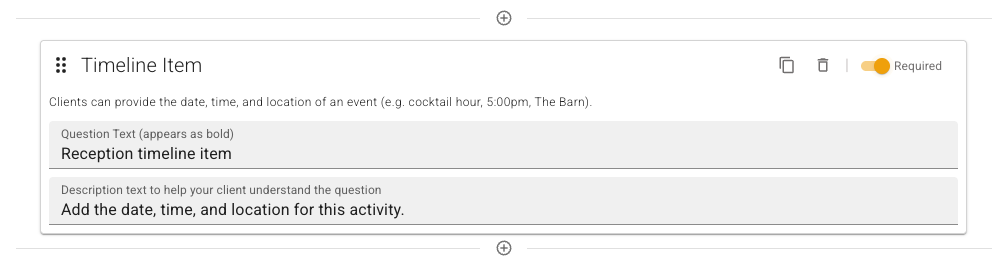
This Timeline Item example asks for the reception timing and location. The description tells the recipient which activity to describe.
## Add a list of timeline items
1. Select **Add Field**, choose **Timeline Items**, and select **Add Timeline Items**.
2. Enter question text and a description explaining the schedule you need.
3. Turn on **Required** when recipients must add at least one activity.
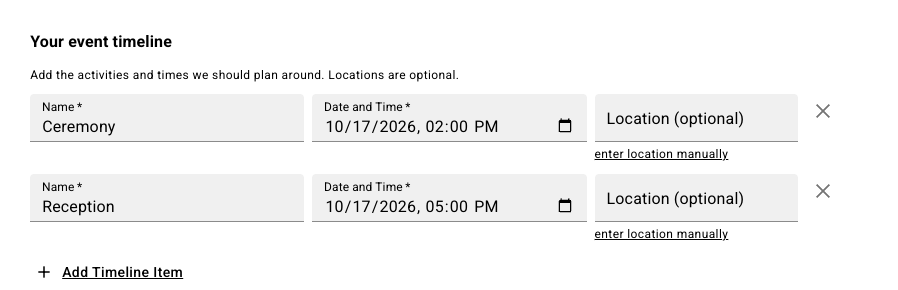
On the public form, recipients use **Add Timeline Item** to add rows. Each row needs a **Name** and **Date and Time**. Its **Location (optional)** can be a selected Google Maps result or a manually entered place. The remove control deletes a row from the response.
For example, a recipient can enter ceremony and reception times in one schedule question rather than answering separate fixed questions for each activity.
The list arranges activities chronologically. A new row starts at the latest time already entered in that list, or uses the form's event date when the list is empty. Recipients still need to check and change that starting time.
When an event is created from the submission, each row becomes a separate timeline item. Any answered locations are also associated with the event. Review the [event timeline](/reference/event-page/details/plan-event-timeline.md) and [event locations](/reference/event-page/details/manage-event-locations.md) after creation.