> For the complete documentation index, see [llms.txt](https://help.flowerbuddy.co/llms.txt). Markdown versions of documentation pages are available by appending `.md` to page URLs; this page is available as [Markdown](https://help.flowerbuddy.co/reference/forms/form-editor/form-fields/configure-contact-and-date-fields.md).
# Configure contact and event date fields
Use **Contact Details** to collect information about the client and **Event Date** to collect the date the event is planned to take place. These fields are the key form inputs when a submission can create an event.
## Configure Contact Details
1. Add a **Contact Details** field.
2. Enter its question text, such as "Tell us how to reach you."
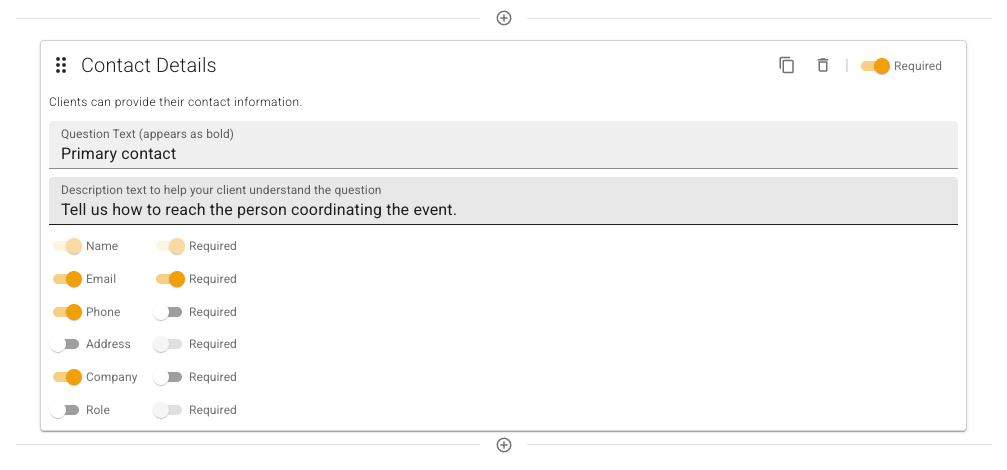
3. Turn on the contact sub-fields you want to collect: **Name**, **Email**, **Phone**, **Address**, **Company**, or **Role**.
4. Turn on **Required** for the field when the response must include contact information.
5. For each enabled sub-field, turn on its **Required** switch when that particular value must be provided.
**Name** is always enabled for a Contact Details field. The field-level **Required** switch and each sub-field's **Required** switch work together. For a required Contact Details field, also require at least one of **Email**, **Phone**, **Address**, or **Company**; requiring the name alone does not clear the contact-information warning.
**Contact Details** is for the client or primary person responding. Use [Professional Contact](/reference/forms/form-editor/form-fields/configure-professional-contact-fields.md) when the response should collect a planner, venue contact, or another person involved in the event.
In this example, the form requires the primary contact's name and email address. Phone and company are included but optional.
## Configure Event Date
1. Add an **Event Date** field.
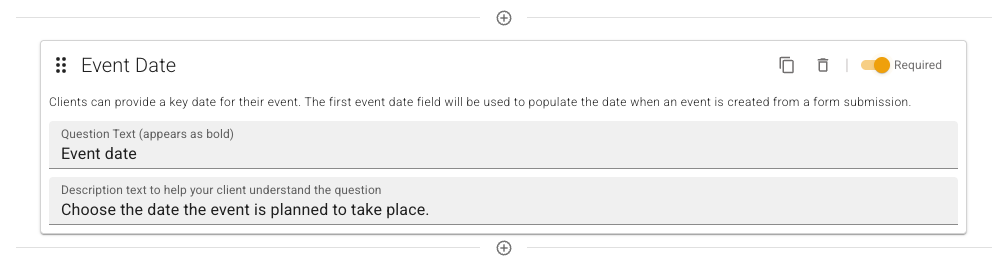
2. Enter question text that tells the recipient which date to choose.
3. Turn on **Required** when an event created from the response should have a date supplied by the recipient.
The first Event Date field is the date FlowerBuddy uses when creating an event from a form submission. If the form has no event date answer, an automatically created event defaults to 30 days after the submission date.
The Event Date field below asks for the planned event date and makes the answer required.
## Check the warnings
The Form Editor warns when a form has no contact field, no event date field, or a field that is present but not required. The warning is about the information the form collects. It does not prevent you from using the form for a different purpose.