> For the complete documentation index, see [llms.txt](https://help.flowerbuddy.co/llms.txt). Markdown versions of documentation pages are available by appending `.md` to page URLs; this page is available as [Markdown](https://help.flowerbuddy.co/reference/forms/form-editor/form-fields/configure-answer-fields.md).
# Configure text, number, and choice fields
Use answer fields when a recipient needs to describe a preference, provide a quantity, or choose from options.
## Choose the field type
* **Generic Text** accepts text. Choose **Single Line** for a short answer or **Paragraph** for a longer response.
* **Generic Number** accepts a number. Choose **Integer** for whole numbers or **Decimal** when fractional values are meaningful.
* **Multiple Choice** provides one selectable option.
* **Multiple Select** allows more than one option.
Choose the type based on the answer you need to review. For example, use Multiple Choice for one service level and Multiple Select for several preferred colors. Use Generic Number for a guest count when a numeric answer is easier to review than free text.
## Add a text or number field
1. Select **Add Field** and choose **Generic Text** or **Generic Number**.
2. Enter **Question Text (appears as bold)**.
3. Add description text if the expected format needs explanation.
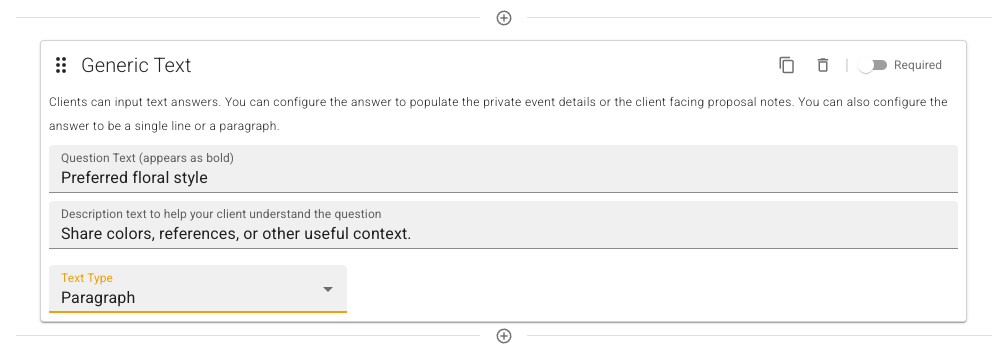
4. Choose **Text Type** or **Number Type**.
5. Turn on **Required** when the answer is necessary.
The public form uses a single-line or paragraph input for Generic Text and a numeric input for Generic Number.
This text field asks for a floral style description and uses **Paragraph** to give the recipient room for a longer answer.
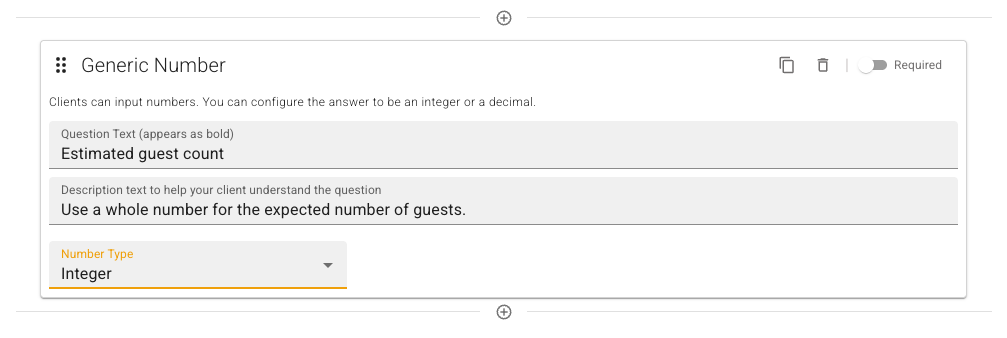
For a guest count, **Integer** accepts a whole number. The question and description explain which number the recipient should enter.
## Add options
1. Add a **Multiple Choice** or **Multiple Select** field.
2. Enter the question and optional description.
3. Under **Options**, select **Add Option**.
4. Select an option chip to edit its text, then confirm the edit.
5. Use the chip's delete control to remove an option.
The options are the choices the recipient sees. Review them for clarity before sharing the form.
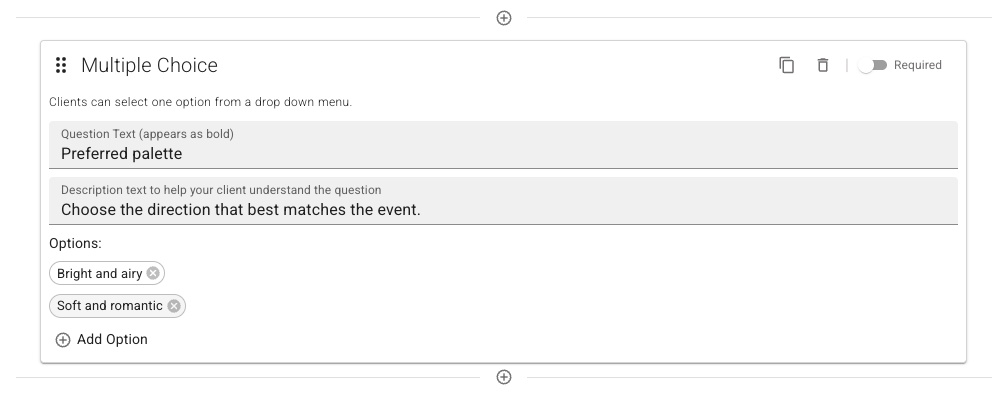
This Multiple Choice example offers two palette directions. The option chips below the description are the choices recipients will see.
## Understand where answers appear
Every submitted answer remains available in the form submission details. When the submission creates an event, FlowerBuddy also adds Generic Text, Generic Number, Multiple Choice, and Multiple Select questions and answers to that event's internal notes.
These answer fields do not map directly to a recipe's **Proposal Notes** or **Florist Notes**. Review the linked submission or the event notes, then copy an answer into a recipe note when it belongs with a particular design.