> For the complete documentation index, see [llms.txt](https://help.flowerbuddy.co/llms.txt). Markdown versions of documentation pages are available by appending `.md` to page URLs; this page is available as [Markdown](https://help.flowerbuddy.co/reference/forms/form-editor/form-fields/add-and-organize-form-fields.md).
# Add and organize form fields
Add a field for each answer you need from a recipient. Each field card has common controls for required status, question wording, helper text, duplication, deletion, and order.
## Add a field
1. Open the form in the **Form Editor**.
2. In **Form Fields**, select **Add Field**.
3. Browse the field types or use **Search field types** to find the answer you need.
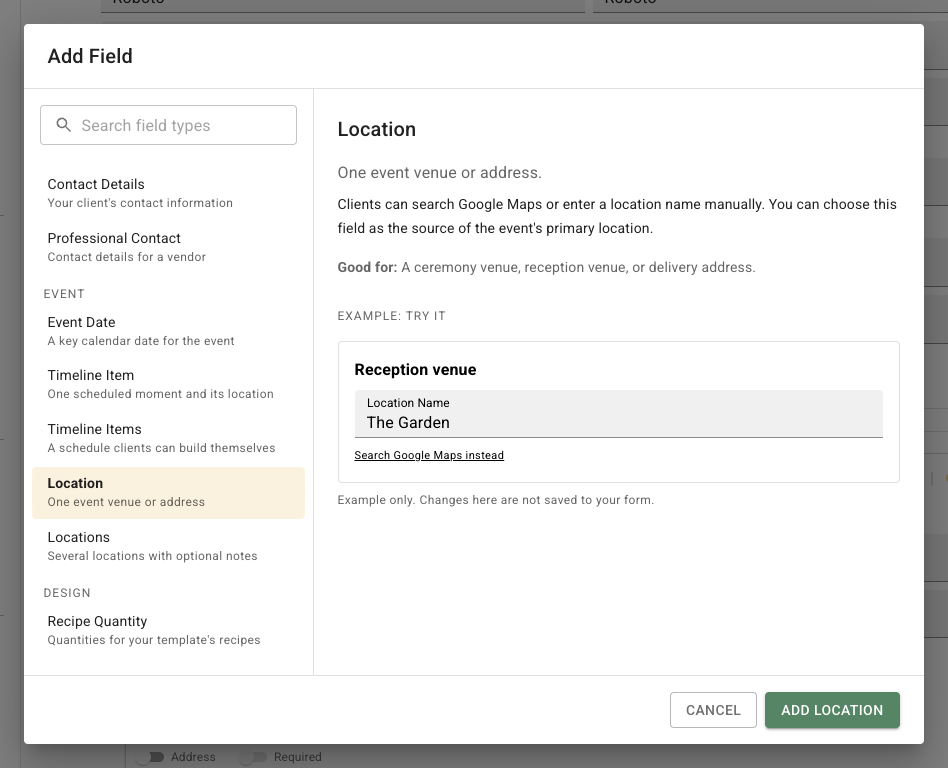
4. Select a type, read its description, and try the example when it helps you choose. Changes to the example are not saved to your form.
5. Select the type's add button, such as **Add Location** or **Add Generic Text**.
You can also use the plus control between field cards to insert a field at that position. The available types are listed in [Form fields](/reference/forms/form-editor/form-fields.md).
The **Add Field** dialog groups the choices and shows an explanation and interactive example beside the selected type.
## Edit a field
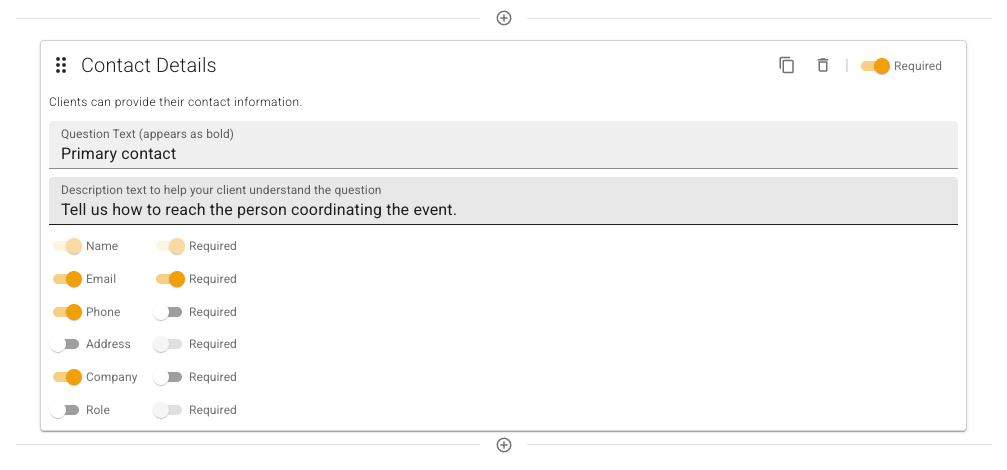
1. Enter **Question Text (appears as bold)** to give the question its public label.
2. Enter **Description text to help your client understand the question** when the recipient needs context.
3. Turn on **Required** when the form should not submit without an answer.
4. Use the type-specific controls below these fields for options, number format, text format, or contact sub-fields.
Question text and description text are separate. A description can explain the choice without becoming the question's bold label.
## Reuse, remove, and reorder fields
* Select the duplicate icon on a field card to create a copy of that field.
* Select the delete icon to remove the field.
* Drag the handle at the left of a field card to change its order.
The public form follows the saved field order. Review the result with [Preview a public form](/reference/forms/public-form/preview-a-public-form.md) before sharing the link.
The editor shows the common field-card controls above each question's type-specific settings.
## Resolve editor warnings
FlowerBuddy warns when no **Contact Details** field or **Event Date** field exists, and warns when either is present but not required. A contact field also warns when no contact sub-field is enabled, or when the field is required but none of its enabled sub-fields is required.
Resolve a warning when the form is intended to create complete event records. A warning can be an intentional choice for a form that is only collecting an initial response.