> For the complete documentation index, see [llms.txt](https://help.flowerbuddy.co/llms.txt). Markdown versions of documentation pages are available by appending `.md` to page URLs; this page is available as [Markdown](https://help.flowerbuddy.co/reference/events/find-filter-sort-and-review-events.md).
# Search, filter, and sort events
Search and filters above the [Events list](/reference/events.md) help you choose which events to display. You can also sort the list to compare dates or prices. These controls change the view, not the events.
## Search by name or event number
Enter part of an event name or its event number in **Search**. Matching events remain in the list. Clear the search text to see the other events again.
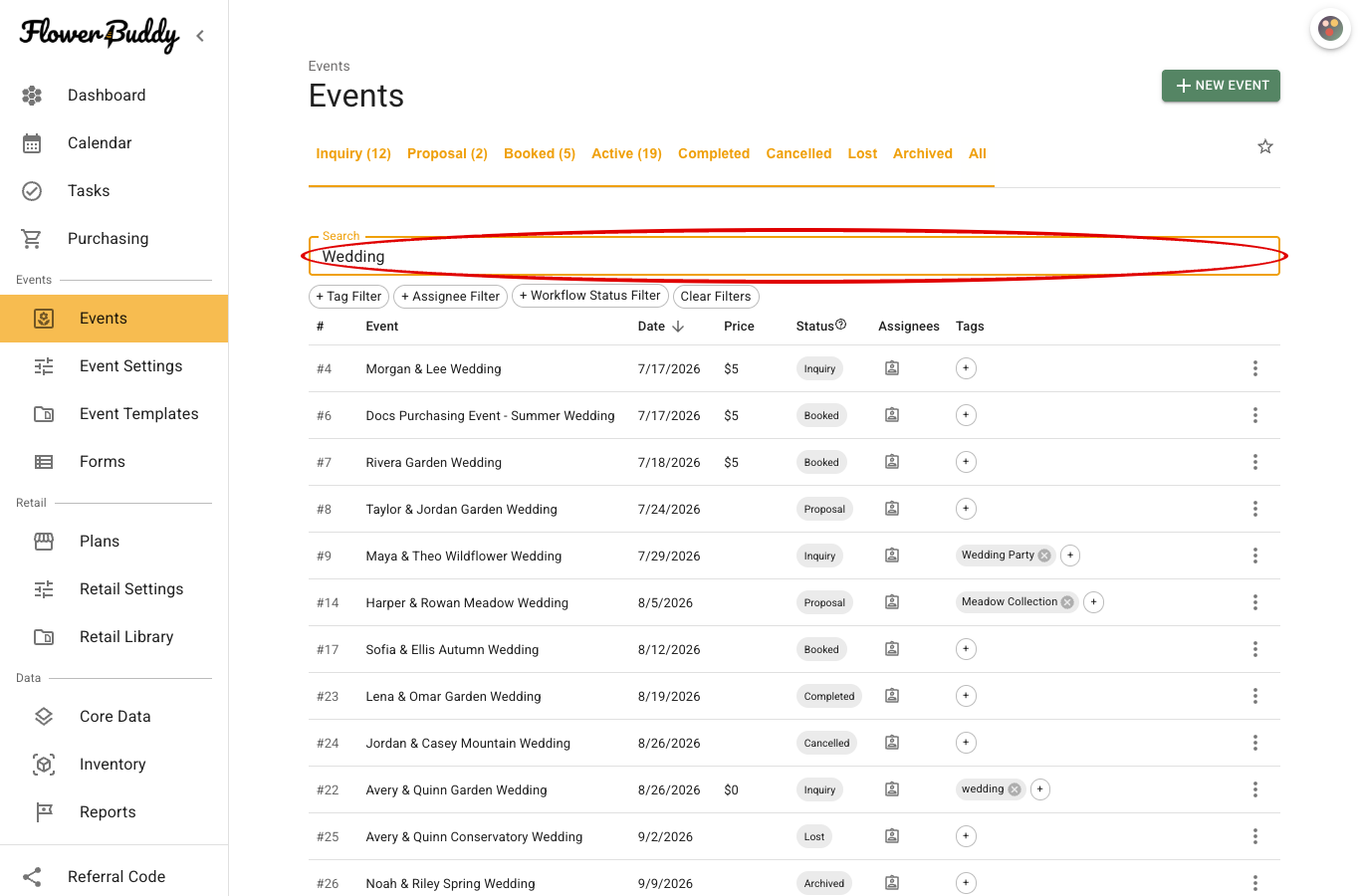
For example, searching for "Wedding" shows events with that word in their name. The circled search field is below the status filters.
Select an event name to open its [Event Page](/reference/event-page.md).
## Event status filters
Select a status above **Search** to show events in that stage:
* **Inquiry**, **Proposal**, or **Booked** shows that one status.
* **Active** shows Inquiry, Proposal, and Booked events together.
* **Completed**, **Cancelled**, **Lost**, or **Archived** shows that outcome.
* **All** removes the event-status limit.
The highlighted status shows your current selection. For example, select **Booked** when reviewing your confirmed events. **Active** is a combined view, not a separate event status.
## Tag filter
Tags help you group events with something in common, such as a collection or venue.
1. Select **+ Tag Filter** beneath **Search**.
2. Choose one or more **Tags**.
3. Select **Add**.
An event must have all the tags you selected to remain in the results. In this example, selecting "Meadow Collection" limits the list to events with that tag.
To remove one tag filter, select the X on its selected tag below the filter controls. This removes the filter, not the tag from any event. To change an event's tags, see [Assign team members and tags](/reference/events/assign-team-members-and-tags.md).
## Assignee filter
Use **+ Assignee Filter** to review events involving particular team members. In **Add Assignee Filter**, select one or more **Assignees**, then select **Add**. The results include events assigned to any of those people, directly or through an Event role.
For example, a manager could select a designer to review the events they are involved in. Remove a selected person with the X beside their name below the filter controls.
The assignee filter is available on supported subscriptions. Filtering does not change the event's assignments.
## Workflow Status filter
**Workflow Status** adds your own sub-status detail, separate from the main event status. Use this filter when you want to review events at a particular point in your own process.
1. Select **+ Workflow Status Filter**.
2. In **Workflow status**, select the values to include.
3. Select **Done**.
The results include events matching any selected Workflow Status. **No workflow status** shows events that do not yet have one assigned.
Remove a selected value with the X on its filter label. For example, you could combine **Proposal** with your own "Design ready" Workflow Status to review proposals at that stage.
## Clear filters
Select **Clear Filters** to remove the search text, tags, assignees, and Workflow Status selections. Select **All** separately if you also want to remove the main event-status limit.
If an event you expect is missing, clear these filters before searching again.
## Sort the event list
Select the **#**, **Event**, **Date**, or **Price** column heading to sort by that value. Select it again to reverse the order; the arrow shows the current direction. For example, sort by **Date** to bring upcoming events together.
The **Status**, **Assignees**, and **Tags** columns help you compare those details without opening each event.
## Save a default status view
Choose your preferred event-status view, then select the star to the right of the status filters. For example, save **Active** if that is where you usually start.
A filled star marks the saved default. This saves the status selection for you in this browser, not the search text or other filters, and does not change any event's status.