> For the complete documentation index, see [llms.txt](https://help.flowerbuddy.co/llms.txt). Markdown versions of documentation pages are available by appending `.md` to page URLs; this page is available as [Markdown](https://help.flowerbuddy.co/reference/events/change-event-status.md).
# Change an event status from the Events page
Change an event's main status when its broad position or outcome changes. The available main statuses are **Archived**, **Inquiry**, **Proposal**, **Booked**, **Completed**, **Cancelled**, and **Lost**.
## Open the status menu
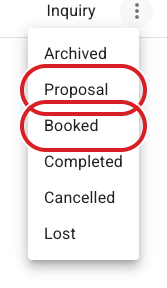
On the **Events** page, find an event you can edit. Select its status chip, then choose the new status. The status menu does not show the event's current status as another choice.
The status menu lists the main statuses available for the event.
For example, move an event from **Inquiry** to **Proposal** when it has progressed to a client-facing offer. Move it to **Completed** after the event work is finished. Choose **Cancelled** or **Lost** when the event will not proceed.
## Confirm the status change
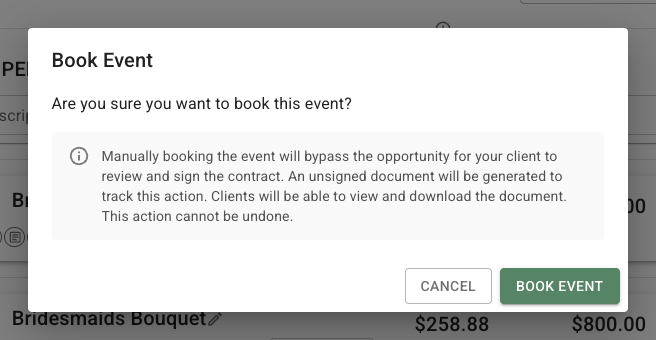
Choosing **Booked** opens **Book Event**. Manual booking bypasses client contract review and signing and generates an unsigned document the client can view and download. This action cannot be undone. Review the warning and any displayed fee before confirming. Booking does not mean a contract was signed or a client payment was received.
The confirmation dialog explains the effect before you select **Book Event**. Select **Cancel** to leave the status unchanged.
After the change succeeds, the event row shows the selected status. Use the [Event Page](/reference/event-page.md) when you need to review or change the event's status from its summary.