> For the complete documentation index, see [llms.txt](https://help.flowerbuddy.co/llms.txt). Markdown versions of documentation pages are available by appending `.md` to page URLs; this page is available as [Markdown](https://help.flowerbuddy.co/reference/event-templates/recipe-templates/create-and-edit-recipe-templates.md).
# Create and edit recipe templates
The recipe template editor holds the reusable information for one design or cost. Open **Event Templates** from the **Events** section in the left navigation, select **Recipe Templates**, and choose **Recipe**, **Fixed**, **Percent**, or **Group**. To edit an existing template, select its card.
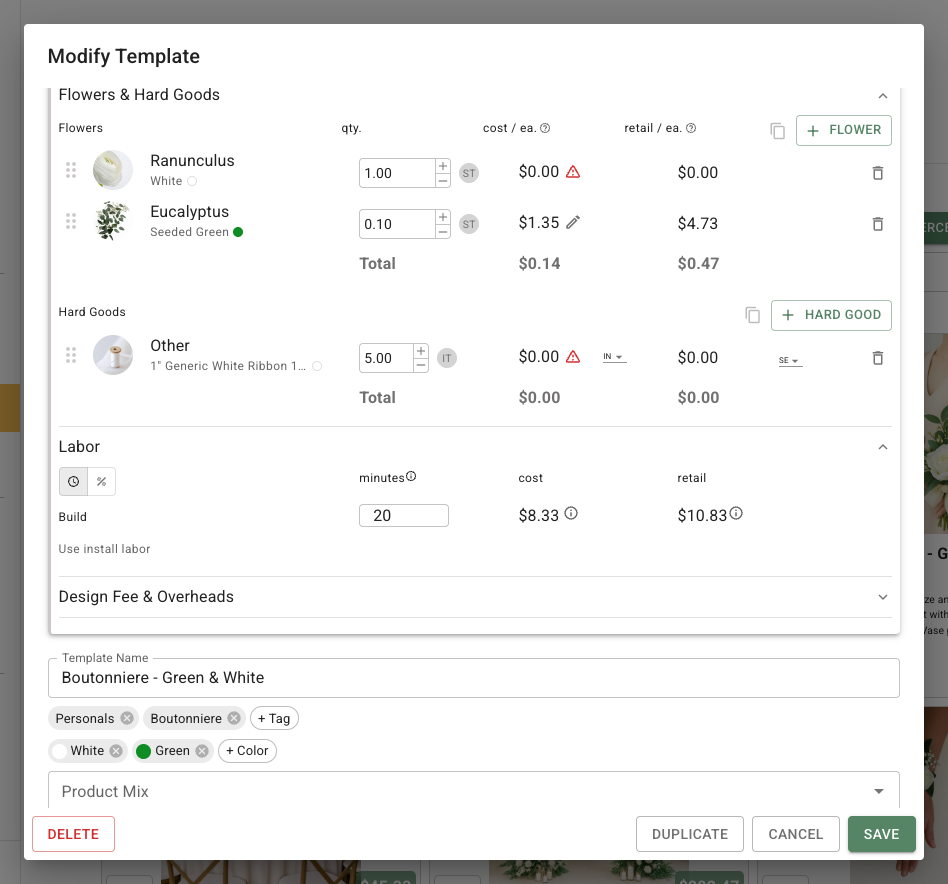
The editor loads the recipe details in a dialog. It includes the template name, tags, conditional Product Details fields, dimensions, and the save actions, together with the Flowers & Hard Goods, Labor, Design Fee & Overheads, and Inspiration Photos & Notes sections.
Expand the recipe card to open its sections. This example shows the quantities for flowers and a hard good alongside a 20-minute **Build** labor estimate.
## Name and organize the template
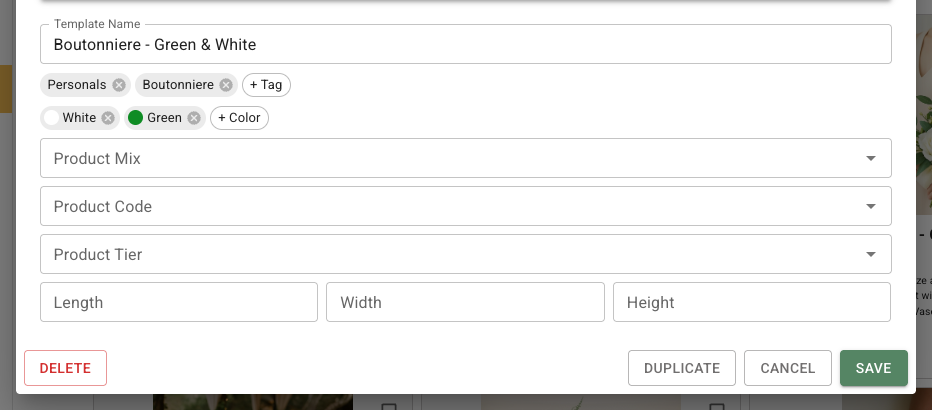
Enter the reusable name in **Template Name**. Add tags in the template editor so the library search and filtering controls can help your team find the design later.
When **Product Details** is available, the editor can include **Product Code**, **Product Tier**, **Length**, **Width**, and **Height**. These fields classify a product or record its dimensions. They are conditional workspace features, so do not expect them in every workspace.
The template details keep its library name, tags, colors, and available product fields together with the editor actions.
## Add flowers and hard goods
Open **Flowers & Hard Goods** to build the design's material list. Use **Add** in the flowers area to choose floral items and set their quantities and units. Use **Add** in the hard goods area for containers, mechanics, and other non-floral items.
Each item can show quantity, unit, cost, and retail information according to your access and the item's available pricing. For hard goods, the item type also distinguishes how the item is sourced and whether it is treated as sold or rented. Drag items into the order that is most useful for reviewing the design.
To copy materials from an event recipe, open the copy control in the destination template's **Flowers & Hard Goods** section and select the source recipe. Confirm the overwrite only when those materials should replace the destination's current items. This selector is not a way to copy directly from another library template; [duplicate a recipe template](/reference/event-templates/recipe-templates/duplicate-and-delete-recipe-templates.md) to start from an existing library design.
## Set labor and pricing
The **Labor** section supports two approaches. Use the time estimate controls for **Build** labor. Select **Use install labor** to add a separate **Install** estimate. For a percentage-based calculation, use the labor mode that shows **Percent of COGS retail value before labor markup**.
Review the recipe's **Cost**, **Price**, and **Profit** values where your workspace permissions allow them. The item and labor values contribute to the recipe's totals. **Design Fee & Overheads** is available for recipe types that support it and keeps those additions separate from the flower and hard-good inputs.
## Add descriptions, images, and notes
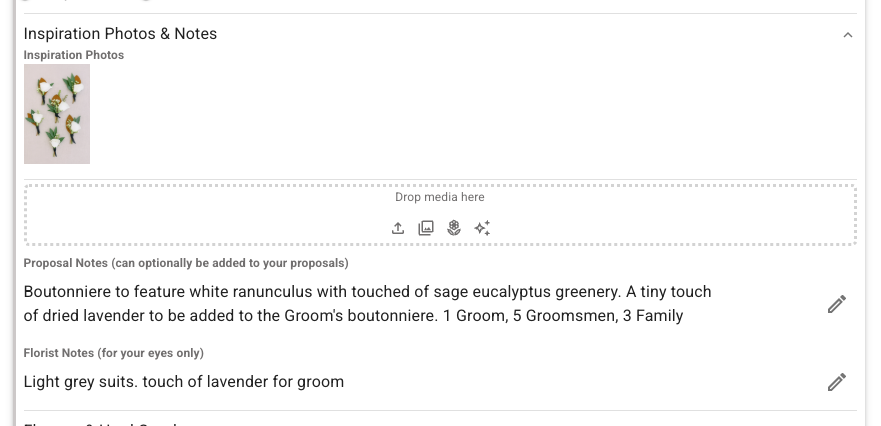
The **Inspiration Photos & Notes** section contains the reusable visual and written context:
* **Inspiration Photos** holds images that help the team recognize or make the design. You can add images, reorder them, edit their details, and remove them.
* **Proposal Notes (can optionally be added to your proposals)** contains the client-facing description when the recipe is used in proposal content.
* **Florist Notes (for your eyes only)** contains florist or team-facing build context. It is not the same as a client-facing proposal description.
Keep the text generic enough to make sense when the template is reused for a different event. Add event-specific instructions to the event after you create it.
## Save, duplicate, or remove the template
Select **Save** after reviewing the editor. Field changes such as the template name are saved as you update the field, while **Save** closes the editor.
Select **Duplicate** to create a separate copy of the current template and adapt it without changing the original. Select **Delete** on an existing template only when you no longer need it in the library.
A new template is created when you open its editor. The right-hand **Cancel** closes the dialog but keeps that template and already-saved edits. The red **Cancel** at the left opens a deletion confirmation for the new template. Read that confirmation before deleting it; closing the editor is not an undo action.