> For the complete documentation index, see [llms.txt](https://help.flowerbuddy.co/llms.txt). Markdown versions of documentation pages are available by appending `.md` to page URLs; this page is available as [Markdown](https://help.flowerbuddy.co/reference/event-page/tasks/create-and-manage-event-tasks.md).
# Create and manage tasks for an event
Use the **Tasks** tab on an Event Page when the work belongs to the event you have open. The tab already supplies the event, so **Add Task** starts with the task details instead of asking you to choose an event.
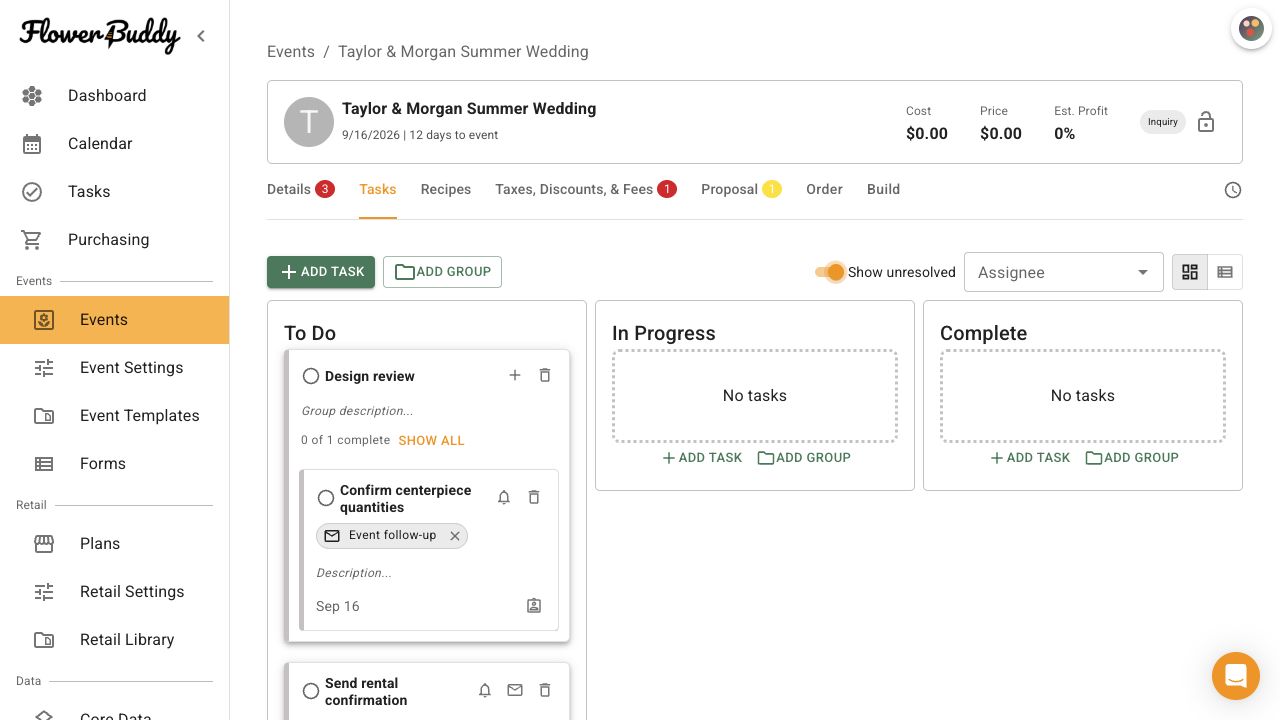
The event Tasks tab keeps group progress and child-task work in the same board, with **Add Task**, **Add Group**, **Show unresolved**, and **Assignee** controls visible together.
## Add a task
Open the event's **Tasks** tab and select **Add Task** from the toolbar or a task lane. FlowerBuddy immediately adds a **New Task** card inline. When you use a lane's **Add Task**, the card starts in that lane.
Select **New Task** on the card and replace it with the task name. Select **Description...** to add more detail. These fields save when you press Enter or move focus away from the field. A task name is required.
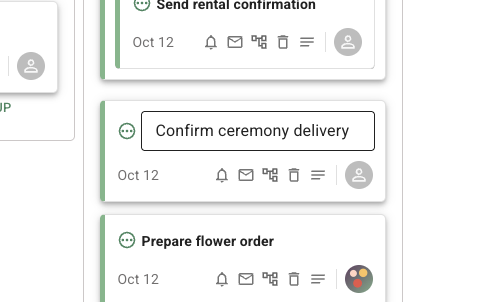
The name is edited directly on the card, with its date, status, and assignment controls still visible below it.
Use the card's **Assign task** control to assign the task. Choose an event role under **Event roles**, or select **Assign members directly** and then choose an account member under **Account members**.
Select the due date shown on the card to open the **Due Date** dialog. Use **Due date based on** to choose **Event creation date**, **Proposal date**, **Booking date**, **Event date**, **Specific date**, **Another task is completed**, or **A task group is completed**. Depending on that choice, set **Specific due date**, choose a **Task** or **Task group**, and set **Days** or **Direction**. For the available date choices and their effects, see [Set a task due date and completion dependency](/reference/tasks/set-task-due-date.md).
## Use task groups
Create a group when several tasks contribute to one recognizable piece of event work. Select **Add Group** in a task lane to add a **New Task Group** card inline. Select the group name to replace it, and select **Group description...** to add an optional description. For example, a "Design review" group can contain the separate work of confirming centerpiece quantities and sending a rental confirmation.
Select the group's **Add child task** control to create a **New Task** card inside the group. You can also add a standalone task to the group from that task's **Add to group** control when a group is available.
The group has its own status and progress summary. Its child tasks keep their individual statuses and due-date rules. Expand the group to review its tasks, or use **Show All** when the group preview does not show every child task.
## Manage a task group
Edit the group name or description directly on its card or List row. Change the group status from its status menu. Select **Add child task** on the group to create another child task. If you delete a group, choose whether to keep its child tasks as standalone tasks or delete them with the group. A dependent task may require a replacement due-date rule before the group can be deleted.
Use the shared [Change a task status](/reference/tasks/change-task-status.md) article for task status changes. A group status is related to the statuses of its child tasks, but group progress is not a substitute for reviewing the individual tasks.