> For the complete documentation index, see [llms.txt](https://help.flowerbuddy.co/llms.txt). Markdown versions of documentation pages are available by appending `.md` to page URLs; this page is available as [Markdown](https://help.flowerbuddy.co/reference/event-page/recipes/use-recipe-groups.md).
# Use recipe groups
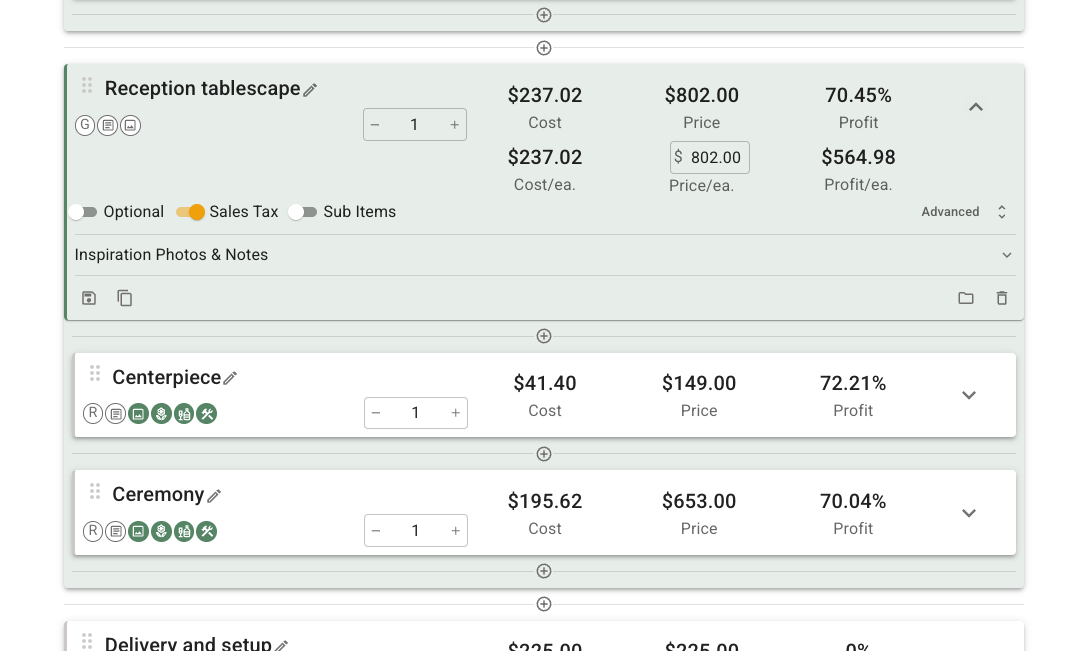
A recipe group presents one client-facing offering while preserving the recipes and fixed costs needed to produce it. Use a group when the client should buy one combined result but the florist still needs separate production detail.
For example, a client can see 12 tablescapes while the florist tracks the centerpiece and bud-vase recipes required for each table.
The group has its own name, quantity, and price. Its recipes appear inside it, with their individual quantities, costs, and prices still available for planning.
## Create and fill a group
1. Open the event and select **Recipes**.
2. Select **Add Item**, then select **Group**.
3. Replace **New Recipe Group** with the name the client should see.
4. Add a blank recipe, a fixed cost, or a recipe from **Add From Template Library** inside the group.
5. You can also drag an existing top-level recipe or fixed cost into the group.
A group can contain recipes and fixed costs. It cannot contain another group or a percent cost. Recipes inside a group remain available as separate production records even when their names or prices are hidden from the client.
You can also convert an existing top-level recipe into a group. FlowerBuddy keeps the original name, quantity, description, and photos, then moves its flowers, hard goods, labor, and pricing into a new recipe inside that group. The conversion cannot be undone, so review the confirmation before continuing.
## Use normal group quantities
In the normal mode, the group quantity multiplies the quantities inside it. Enter each component as the amount needed for one group unit.
For example, a group quantity of 12 can represent 12 tablescapes. If each tablescape uses one centerpiece and three bud vases, set the centerpiece recipe quantity to 1 and the bud-vase recipe quantity to 3. FlowerBuddy extends those component quantities across all 12 tablescapes.
Use this mode when the recipes inside the group describe one unit of the combined offering.
## Decouple the group quantity
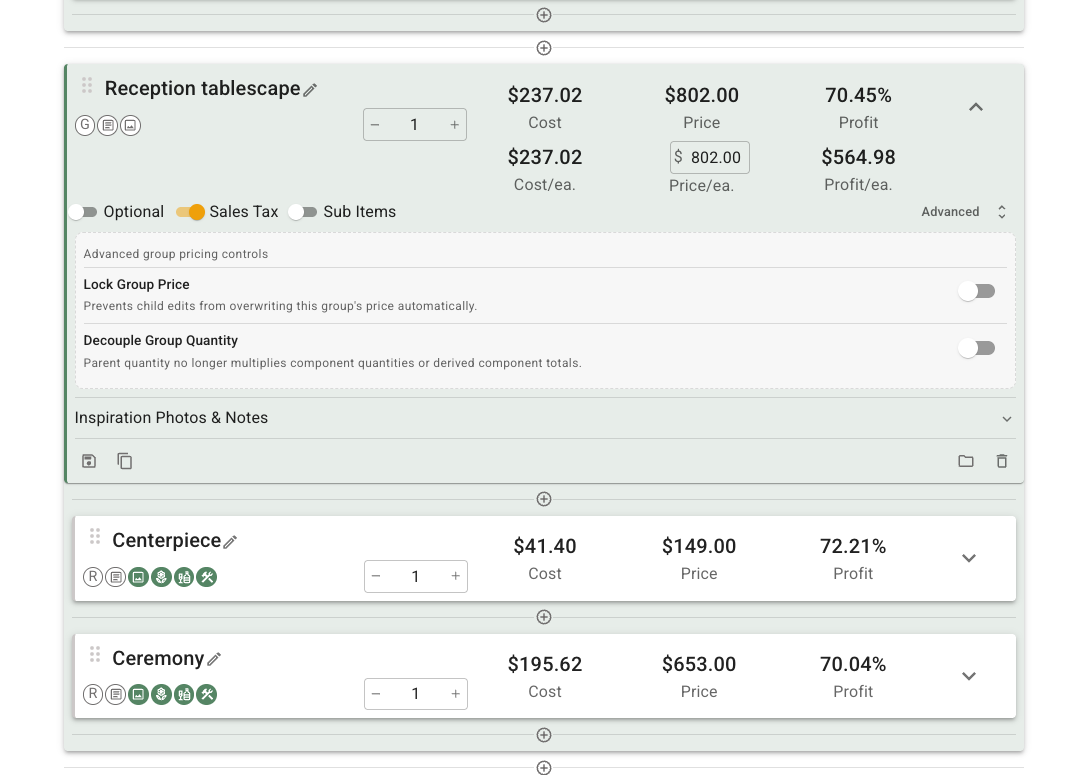
Use **Advanced** > **Decouple Group Quantity** only when the recipes inside the group should hold event-wide quantities instead of per-group quantities.
Open **Advanced** to find **Decouple Group Quantity** and **Lock Group Price** together. These switches change quantity and pricing calculations, not the recipes themselves.
With the 12-tablescape example, you could enter 12 centerpieces and 36 bud vases inside the group. The group quantity remains 12 for the client, but it no longer multiplies those component quantities. FlowerBuddy uses the component total and divides it across the displayed group quantity to calculate the group's price per unit.
Choose one quantity model and use it consistently. Entering event-wide component quantities without decoupling the group would overstate the required quantities and totals.
## Lock the group price
Normally, changes to recipes inside the group update the group's calculated price. Use **Advanced** > **Lock Group Price** when the client-facing group price should be managed manually and component changes should no longer overwrite it.
After enabling the lock, enter and maintain the group price deliberately. Component costs and quantities can still change, so continue reviewing group Profit. Locking the price also prevents separate component prices from being shown to the client.
## Choose what the client sees
Use **Sub Items** or **Hide Sub Items** to decide whether the recipes inside the group appear beneath the group in the proposal. When sub-items are shown, use **Sub Item Prices** or **Hide Sub Item Prices** to decide whether their individual prices appear.
These display choices do not remove the recipes from planning. A florist can show the client one "Tablescape" line while retaining separate centerpiece and bud-vase details for ordering and Build.
The group itself can also be [offered as an optional choice](/reference/event-page/recipes/offer-optional-recipes.md). Recipes inside a group follow the group's selection instead of becoming separate optional choices.
## Review the group
When the group is ready, confirm that:
* Its name and quantity describe the client-facing offering.
* The recipes and fixed costs inside it are complete and in the intended order.
* The normal or decoupled quantity model matches how component quantities were entered.
* The group price updates automatically, unless **Lock Group Price** is intentionally enabled.
* The sub-item display shows the amount of detail the client should receive.
After a contract is signed, some group display changes are restricted and pricing changes can become amendments. Review the contracted presentation before changing the group.