> For the complete documentation index, see [llms.txt](https://help.flowerbuddy.co/llms.txt). Markdown versions of documentation pages are available by appending `.md` to page URLs; this page is available as [Markdown](https://help.flowerbuddy.co/reference/event-page/recipes/set-recipe-quantities-pricing-and-labor.md).
# Set recipe quantities, pricing, and labor
A recipe connects the design's production plan to its client price. Use the recipe quantity for how many designs the event needs, the item and labor sections for expected costs, and **Price/ea.** for what the client is charged for one design.
## Set the recipe quantity
Use the quantity control on the recipe card to enter how many of that design the event includes. The Cost, Price, and Profit displayed on the collapsed card are totals for the recipe's full event quantity.
If the recipe belongs to a group, review the group's quantity mode before changing it. In the normal mode, the group quantity multiplies the quantities inside the group. See [Use recipe groups](/reference/event-page/recipes/use-recipe-groups.md) for the advanced alternative.
### Check crossed-out recipe totals
A recipe can remain in the event but show crossed-out totals because its quantity is zero or because it is [optional and not selected](/reference/event-page/recipes/offer-optional-recipes.md). Check the quantity on the recipe card first. This is the number of designs, not the number of stems inside one design.
For a recipe inside a group, also check the group's quantity and optional selection. A zero or unselected group can cross out its recipes' totals. These inclusion choices affect what contributes to the event totals; **Client View** and cost/profit permissions instead control which financial information you can see.
In the example below, the zero-quantity recipe has crossed-out zero totals while the neighboring recipe still has a positive quantity.
If the design should be included, correct its quantity or selection. For a signed event, review the [amendment consequences](/reference/event-page/details/manage-contract-amendments.md) before changing the agreed work. A crossed-out contracted deletion is a different state from an ordinary zero-quantity recipe.
## Read cost, price, and profit
Expand the recipe to compare its unit values:
* **Cost/ea.** is the expected cost of one design based on the recipe information and applicable overhead.
* **Price/ea.** is the selling price for one design.
* **Profit/ea.** is the difference between that price and the costs FlowerBuddy includes.
The collapsed card extends those values across the recipe quantity. Cost and Profit are available only to members allowed to view cost and profit information, and they are hidden in Client View.
FlowerBuddy also calculates a suggested price from flowers, hard goods, direct labor, Design Fee, and enabled pricing settings. The exact selling price remains a business choice. Select **Price/ea.** to enter a different amount.
## Choose a direct-labor method
The **Labor** section describes hands-on work making or installing the design. It is separate from indirect and owner labor overhead.
A new blank recipe starts with percentage-based labor and copies the event's **Default Labor Percent** when it is created. You do not have to select a method before any labor can be calculated. If that default is zero, the initial percentage-based labor amount is zero until you enter a different estimate.
Entering **In Studio Labor Hourly Rate** or **On Site Labor Hourly Rate** in the event's markups does not switch recipes to time-based labor or override their percentage. Each recipe's selected method determines which inputs it uses. Review saved or reused recipes in **Labor** rather than assuming they have the same starting estimate as a new blank recipe.
Choose the time control to estimate labor in minutes:
1. Enter **Build** minutes for in-studio work.
2. Select **Use install labor** when the design also needs on-site labor.
3. Enter the install minutes.
FlowerBuddy uses the event's labor rates and multipliers to estimate labor cost and the amount included in the suggested price.
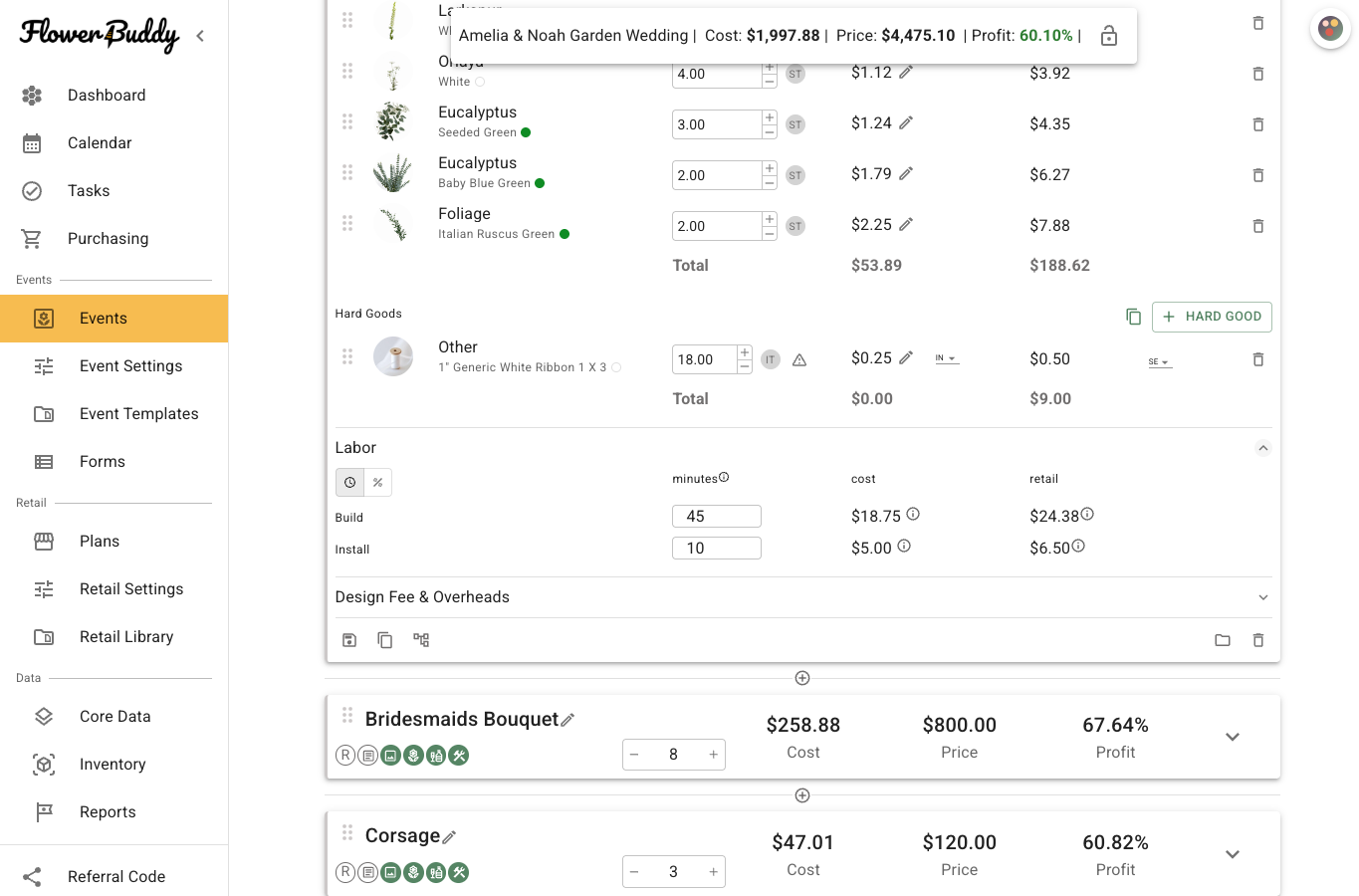
This recipe uses 45 minutes of **Build** labor and 10 minutes of **Install** labor. FlowerBuddy shows the calculated cost and retail contribution for each type beside the time entries.
Choose the percent control when your business estimates direct labor as a percentage. Enter the percentage in the Labor section. FlowerBuddy estimates both labor cost and labor time from that input, then applies the configured percent-labor multiplier to the suggested price.
Switching methods converts the current estimate into the other form. Review the converted minutes or percentage before relying on it.
## Time-based labor example
For example, suppose one design needs 30 minutes of in-studio work and the event's **In Studio Labor Hourly Rate** is $30. The estimated labor cost is $15: half an hour at $30 per hour. With an **In Studio Labor Multiplier** of 1.5, that labor contributes $22.50 to the suggested selling price.
On-site work is calculated separately using its minutes, hourly rate, and multiplier. Enter it when the design also needs installation work. These are example values, not recommended rates.
## Percentage-based labor example
Percentage labor starts from the recipe's flower and hard-good prices after their applicable multipliers, before labor is added. FlowerBuddy calculates the labor amount so that it represents the chosen percentage of that materials-plus-labor amount.
For example, with $90 of marked-up flowers and hard goods and **Labor** set to 10%:
* The estimated labor cost is $10, calculated as $90 ÷ (1 − 0.10) × 0.10.
* The $10 is 10% of the resulting $100 materials-plus-labor amount. It is not simply 10% of $90.
* With **Labor Multiplier (Percent Based)** set to 1.5, the labor contributes $15 to suggested price.
* With **In Studio Labor Hourly Rate** set to $30, the $10 labor cost corresponds to 20 minutes of estimated build time.
The percentage is not a promised share of the final client price. Design Fee, overhead, rounding, other pricing settings, and a manually chosen selling price can change that result. The time estimate also remains an estimate for planning; it is not time already worked.
Change the assumptions under [Details > Markups](/reference/event-page/details/configure-event-pricing-and-settings.md#labor), then review the recipe's cost, suggested price, and labor estimate together.
## Understand Design Fee and overhead
**Design Fee** is an optional pricing increase based on the combined flower, hard-good, and direct-labor costs of the recipe. It is intended to increase the design's profit margin. It is not another labor cost, an overhead cost, or a promise that the percentage equals the recipe's final profit margin.
**Indirect Labor**, **Owner Labor**, **Facilities**, and **Other Overhead** are business costs included in the recipe's cost estimate. They do not automatically become separate client charges. **FlowerBuddy Fee** and **Payment Processing Fee** can also appear in this section when the event's pricing settings and payment setup make them applicable.
The values in **Design Fee & Overheads** come from the event's pricing settings. Change those settings when the underlying business assumption is wrong. Do not change the recipe's selling price merely to hide an inaccurate cost assumption.
## Respond to pricing warnings
A warning beside the recipe price means the selling price is below FlowerBuddy's current suggested price. Open the warning to compare the two amounts. Then correct the underlying issue or keep the deliberate selling price:
* Update a missing or inaccurate item cost.
* Correct the recipe quantity or labor estimate.
* Review the event's markup, Design Fee, overhead, fee, or rounding settings.
* Keep a deliberately lower selling price when that is the intended business choice.
The warning is a pricing prompt, not a rule that the suggested price must be used. After the review, confirm that Cost, Price, and Profit express the result you intend for this event.