> For the complete documentation index, see [llms.txt](https://help.flowerbuddy.co/llms.txt). Markdown versions of documentation pages are available by appending `.md` to page URLs; this page is available as [Markdown](https://help.flowerbuddy.co/reference/event-page/recipes/create-reuse-and-manage-recipes.md).
# Create, reuse, and manage recipes
Choose a starting point that matches the information you already have. Create a blank recipe when the design should not reuse another recipe. A saved recipe template or a duplicate can reduce repeated setup. Applying a template is useful when a recipe already exists but its flowers, hard goods, labor, or selected details should be replaced.
The event must be unlocked, and your role must allow event edits.
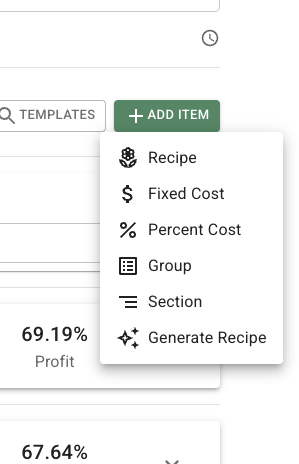
Use **Add Item** to choose a new recipe, recipe group, or other cost. Choose **Recipe** for a design with its own flowers, hard goods, and labor.
## Create a blank recipe
1. Open the event and select **Recipes**.
2. Select **Add Item**.
3. Select **Recipe**.
4. Select the new recipe's name and replace **New Recipe** with a specific name.
5. Set its event quantity, then expand the recipe to add its details.
The recipe appears immediately in the list. Use a name that identifies what the client is buying, such as "Bridal Bouquet," rather than an internal production step.
## Add saved recipe templates
Use **Templates** when one or more saved recipes already provide a useful starting point:
1. From **Recipes**, select **Templates**.
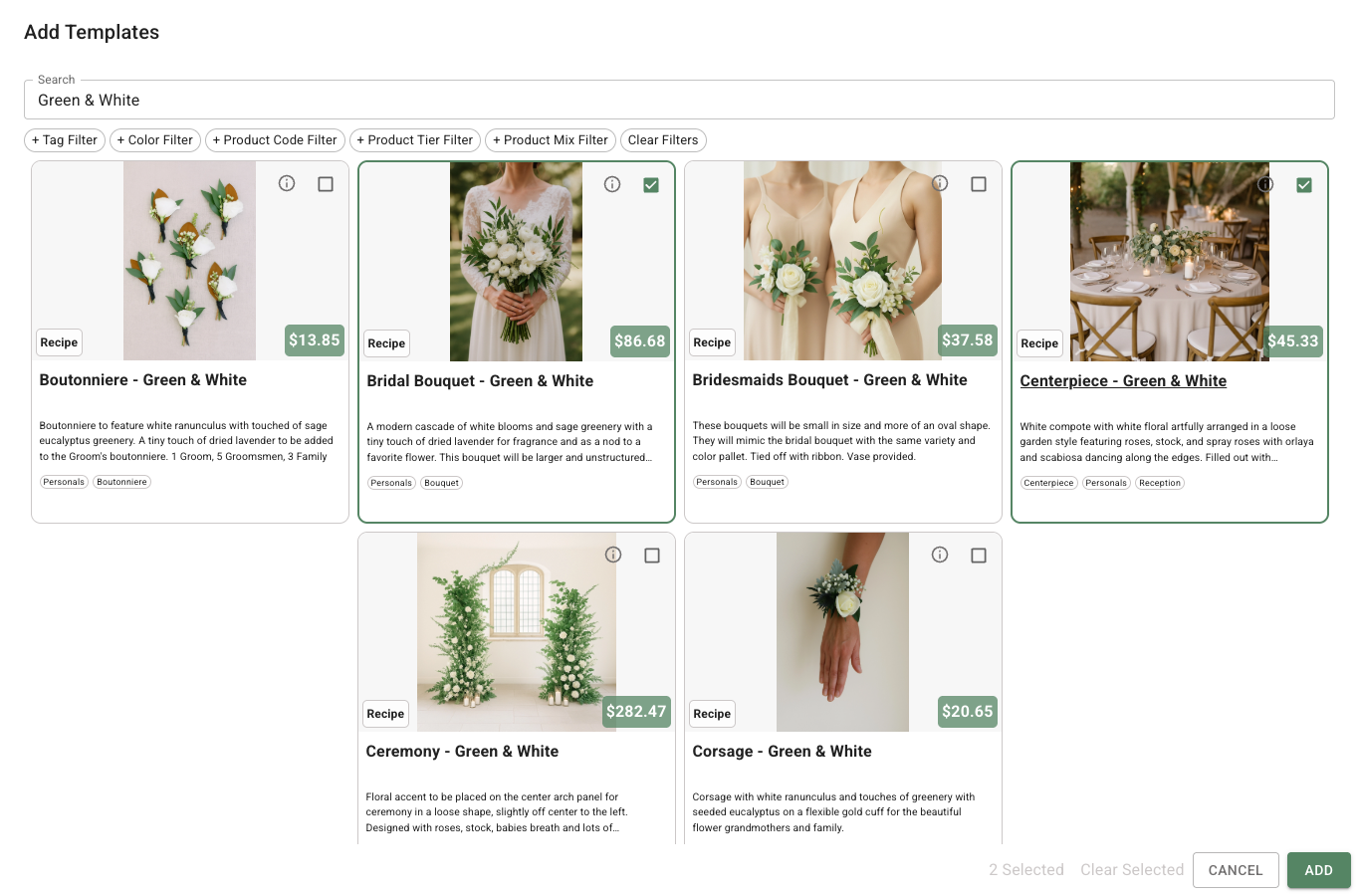
2. Find and select each recipe or group you want to add.
3. Review the selected count, then select **Add**.
4. Open each added recipe and adapt its quantity, items, labor, notes, images, and price for this event.
Adding a template creates event recipes that can be edited for this event. Review their item costs because planning prices may have changed since the template was saved.
Select the templates you want in **Add Templates**. The selected count at the bottom helps you check how many recipes will be added.
## Duplicate or save a recipe
Expand a recipe and use its copy button when you need a separate recipe with the same starting information. Rename the duplicate and change the details that differ. Duplication is useful for related designs, such as two centerpiece styles, because the original recipe remains unchanged.
To keep an event recipe for future use, expand it and select **Save as Template**. Enter a **Template Name**, add tags that will help you find it, and save it. The saved recipe becomes available through **Templates** on later events.
## Apply a template to an existing recipe
Applying a recipe template replaces the recipe's flowers, hard goods, labor, and recipe items with the template's information. You can also choose whether to overwrite additional details.
1. Expand the recipe you want to update.
2. Select **Apply Template**.
3. Choose one template and select **Next**.
4. Select any additional information to overwrite: **Pricing**, **Quantity**, **Sales Tax**, **Inspiration Photos**, **Proposal Notes**, or **Florist Notes**.
5. Select **Apply**.
Leave an optional box clear when the current event recipe should keep that information. Applying a template is a replacement action, so review the recipe after it finishes.
## Rename, reorder, or remove a recipe
Select a recipe name to edit it. Drag the handle on a recipe card to place it in the order the client should see, or move it beneath the recipe proposal section that should introduce it. A recipe inside a group can be reordered within that group or dragged out when it should become a separate line item.
To remove a recipe, expand it and select its delete button. Before a contract is signed, the recipe is removed. After signing, removing an included contracted recipe records a pricing amendment instead of silently erasing the agreed line. The recipe remains visible as deleted until the amendment is resolved.
The list is ready when each recipe has a clear name, the intended event quantity and position, and the correct relationship to any recipe group or recipe proposal section.