> For the complete documentation index, see [llms.txt](https://help.flowerbuddy.co/llms.txt). Markdown versions of documentation pages are available by appending `.md` to page URLs; this page is available as [Markdown](https://help.flowerbuddy.co/reference/event-page/recipes/add-and-manage-other-costs.md).
# Add and manage other costs
An other cost represents a service or expense that is not a floral recipe. Examples can include delivery, setup, teardown, or another event-specific charge. Use a recipe when you need flowers, hard goods, and direct labor for a design. Use an other cost when those recipe details do not fit the item being priced.
Other costs are added on **Recipes**, not on **Taxes, Discounts, & Fees**. The fees on that separate tab are incurred FlowerBuddy or payment-processing costs, while an other cost is a line item the florist creates.
## Choose Fixed Cost or Percent Cost
Select **Add Item**, then choose:
* **Fixed Cost** for an amount that starts from a specific cost per unit.
* **Percent Cost** for an amount calculated from eligible event line items.
Rename **New Other Cost** so its purpose is clear. A percent cost can be useful for an optional event-level pricing method. For example, a florist might calculate an event-level labor charge from floral arrangements while excluding table rentals that do not require that in-studio labor.
That example is separate from the dedicated **Labor** section inside a recipe. Do not add both methods automatically. Choose the pricing approach that represents the business's actual cost and price structure.
## Set cost, markup, price, and quantity
For a fixed cost:
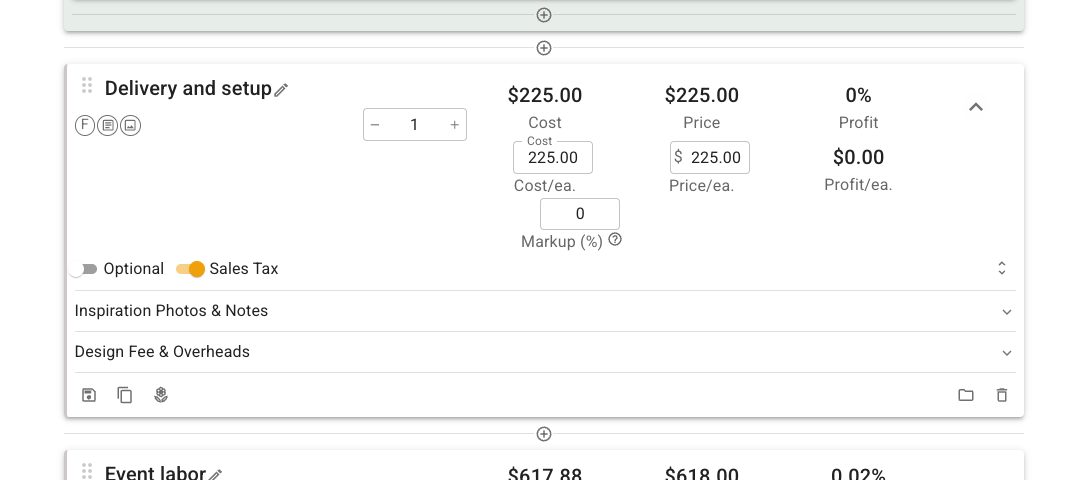
1. Set **Cost/ea.** to the business's expected cost for one unit.
2. Set **Markup (%)** when FlowerBuddy should calculate a suggested client price from that cost.
3. Review or edit **Price/ea.**.
4. Set the event quantity.
This delivery example keeps the cost, markup, and selling price together on the expanded card.
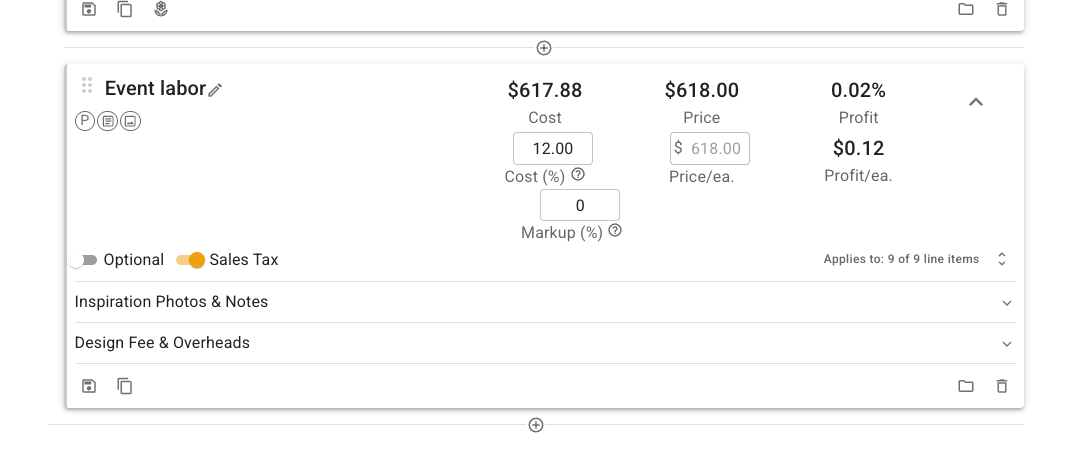
For a percent cost, enter **Cost (%)**. FlowerBuddy calculates its cost from the line items selected under **Applies to**. For example, enter 6 in **Cost (%)** when this other cost should equal 6% of its selected line items.
**Markup (%)** is a separate choice. It adds profit to the calculated cost when FlowerBuddy suggests the client price. Leave **Markup (%)** at 0 when the amount calculated by **Cost (%)** is also the amount you intend to charge. Review the resulting Cost, Price, and Profit before relying on it.
The **Event labor** example below uses a percentage rather than a fixed amount. **Applies to** identifies which event items form its calculation base.
## Choose what a Percent Cost applies to
Select the **Applies to** summary on the percent-cost card:
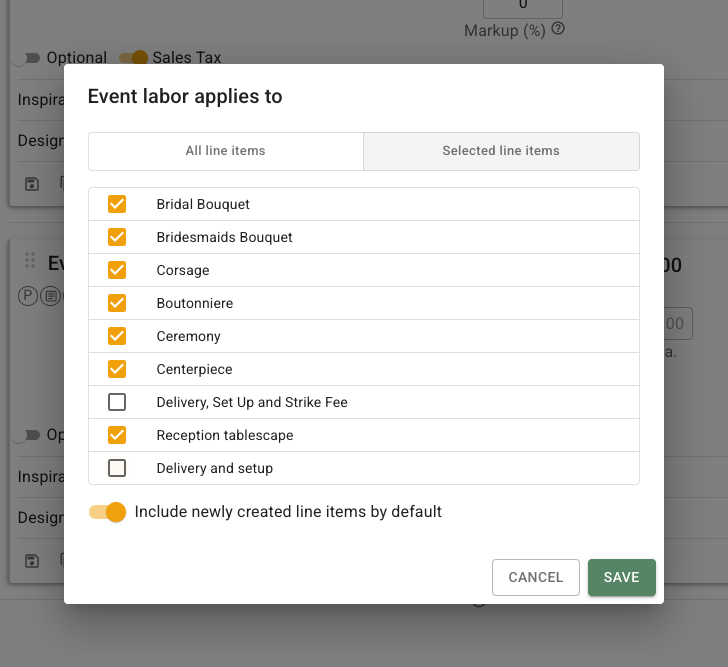
1. Choose **All line items** to use every eligible top-level line.
2. Choose **Selected line items** to build a narrower base.
3. When using selected lines, select each recipe, recipe group, or eligible fixed cost that belongs in the calculation.
4. Set **Include newly created line items by default** according to whether future eligible lines should join the percentage automatically.
5. Select **Save**.
This **Event labor** example includes floral items while leaving the delivery charges out of the percentage calculation.
Review the selection after adding or reorganizing recipes. Moving recipes into a group changes the top-level line-item structure that percentage calculations use.
## Use a cost inside a group
A recipe group can contain a fixed cost when that cost belongs to the combined offering. For example, a tablescape group could include a fixed packaging cost along with its floral recipes.
A group cannot contain a percent cost. Keep a percent cost at the top level and use **Applies to** to choose the eligible lines that form its base.
## Edit, convert, or remove an other cost
Select the name, quantity, Cost, Markup, Price, or **Applies to** control to update it. A top-level fixed cost can also be converted to a recipe when it now needs flowers, hard goods, and labor. The conversion keeps its name, quantity, current selling price, notes, and photos. It removes the fixed cost and markup, then starts the recipe with the event's recipe labor defaults. The conversion cannot be undone.
Use the delete button when the line no longer belongs in the event. After a contract is signed, changing or removing an included other cost can create an amendment. Review the contracted value and current value before confirming or publishing those changes.
The other cost is ready when its name explains the charge, its calculation base matches its purpose, and its Cost, Price, and Profit contribute to the event as intended.