> For the complete documentation index, see [llms.txt](https://help.flowerbuddy.co/llms.txt). Markdown versions of documentation pages are available by appending `.md` to page URLs; this page is available as [Markdown](https://help.flowerbuddy.co/reference/event-page/proposal/style-the-proposal.md).
# Proposal design
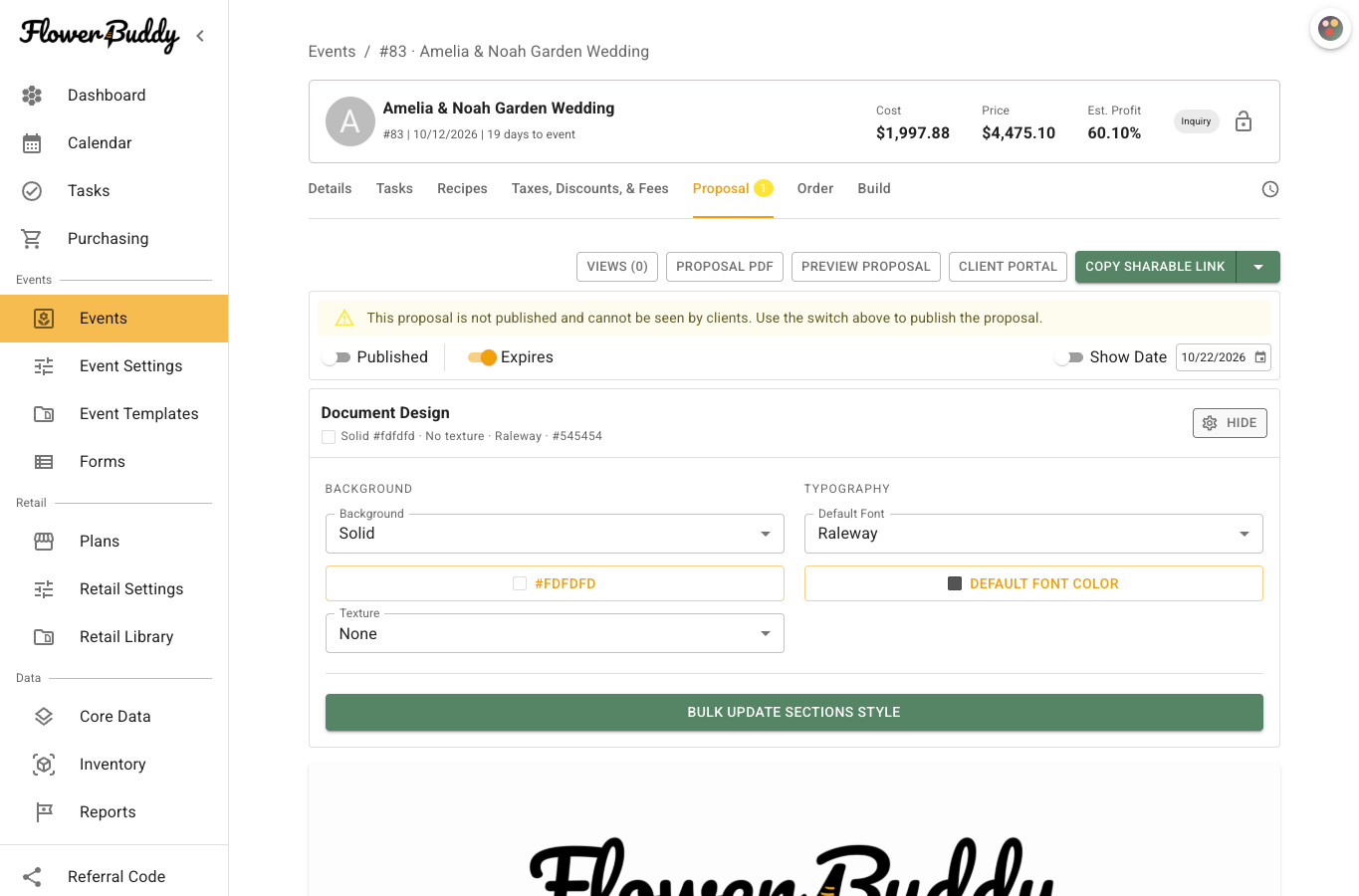
Use **Document Design** for the proposal's overall appearance. Use **Section Settings** when one section needs a different presentation. Styling changes how the proposal is shown. They do not change the event's recipes, client information, contract, or payment records.
## Change the document design
1. Open the event and select **Proposal**.
2. In **Document Design**, select **Configure**.
3. Choose the background and typography options you want.
4. Select **Hide** when you finish reviewing the design controls.
The document-wide controls include:
* **Background**: choose **Solid** or **Gradient**. A solid background uses one color. A gradient lets you set the angle and color stops.
* **Texture**: choose **None**, **Beige Paper**, **Cardboard Flat**, **Clean Paper**, or **Cream Paper**.
* **Default Font**: choose the font used by sections that do not have their own font choice.
* **Default Font Color**: choose the default text color.
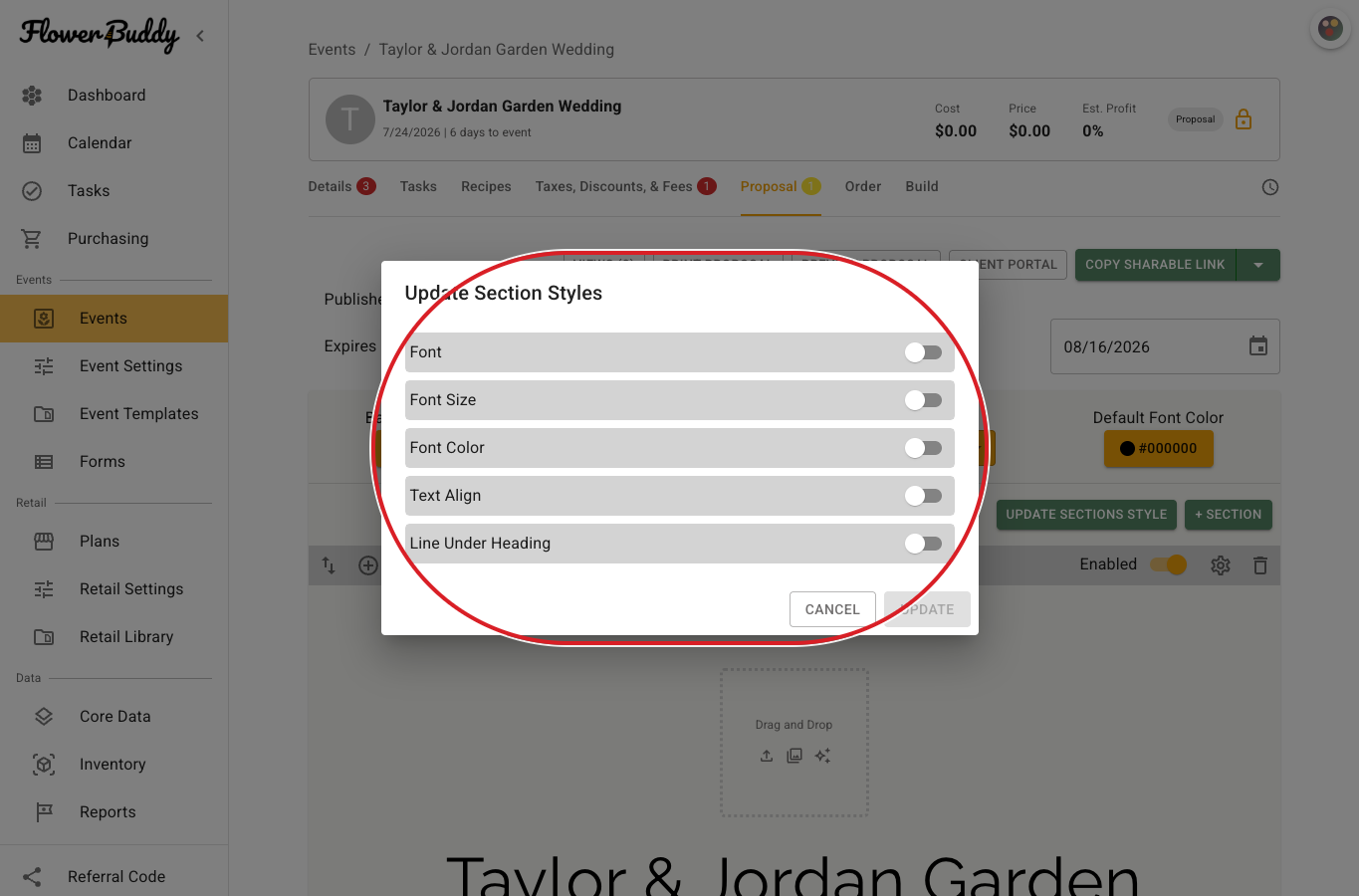
Use **Bulk Update Sections Style** when several sections should receive the same supported font, size, color, alignment, or heading settings. Review the choices in the dialog before selecting **Update**.
The dialog shows the individual style properties you can include in the bulk update.
The full editor view shows where **Document Design** and **Bulk Update Sections Style** appear above the proposal sections.
## Style one section
1. Hover over the section you want to change.
2. Open the section's settings control to open **Section Settings**.
3. In **Section Settings**, use the visible style groups such as **Margin**, **Padding**, **Background**, **Heading**, and **Body**.
4. Select **Preview Proposal** to check the result.
The controls inside those groups depend on the section type. Text sections can have font, size, color, alignment, and heading controls. Spacing and background controls change the presentation around the section without changing its content. A **Page Break** is a PDF layout element and does not have the same controls as **Notes** or **Timeline**. Section-specific settings can add choices such as timeline addresses, timeline notes, or an image layout.
A section can have an element hidden without removing the section itself.
## Arrange images
For an image section, open **Section Settings** and find **Image Layout**. The choices depend on the image section you added:
* **Images (Masonry)** uses columns. Set **Columns** to choose how many images fit across the section and **Gap** to change the space between them.
* **Images (Brick)** uses rows. Set **Row Height** to change their height and **Spacing** to change the space between images.
* **Images (Grid)** uses a fixed grid. Set **Columns** and **Spacing** to change its arrangement.
For example, fewer columns make individual images larger, while more columns place more images side by side. Check the result in **Preview Proposal** and in the PDF if you plan to share a downloaded copy.
## Preview the design
The proposal canvas reflects saved style choices as you move between sections. **Preview Proposal** is the best check for the client-facing result because it shows the rendered document rather than the editing controls. If one section still looks different from the rest, check its individual settings before changing the document-wide defaults.