> For the complete documentation index, see [llms.txt](https://help.flowerbuddy.co/llms.txt). Markdown versions of documentation pages are available by appending `.md` to page URLs; this page is available as [Markdown](https://help.flowerbuddy.co/reference/event-page/proposal/scope-of-services.md).
# Scope of Services
**Scope of Services** is the proposal section that summarizes what the event includes for the client. It can present event recipes, recipe groups, quantities, selected prices, discounts, taxes, and the total that the event currently calculates. It is a client-facing view of event information, not a replacement for the internal **Recipes** tab.
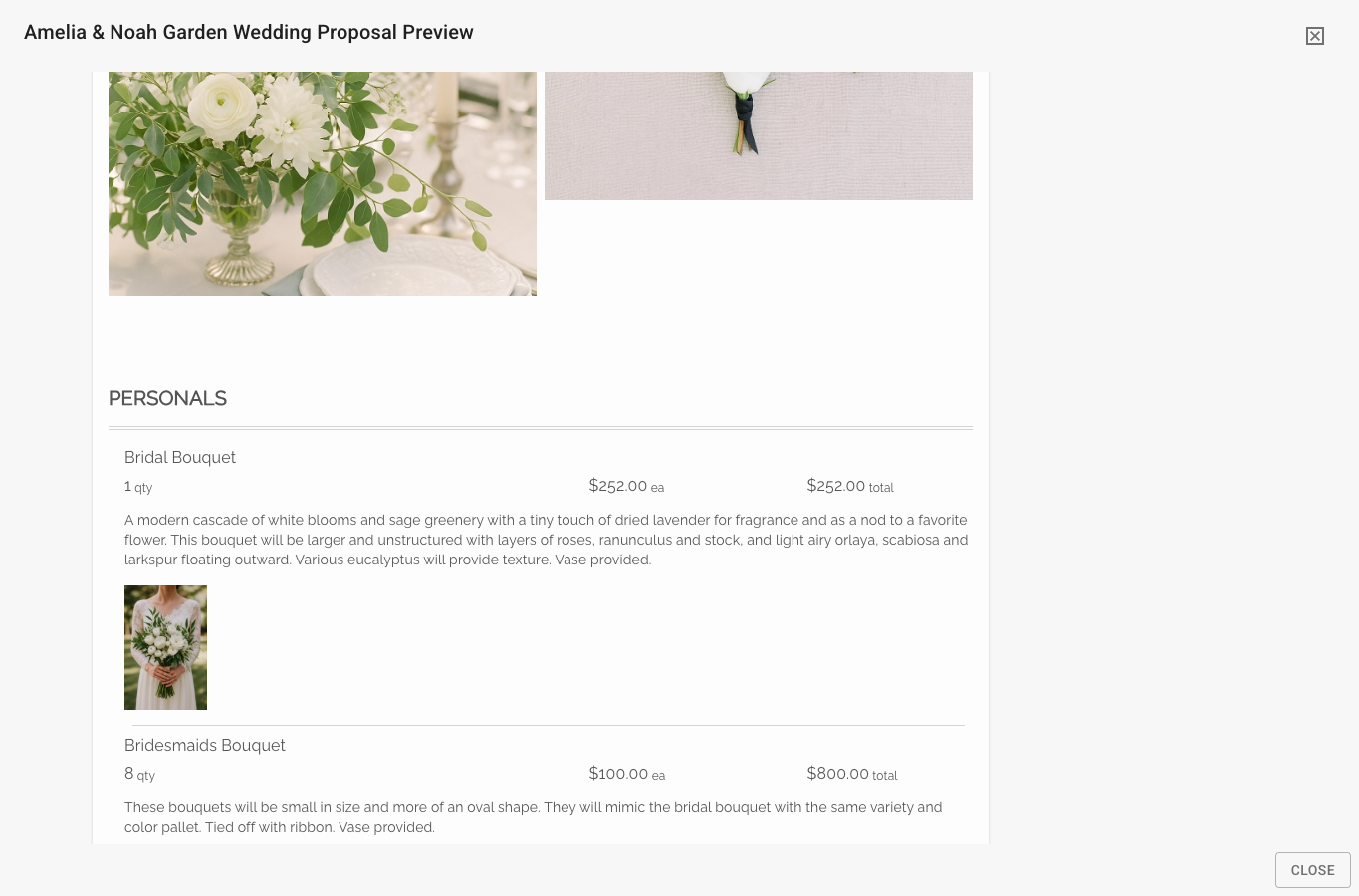
In a proposal preview, Scope of Services shows the client's line items. This example includes bouquets with their quantities, prices, descriptions, and photos.
## Open the section settings
1. Open the event and select **Proposal**.
2. Find **Scope of Services** on the proposal canvas and open its **Section Settings** control.
3. Review the section on the proposal canvas.
Scope of Services is a special section. It is part of the proposal's structure and cannot be removed or disabled through the ordinary section switch. Its content follows the event's included line items and their current values.
## Client view
The section can show a recipe or recipe group as a client-facing line. A group can represent several recipes while keeping the individual recipes available for production planning. The quantity and price shown depend on the event item and the proposal's display settings.
When the section has a populated event, review these areas:
* The order of recipes and recipe groups.
* The client-facing name and description.
* Quantity and optional-item choices.
* Recipe price and item detail visibility, when those settings are available.
* Section subtotals and the event total.
* Discounts, taxes, and applicable fees that the event currently includes.
The available item and price values come from the event. Change those underlying event values in the page that owns them, then return to Proposal and preview the result. Do not use a proposal style control to change a contract or payment setting.
## Show section subtotals
Open **Section Settings**, then under **Scope Display** find **Recipe Section Bars**. Turn on **Section Subtotals** when each visible recipe section should show its combined amount. Turn it off when the proposal should show the section headings without those intermediate totals.
**Section Subtotals** is separate from **Line Item Prices**. Use **Line Item Prices** to show or hide prices for individual recipes and other costs. After changing either setting, use **Preview Proposal** to confirm that the item prices, section subtotals, and final event total have the intended level of detail.
The **Section Subtotals** switch applies to all recipe section bars in this Scope of Services section. It cannot hide the subtotal for just one heading while keeping the others visible. A heading organizes the line items beneath it; it does not have its own price-display settings.
## Control recipe images and notes
In the Scope of Services settings, use **Images** to show recipe images and **Notes** to show Proposal Notes. These are separate choices. Turning on Notes does not turn on Images, and Florist Notes are not proposal content.
If an image is missing, confirm that the recipe has an image under **Recipes > Inspiration Photos & Notes**, then check **Images** here and preview the result. For a recipe inside a group, also review whether the group shows its individual recipes. Use **Line Item Prices** for price visibility rather than hiding the whole Scope of Services section.
### Resize recipe images
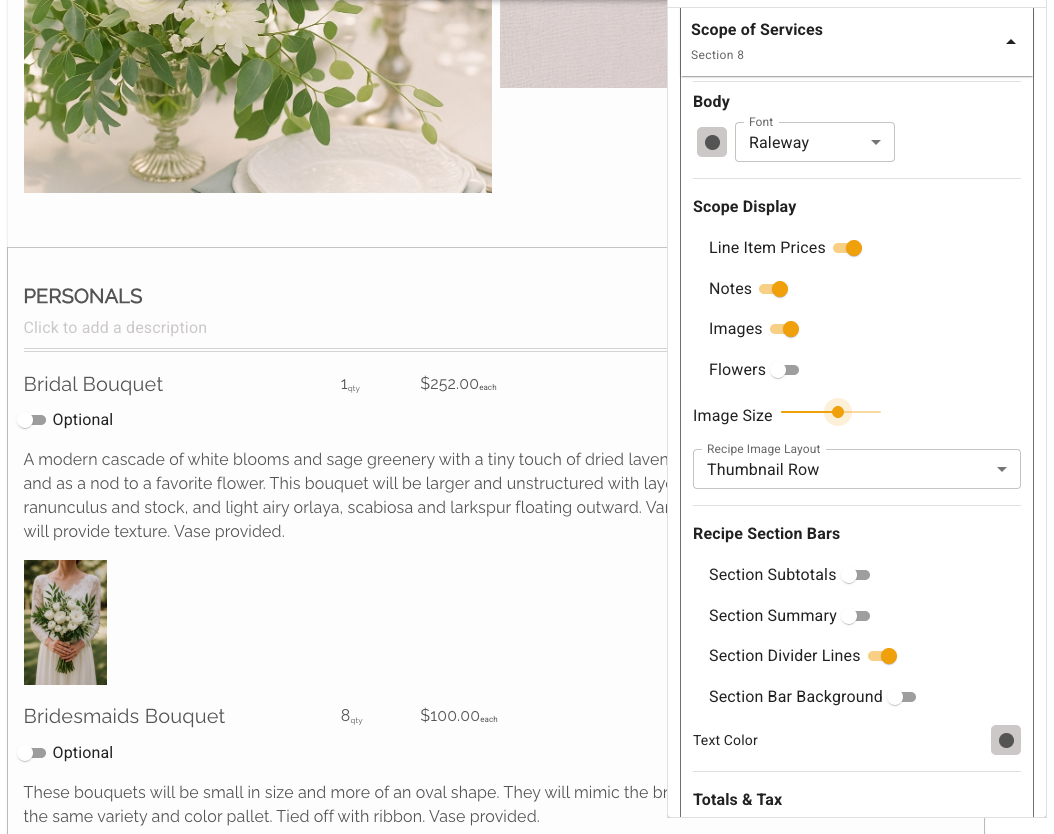
With **Images** on, use **Image Size** under **Scope Display** to make the recipe photos larger or smaller. **Recipe Image Layout** offers **Thumbnail Row** or **Featured First**. These controls change how the existing recipe images appear in the proposal; cropping an image in the recipe is a separate choice about its framing.
The Scope of Services settings below place **Image Size** beside **Images** and **Recipe Image Layout**.
Use **Preview Proposal** to check the result. For a separate Images section, use that section's [image-layout controls](/reference/event-page/proposal/design-and-sections/add-title-pages-and-images.md) instead. For printed team recipe sheets, use [Build PDF settings](/reference/event-page/build/print-and-pdf-configurations.md), not the proposal's Image Size slider.
## Check missing line items and headings
Check a missing recipe or other cost on **Recipes** first. It needs a quantity greater than zero to appear as a current offering. If editing is locked, use the event's normal unlock and amendment process before changing the quantity.
A percentage other cost that calculates to $0.00 is omitted from the proposal. Check both its percentage and the line items it applies to. A heading is omitted when it has no visible items beneath it, so an empty heading can disappear along with a zero-value charge.
Amendment comparisons can retain an original quantity or amount to explain a change to the client. An original nonzero amount may therefore remain visible beside its amended value. Review the published amendment comparison before treating that retained line as an error.
## Check amendments
When the event has pricing or date changes held as amendments, the section can show the amended values after **Amendments Published** is turned on. If inline amendments are available in the rendered view, the proposal can show the original and amended information together. Review the section in **Preview Proposal** before sharing it.
## Preview line items and totals
The section is ready to review when its line items, quantities, and totals match what you intend to present. Select **Preview Proposal** and read the section as a client would. If an item is missing, check whether it is included in the event and whether its quantity is greater than zero. If a total is unexpected, review the event's pricing, taxes, discounts, and fees on their owning tabs.
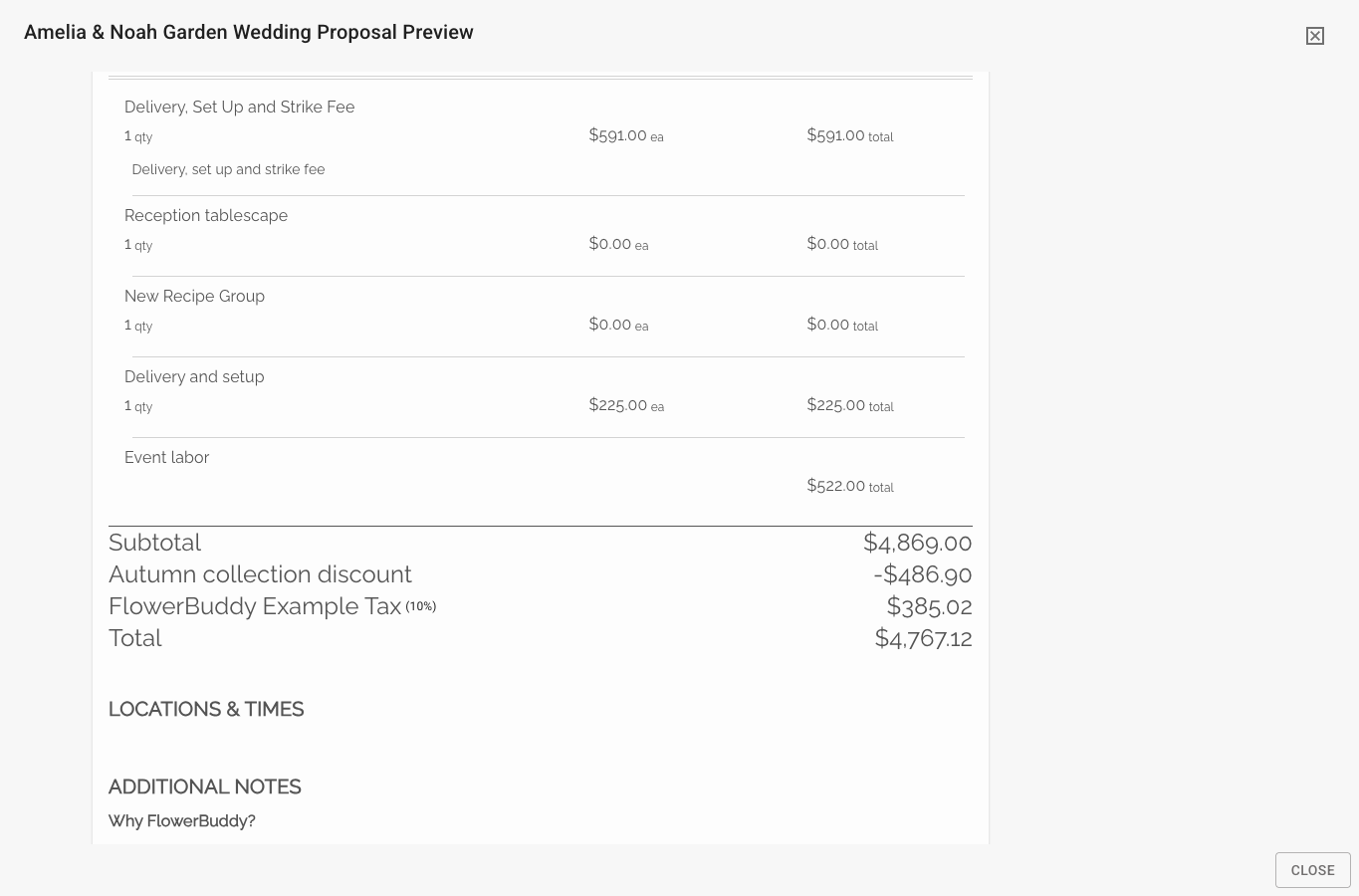
The bottom of the section brings the line items together with the event's subtotal, discounts, taxes, and total.
## Understand totals text size
The subtotal, discounts, taxes, and final total belong to **Scope of Services**. They are not a separate proposal section with its own settings icon. This area uses fixed text sizes, so the heading **Font Size** control and **Bulk Update Sections Style** do not resize those totals. The Scope of Services **Body** controls let you choose a font, but do not provide a separate font-size setting for that area.
Use **Preview Proposal** to check how the complete section reads before sharing it.