> For the complete documentation index, see [llms.txt](https://help.flowerbuddy.co/llms.txt). Markdown versions of documentation pages are available by appending `.md` to page URLs; this page is available as [Markdown](https://help.flowerbuddy.co/reference/event-page/proposal/publish-and-client-portal.md).
# Client Portal access
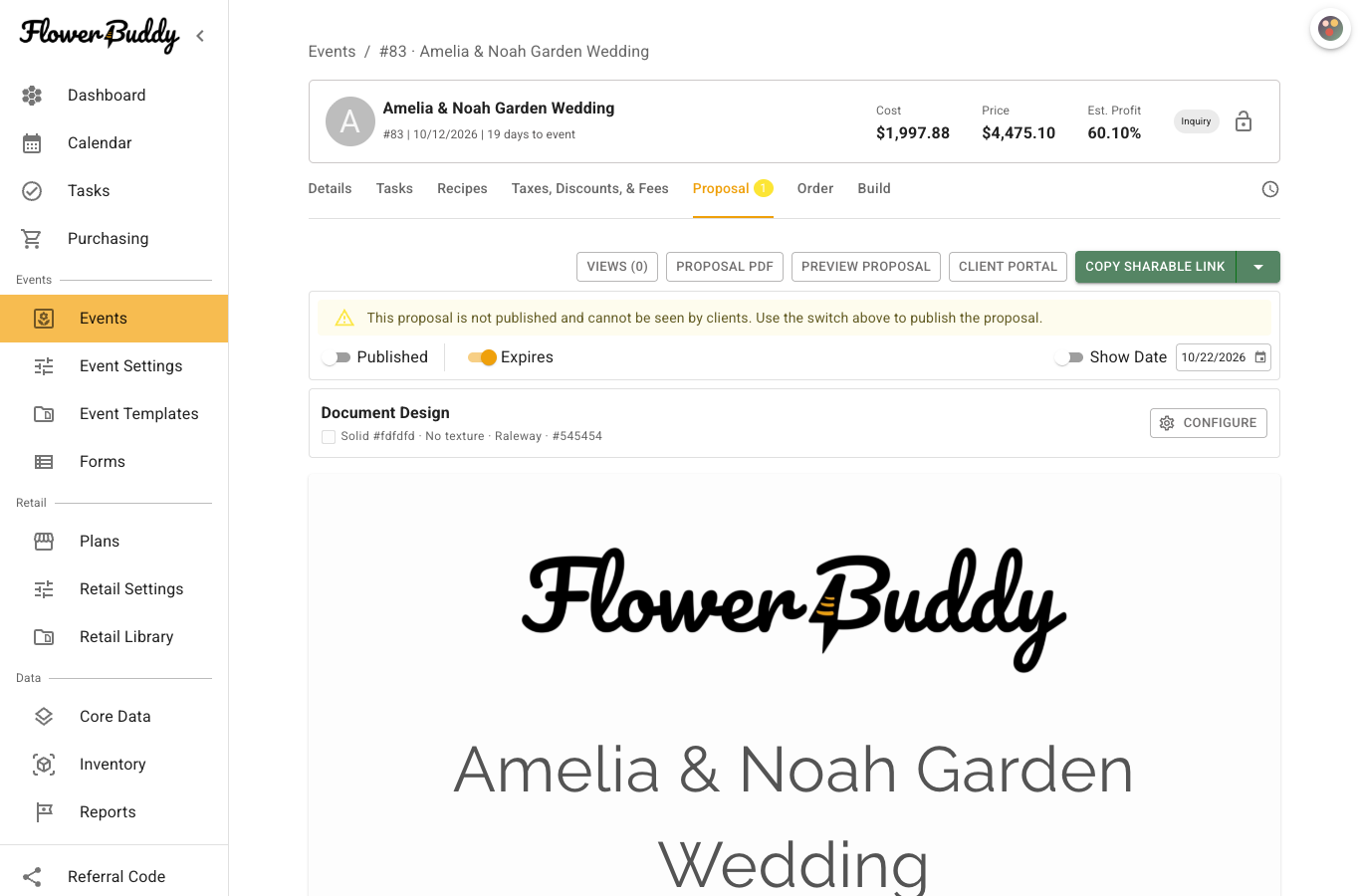
The Client Portal is the recipient-facing page for an event proposal. **Published** controls ordinary access to that page. **Expires** and **Expiration Date** let you set a later end to access. The Proposal tab also provides sharing choices and a preview link so you can review the client-facing page before you hand it off.
## Check the proposal first
1. Open the event and select **Proposal**.
2. Read the warnings above the proposal editor.
3. Select **Preview Proposal** and check the sections, images, event information, offerings, and totals.
4. Select **Client Portal** when you need to inspect the recipient-facing page.
The Client Portal is separate from the editor. A client does not use **Section Settings**, **Document Design**, or the event tabs that you use to manage the proposal.
## Set access and expiration
When the proposal is ready, use the **Published** switch to control ordinary Client Portal access. If publication requires a workspace condition such as a payment method or plan access, FlowerBuddy shows that condition beside the control.
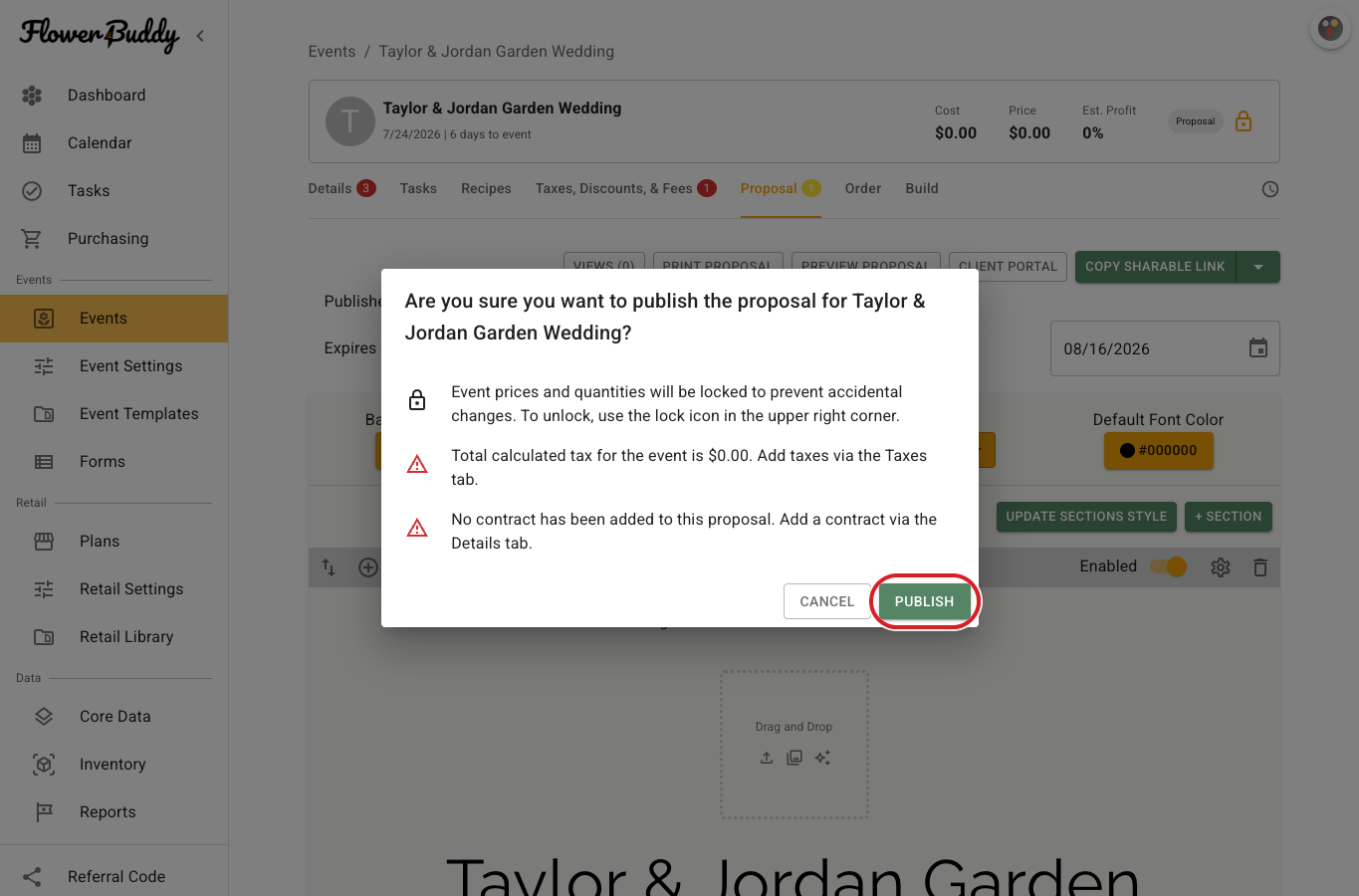
Turning on **Published** opens a confirmation that can have important effects. Review the warning before selecting **Publish**: publishing locks event prices and quantities to prevent accidental changes. If the event has a contract, the confirmation also explains the contract signature authorization that applies when the contract is sent. If the event has amendments, publishing lets clients view them and sign a new contract.
To set a time limit:
1. Turn on **Expires**.
2. Review or change the **Expiration Date**.
3. Use **Show Date** if the date should be visible to the recipient.
Turning off **Expires** removes the expiration boundary. An unpublished proposal and an expired proposal are both unavailable to ordinary recipients, but they are different states in the Proposal editor.
## Choose a sharing method
The sharing control can offer these choices:
* **Copy Sharable Link** copies a formatted Client Portal link.
* **Copy Plain Text Link** copies the link as text.
* **Send Link Via Email** starts the available email-sharing flow.
Use the method that matches your communication process. Treat the link as access to the event's recipient-facing information. Share it only with the intended client and do not place the private link in a public document.
## Recipient tabs
The Client Portal can present the proposal and, when the event supports them, related **Contract**, **Payments**, and **Documents** tabs. Which tabs appear depends on the event's enabled features and current document state. Their detailed settings belong to **Details** and should not be changed from the Proposal section controls.
Client access to the proposal does not mean the client can still change optional items. After booking, handle those requests on the florist side. Once a contract document has been generated, the client's optional selections are unavailable, including while amendments are being reviewed. See [optional recipes after booking](/reference/event-page/recipes/offer-optional-recipes.md#client-choices-after-booking).
When a proposal is unpublished or expired, the recipient sees an unavailable state instead of the ordinary proposal view. The message tells the recipient that the proposal is unavailable, but it does not identify whether publication was turned off or the expiration date passed.
## Review Client Portal access
The proposal is available when **Published** is on, any enabled expiration date is in the future, and the Client Portal opens the intended recipient view. After changing a section or style, preview again before sharing. If access should end, turn off **Published** or use the expiration controls rather than deleting the event.
Use [Review proposal views](/reference/event-page/proposal/review-proposal-views.md) to check recorded visits. A recorded visit does not confirm that a client accepted the proposal, signed the contract, or made a payment.