> For the complete documentation index, see [llms.txt](https://help.flowerbuddy.co/llms.txt). Markdown versions of documentation pages are available by appending `.md` to page URLs; this page is available as [Markdown](https://help.flowerbuddy.co/reference/event-page/proposal/preview-and-pdf.md).
# Proposal preview and PDF
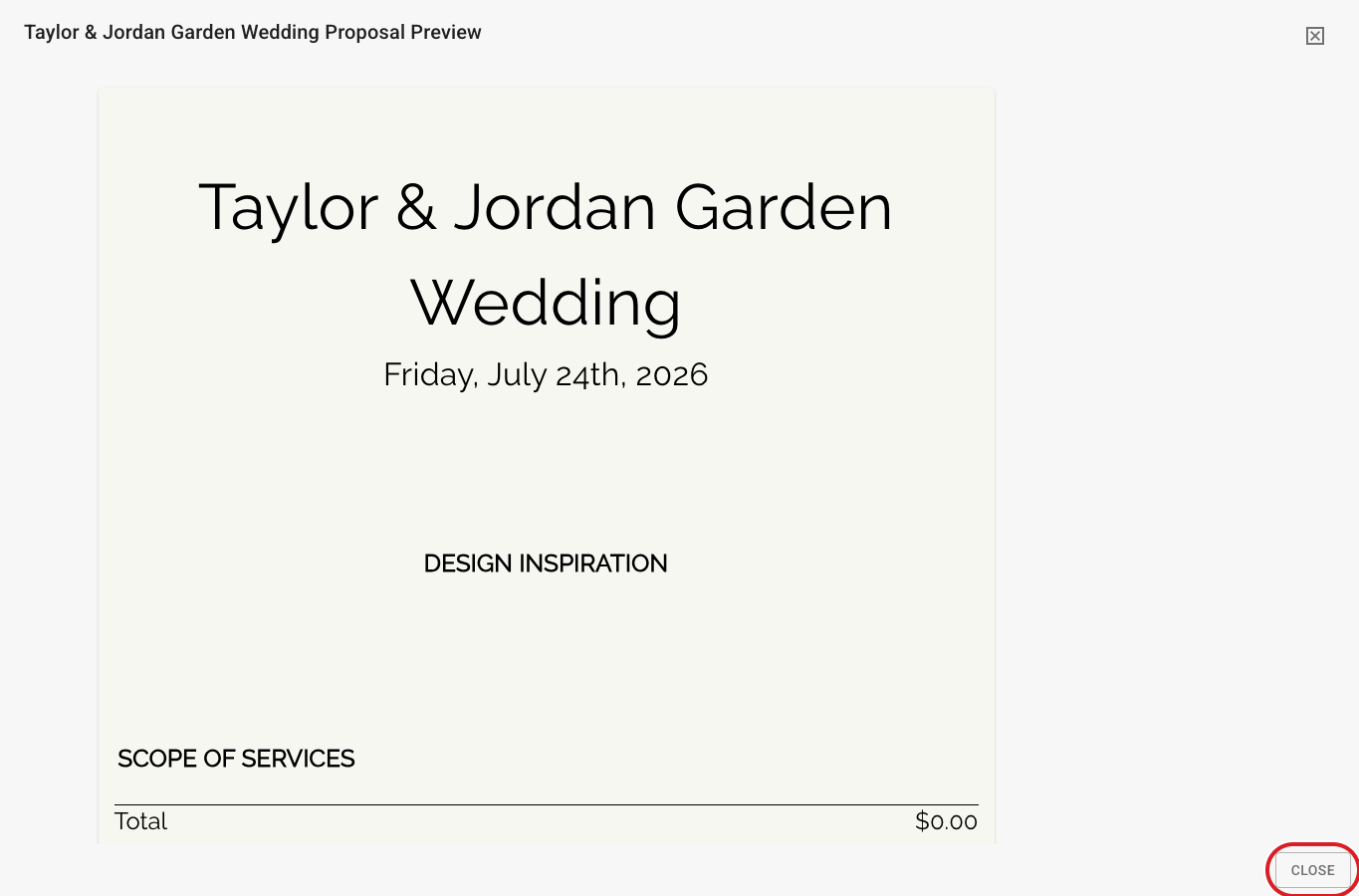
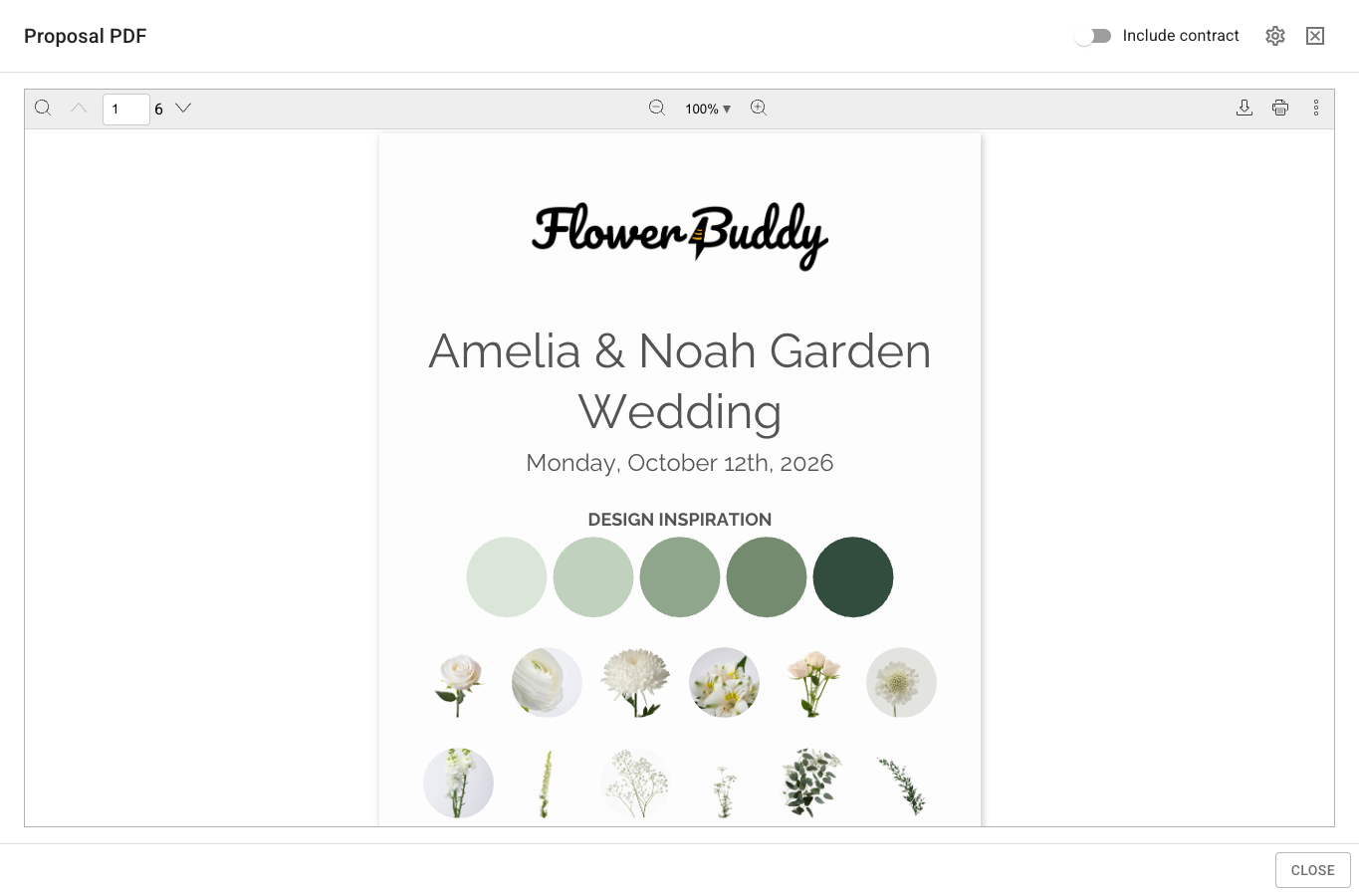
Use **Preview Proposal** to inspect the rendered client-facing presentation. Use **Proposal PDF** when you need a printable or downloadable document. Both views use the proposal's enabled sections and current design, but neither replaces the editor.
## Preview the proposal
1. Open the event and select **Proposal**.
2. Select **Preview Proposal**.
3. Read the rendered sections in order.
4. Close the preview and return to the editor when you need to make a change.
Preview is useful for checking section order, headings, images, text, event details, Scope of Services, and totals. It does not give you the section editing controls. Make changes in the editor, then open the preview again.
## Create a Proposal PDF
1. Return to the Proposal editor.
2. Select **Proposal PDF**.
3. Wait while FlowerBuddy builds the PDF. Opening **Proposal PDF** starts the export automatically.
4. If the PDF should include the contract, turn on **Include contract**. FlowerBuddy starts a new export with that choice.
5. To choose specific contract documents, select **Choose contract documents**, select the documents, and select **Apply**. FlowerBuddy starts a new export with the selection.
6. When the PDF viewer appears, inspect the result, then select **Close** when you are done.
The PDF uses the proposal sections that are enabled in the editor. Large image galleries or attached PDFs can take longer to generate. If the export reports a problem, correct the issue shown in the dialog and select **Try Again**.
## Choose the right view
* Use **Preview Proposal** when you are checking the presentation and need to return to editing quickly.
* Use **Proposal PDF** when you need a file for printing, downloading, or a separate review.
* Use **Client Portal** when you need to inspect the recipient-facing page and its available tabs.
Publication and expiration determine whether a client can open the Client Portal. Creating a PDF does not publish the proposal or send it to anyone.
## Keep an earlier proposal
**Preview Proposal** and a newly generated **Proposal PDF** use the current proposal. To retain a quote before changing it, download its PDF and keep that file. Opening the PDF viewer later generates the current document; it does not retrieve every PDF previously viewed.
For an earlier signed agreement, review saved contract documents in **Details > Files**. Use [History](/reference/event-page/history.md) to investigate individual edits and [amendments](/reference/event-page/proposal/amendments.md) to compare pending changes with the agreement. Neither is a proposal-version restoration tool.
## Print production notes
The proposal can include **Proposal Notes**, but it does not include **Florist Notes**. For a team copy containing both, open **Build > Print**, enable **Recipe Pages** and **Show Recipe Notes**, then generate a Build PDF. See [print Proposal Notes and Florist Notes](/reference/event-page/build/print-and-pdf-configurations.md#print-proposal-notes-and-florist-notes).
## Review before sharing
The preview or PDF is ready when the section order, design, event information, offerings, images, notes, and totals match the version you intend to share. If the copy contains contract or payment information, review those records on [Details](/reference/event-page/details.md) before sharing it.