> For the complete documentation index, see [llms.txt](https://help.flowerbuddy.co/llms.txt). Markdown versions of documentation pages are available by appending `.md` to page URLs; this page is available as [Markdown](https://help.flowerbuddy.co/reference/event-page/proposal/design-and-sections/add-event-information-and-text.md).
# Add event information and text to a proposal
Proposal sections can present information already stored on the event and can add text that belongs specifically in the proposal. **Clients**, **Contacts**, and **Timeline** read from the event. **Notes** and **Links** are edited in the proposal section itself.
Use [proposal sections](/reference/event-page/proposal/design-and-sections.md) to add, arrange, show, hide, and preview these sections. For the information that feeds them, see [manage clients, signers, and professional contacts](/reference/event-page/details/manage-event-contacts.md), [plan the event timeline](/reference/event-page/details/plan-event-timeline.md), and [manage event data and the team](/reference/event-page/details/manage-event-data-and-team.md). Use [proposal design](/reference/event-page/proposal/style-the-proposal.md) for shared section styling.
## Add clients and contacts
1. Open the event and select **Proposal**.
2. Open an existing section's settings, or select **Add Section Above** where the information should appear.
3. Under **Event Details**, select **Clients** or **Contacts**, then select **Add**.
The **Clients** section shows the clients attached to the event. The **Contacts** section shows the event's professional contacts. Each displayed record can include its name and any available company, email, phone number, or role. If the information is missing or incorrect, edit the person in **Details > Contacts & Locations**. Use **Add Client** under **Clients** or **Add Contact** under **Professional Contacts** to add someone. The Proposal tab does not edit the underlying contact record.
Select **Preview Proposal**. Confirm that the intended client and professional contact information appears in the correct section and order.
## Add a timeline
1. In **Add Proposal Section**, select **Timeline** under **Event Details**, then select **Add**.
2. In the timeline section, review each event timeline item. Turn **Show in Proposal** on for the items the client should see.
3. Open **Section Settings** when the client-facing presentation needs more detail. Use **Show Location Address** to show the address instead of only the saved location name, and use **Show Timeline Notes** to include an item's notes.
4. Under **Date**, choose **Item**, **Header**, or **Both**. Turn on **Show Day of Week** when the weekday should appear with the date.
Timeline items are created and edited under **Details > Timeline**. Turning **Show in Proposal** off hides an item from the client-facing timeline without removing it from the event's internal timeline. The proposal timeline is sorted by the date and time saved on each timeline item.
Select **Preview Proposal**. Confirm that only the enabled timeline items appear, with the location, notes, and date display you selected.
## Add proposal notes
1. Under **Notes** in **Add Proposal Section**, select **Notes**, then select **Add**.
2. Select the **Notes...** editor in the new section and enter the text for the proposal.
3. Use the rich-text controls when formatting helps the recipient read the content. Changes save automatically. Wait for **Saved**, then select **Save and Close** when you have finished.
These notes are proposal content for the client. They are separate from the internal event notes under **Details > Notes**. Use **Section Style** to adjust the proposal note's font, size, color, and alignment.
If the editor shows a failed save or a conflict with another session, use the [save and conflict controls](/reference/event-page/details/write-event-notes.md#check-that-your-note-is-saved) before leaving the page. Previewing the proposal does not resolve an unsaved draft.
The note below explains the proposed flower colors and reception arrangements. Use this section for text you want the client to read as part of the proposal.
Select **Preview Proposal**. The saved note should appear as formatted proposal text without the editor controls.
## Add proposal links
1. Under **Notes** in **Add Proposal Section**, select **Links**, then select **Add**.
2. Hover over the empty Links section and select the add control with the tooltip **Add or edit links**.
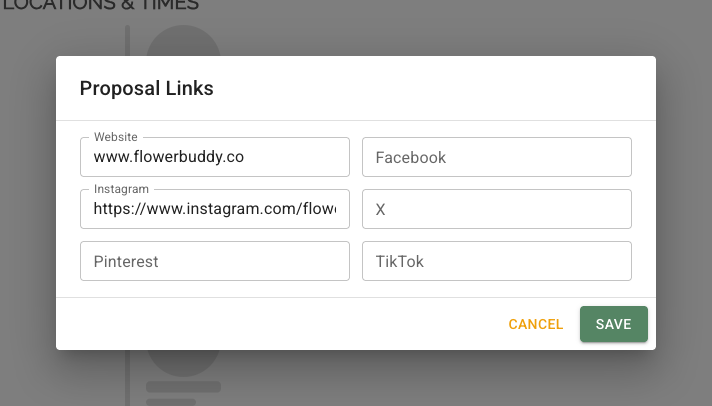
3. In **Proposal Links**, enter any supported destinations: **Website**, **Facebook**, **Instagram**, **X**, **Pinterest**, or **TikTok**.
4. Select **Save**.
The **Proposal Links** dialog keeps the website and social destinations together. Only fill in the destinations you want to include.
FlowerBuddy displays an icon only for a destination with a saved URL. Select an icon in the preview to open that destination in a new browser tab.
Select **Preview Proposal** and confirm that the intended link icons appear across the section. A link entered without `http://` or `https://` is normalized to use `https://` when it is saved.