> For the complete documentation index, see [llms.txt](https://help.flowerbuddy.co/llms.txt). Markdown versions of documentation pages are available by appending `.md` to page URLs; this page is available as [Markdown](https://help.flowerbuddy.co/reference/event-page/proposal/design-and-sections/add-color-palette-and-flowers.md).
# Add a color palette and flowers to a proposal
The **Color Palette** and **Flowers & Decor** sections are presentation elements. They help a client understand the visual direction of the proposal. The items you add here are proposal content. Adding a flower or hard good to **Flowers & Decor** does not add it to a recipe or purchase order.
Use [proposal sections](/reference/event-page/proposal/design-and-sections.md) to add, arrange, show, hide, and preview the sections. Use [proposal design](/reference/event-page/proposal/style-the-proposal.md) for shared section styling.
## Add a color palette
A palette presents the event's colors together. This example uses five shades of green, with an add-color control below the swatches.
1. Open the event and select **Proposal**.
2. Open an existing section's settings, or select **Add Section Above** where you want the palette.
3. Under **Design Elements**, select **Color Palette**, then select **Add**.
4. In the new section or its **Section Settings**, select **Add Color**.
5. In **Add Palette Swatch**, use the **Color** tab to choose a color, enter its **HEX Code**, or use the eyedropper control when it is available. Select **Add**.
6. To add a metallic swatch, open **Add Palette Swatch**, select **Metallic Tone**, choose a **Metallic Tone**, and select **Add**. The available presets include **Gold**, **Champagne**, **Rose Gold**, **Silver**, and **Copper**.
FlowerBuddy allows up to six colors in a palette. When the limit is reached, the section displays **Maximum of 6 colors reached** until you remove a swatch.
## Show more than six colors
The six-color limit applies to each **Color Palette** section, not to the whole proposal. Add a second palette when you need more shades:
1. Select **Add Section Above** on the section immediately below the first palette.
2. Under **Design Elements**, choose **Color Palette**, then select **Add**.
3. Add the remaining shades to the new palette.
4. Open its **Section Settings** and turn off **Show Heading** if the two palettes should share the first heading.
5. Match their **Item Shape** and **Item Alignment**. Use the section's **Margin** and **Padding** controls to adjust the space between them.
For example, keep five green shades in the first palette and three complementary neutrals in the second. Each section keeps its own swatches and six-color limit.
The two palettes below use one visible heading and keep all eight shades in the proposal.
Select **Preview Proposal** to check the combined colors and spacing before sharing the proposal.
## Arrange and style the palette
Drag the swatches into the order you want the client to read them. Open **Section Style** and use the **Body** controls to choose **Item Alignment** and **Item Shape**. The available shapes are **Square**, **Circle**, **Rounded**, **Thumbnail**, and **Swatch**. Use the **Heading** controls when you want to change the palette heading's presentation.
To remove a swatch, use its **Remove palette color** control. Removing a swatch does not remove the **Color Palette** section.
Select **Preview Proposal**. The preview should show the saved swatches in their saved order, alignment, and shape.
## Add Flowers & Decor
**Flowers & Decor** presents selected flower and hard-good items as visual references. The items come from the available FlowerBuddy libraries, and you can add flowers and hard goods separately.
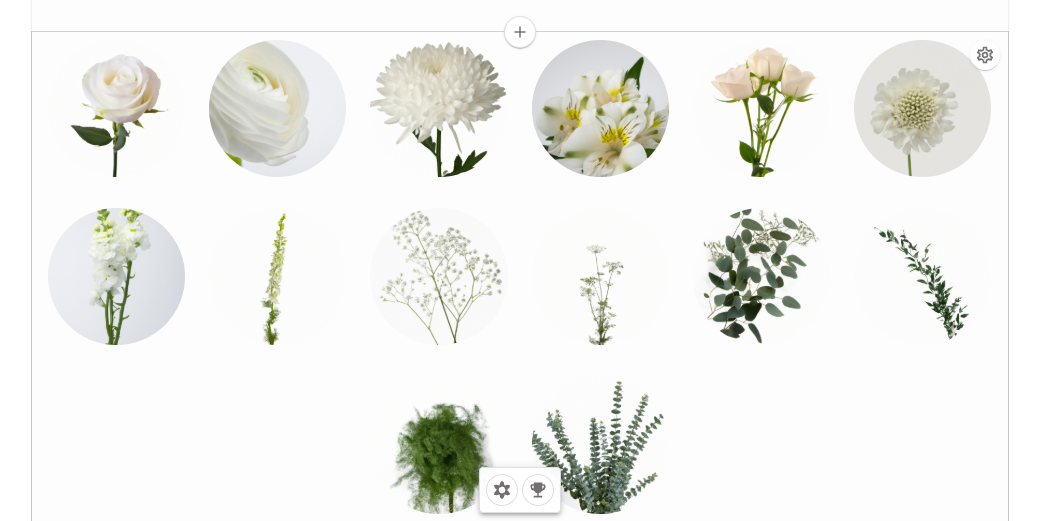
The section below shows the selected flowers and greenery as images. The flower and hard-good add controls appear at the bottom of the section.
1. From the Proposal tab, select **Add Section Above** on the section that should follow the new content.
2. Under **Design Elements**, select **Flowers & Decor**, then select **Add**.
3. In the new section or **Section Settings**, select the control with the tooltip **Add flower**.
4. In **Add Flower**, select one or more items from the list, then select **Add**. Use the search and filters when you need to narrow the available items.
5. To include containers or other non-floral items, select the control with the tooltip **Add hard good**. In **Add Hard Good**, choose the items and select **Add**.
Drag the displayed items into the order you want. Use **Section Style** to choose **Item Alignment** for the item images. To remove an item, use the remove control shown when you select or hover over it.
Select **Preview Proposal**. The preview should show the selected flowers and hard goods as client-facing proposal content, in the order and alignment you chose.