> For the complete documentation index, see [llms.txt](https://help.flowerbuddy.co/llms.txt). Markdown versions of documentation pages are available by appending `.md` to page URLs; this page is available as [Markdown](https://help.flowerbuddy.co/reference/event-page/overview/add-or-change-event-image.md).
# Add or change an event image
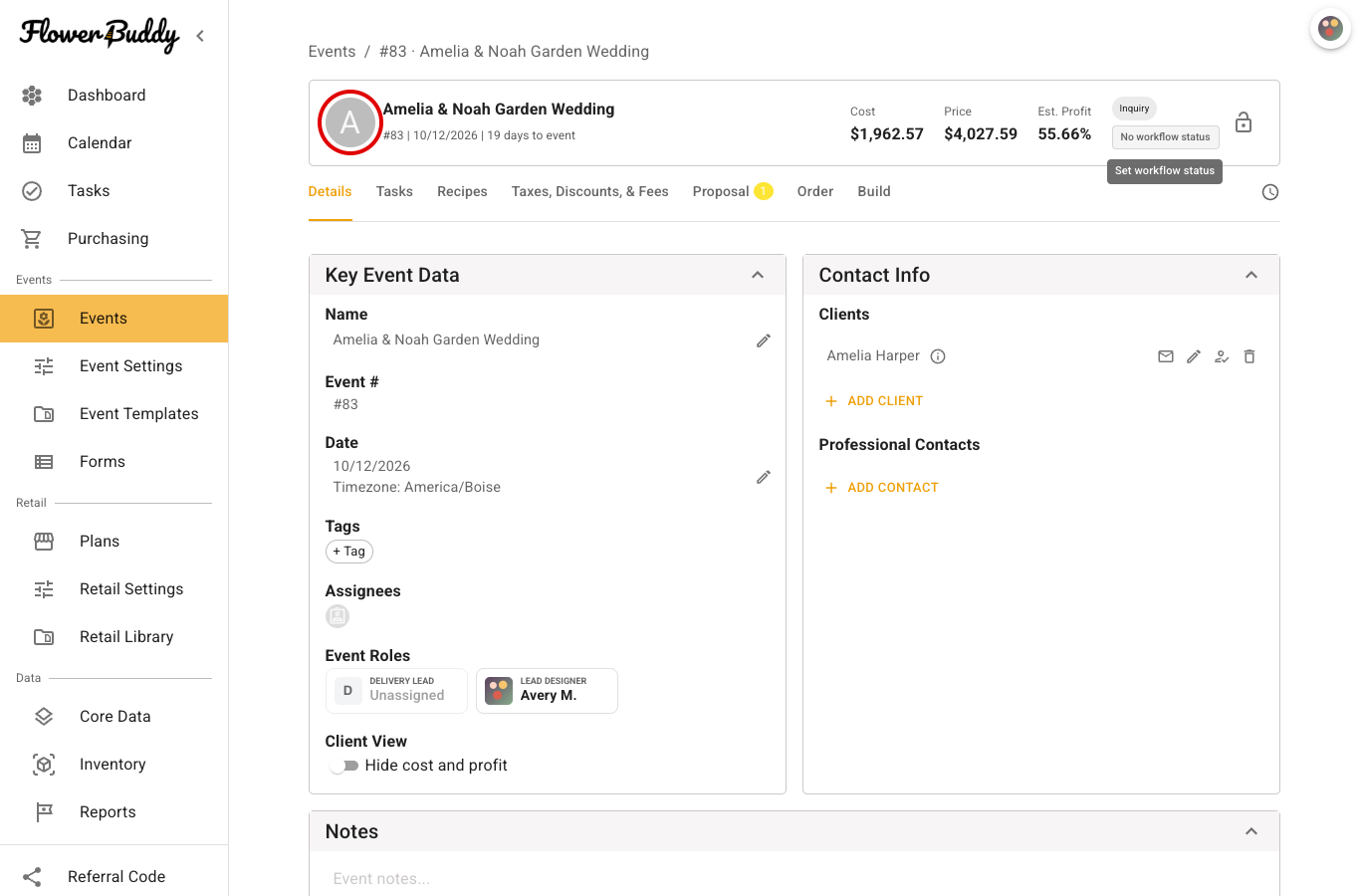
An event image gives you a visual way to recognize the event in its summary. You can upload a picture or choose an image already in your library. The circled round image or initial beside the event name opens the image choices.
## Choose the image
1. Open the event on a computer. Select the round image beside its name, or the initial shown there when no image has been added.
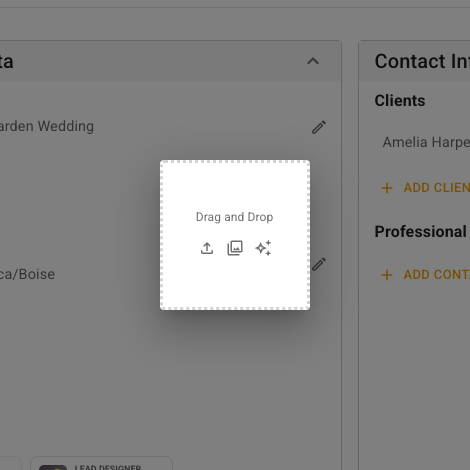
2. In the image dialog, use **Upload Image** to choose a file from your computer, or **Select from Library** to choose an existing image. You can hover over an icon to see its label.
3. Adjust the square crop so the part you want to recognize remains visible.
4. Select **Submit** to apply the crop.
The image picker opens over the event page. The upload and library icons sit below **Drag and Drop**.
The new image appears beside the event name. Repeat these steps to replace it. The image control is hidden in narrower layouts, so use a wider browser window if you cannot see it. You must have permission to edit the event.