> For the complete documentation index, see [llms.txt](https://help.flowerbuddy.co/llms.txt). Markdown versions of documentation pages are available by appending `.md` to page URLs; this page is available as [Markdown](https://help.flowerbuddy.co/reference/event-page/order/select-change-vendors-and-share-plan.md).
# Select vendors, export, and copy a plan
Use Summary controls when you need to prepare information for a vendor or change the vendor used for selected event items.
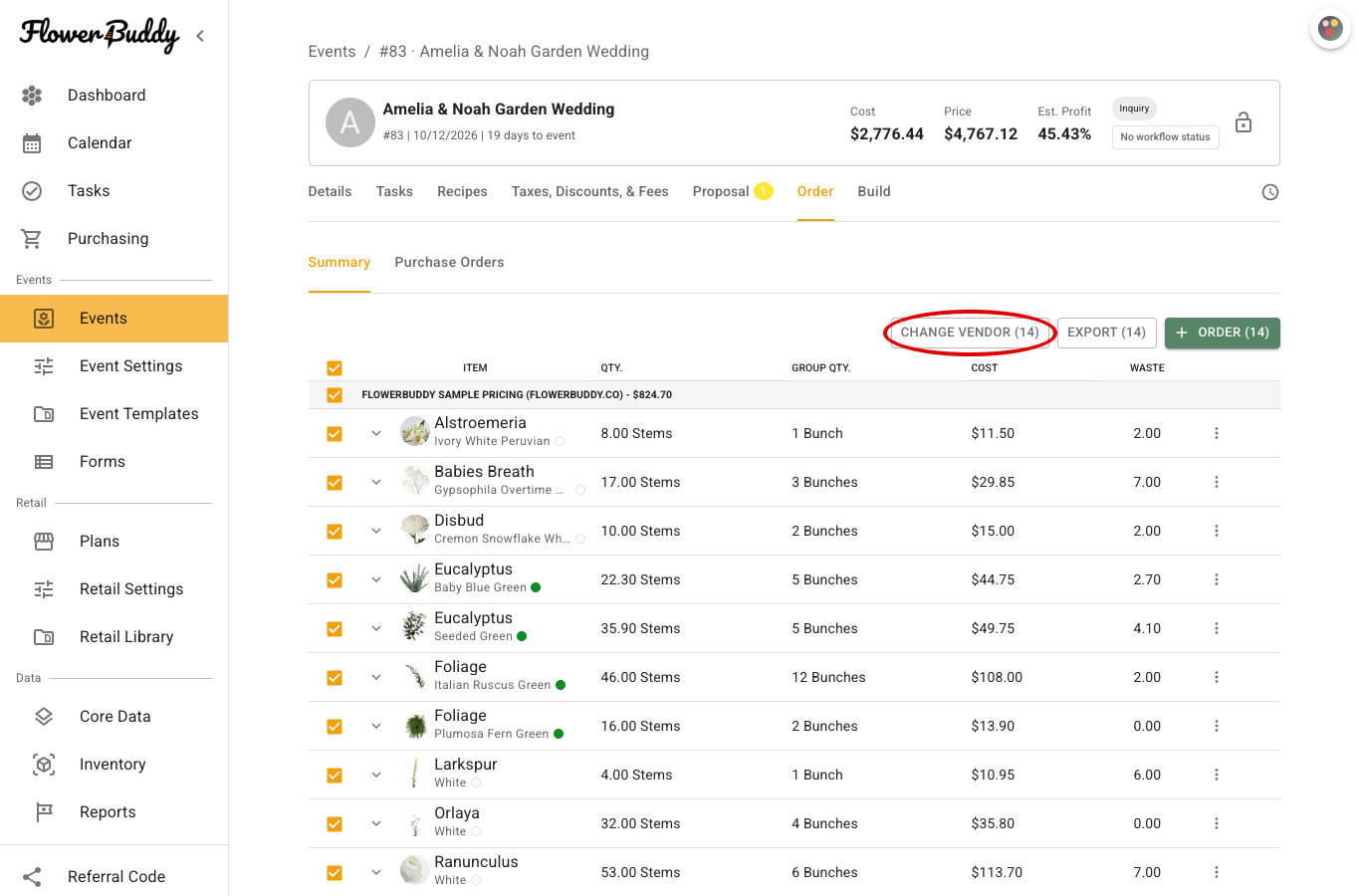
Select the item or vendor checkboxes in **Summary** to enable **Change Vendor**. The number on the button shows how many items are selected.
## Select items
1. Open the event and select **Order** > **Summary**.
2. Select the checkbox beside an item to include it in an action. You can also select the checkbox beside a vendor heading or the table header.
3. Check the selection count on actions such as **Change Vendor**, **Order**, and **Export**.
Summary groups items under vendor headings. Items without a selected vendor remain under **Unknown Location**. Selecting a heading selects its items; it does not assign a vendor.
## Change the vendor for selected items
1. Select the items in **Summary**.
2. Select **Change Vendor**.
3. In **Change Vendor for Selected Items**, choose the destination vendor location.
4. Review the affected items and select **Change Vendor**.
FlowerBuddy moves the items under the new vendor location and recalculates values that depend on vendor pricing, including **Group Qty.** and **Cost**. Recheck those values before creating a purchase order. A role without event edit access cannot use this action.
## Export the plan
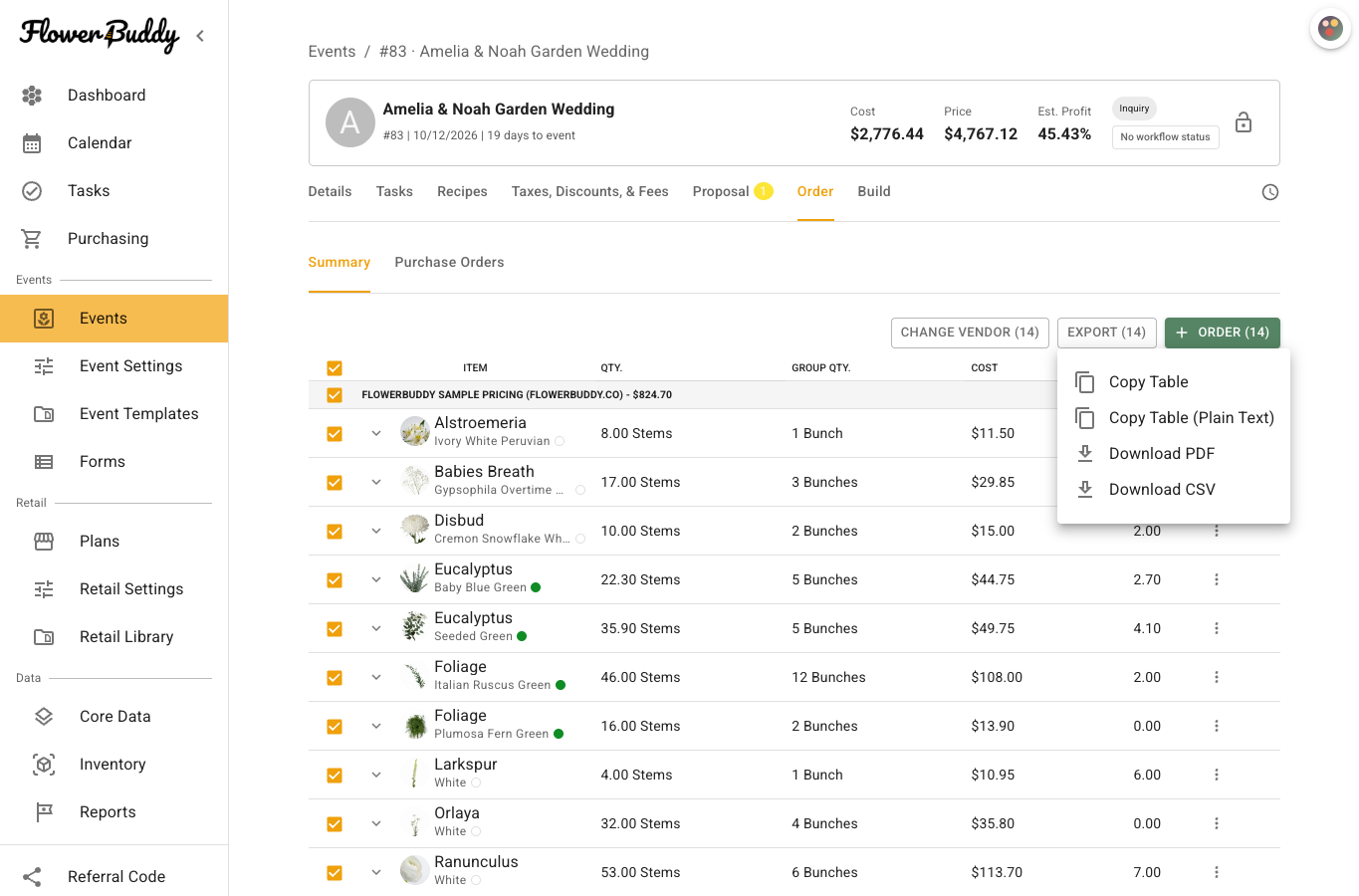
Select **Export** or **Export Plan**. If items are selected, the export contains those items. If no items are selected, it contains the displayed items with a positive planned quantity.
The menu includes:
* **Download PDF**, which groups the plan by vendor and separates flowers from hard goods.
* **Download CSV**, which includes the vendor, item, quantity, unit, group quantity, group name, and total cost.
Downloading a plan does not create a purchase order and does not add the file to **Saved Order Documents**.
The export menu keeps the download and copy options together above the order table.
## Copy Summary values
Open **Export** or **Export Plan** and choose one of the copy actions:
* **Copy Table** copies a formatted table with the item, unit count, and group count.
* **Copy Table (Plain Text)** copies a header and lines in the form `Item Name x [group count] ([unit count])`.
FlowerBuddy confirms a successful copy with **Copied to Clipboard!**. Review the pasted group and unit counts before sharing them with a vendor.