> For the complete documentation index, see [llms.txt](https://help.flowerbuddy.co/llms.txt). Markdown versions of documentation pages are available by appending `.md` to page URLs; this page is available as [Markdown](https://help.flowerbuddy.co/reference/event-page/details/set-up-payment-schedule.md).
# Set up the payment schedule
A payment schedule states how much the client is expected to pay and when each amount is due. It is a plan for collection, not proof that money has been received.
For example, an event can have a retainer due after contract signing and a final balance due before the event date. The payment records later show which of those amounts were actually paid.
## Enable the schedule
1. Open the event and select **Details**.
2. Expand **Payments**.
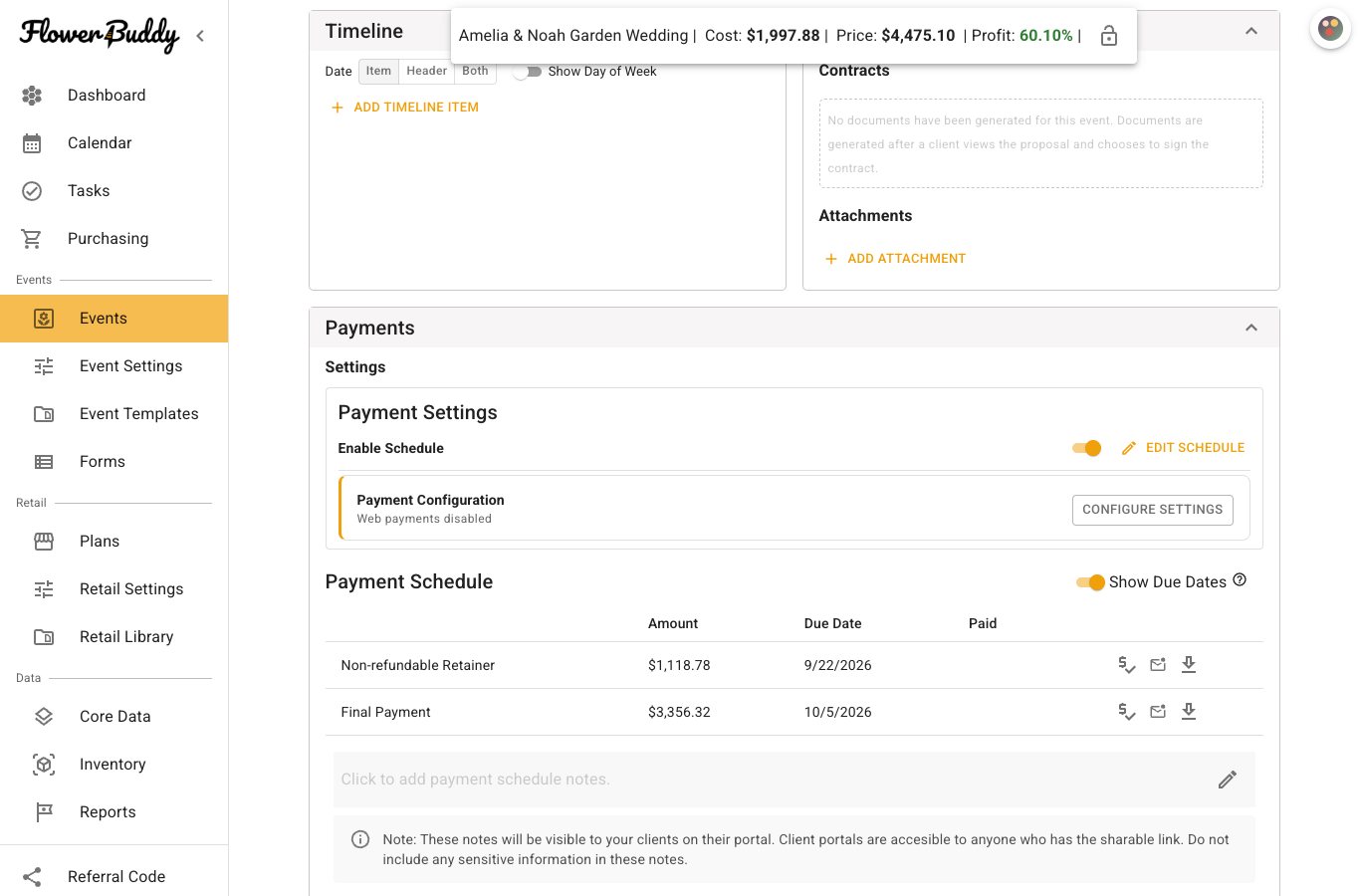
3. Under **Payment Settings**, turn on **Enable Schedule**.
4. Select **Edit Schedule**.
FlowerBuddy always includes a **Final Payment** row. Its amount is the remaining event balance after the other scheduled payments.
The Payments section shows the saved schedule separately from its editor. Each row has its own amount, due date, paid state, and available actions.
## Add a scheduled payment
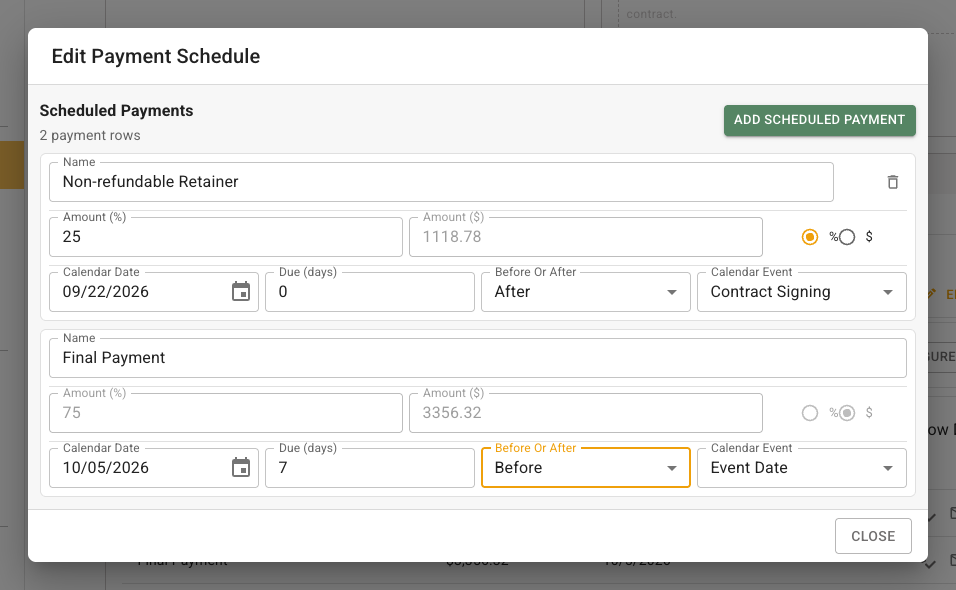
1. In **Edit Payment Schedule**, select **Add Scheduled Payment**.
2. Enter a client-facing **Name**, such as `Retainer` or `Second Payment`.
3. Choose whether the row uses **Amount (%)** or a fixed currency amount.
4. Set its due date.
For a live event, you can select a **Calendar Date**. You can also describe the date as a number of days **Before** or **After** either **Contract Signing** or **Event Date**.
A contract-signing date can only be the starting point for a date on or after signing. If a due date should occur before signing, base it on **Event Date** or enter the exact **Calendar Date**.
For **Due (days)**, enter the number and then press Tab or move to another field so FlowerBuddy saves the value. The other schedule fields also save as you change them. Review every row, then select **Close** to leave the editor.
This example uses a 25 percent retainer due after contract signing and the remaining 75 percent due seven days before the event.
## Keep the final payment last
The schedule must account for the event total, and **Final Payment** must be the last payment scheduled to occur. FlowerBuddy shows a warning when:
* the payment percentages do not total 100 percent with the final payment;
* fixed amounts do not reconcile to the event price; or
* another payment is scheduled after the final payment.
Correct the amounts or due-date rules until the warning clears. Do not ignore a copied schedule whose relative dates no longer make sense for this event.
If all existing payment rows and the final payment are already paid, open **Edit Schedule**. The add control changes from **Add Scheduled Payment** to **Add Final Payment**. Use **Add Final Payment** to create a new final payment for a later amended balance, then review its amount and due date. This does not charge the client or record the new balance as paid.
An [amendment](/reference/event-page/details/manage-contract-amendments.md#collect-payment-for-added-work) and a payment serve different purposes: the amendment updates the agreement, while the schedule states how the remaining balance will be collected. A tip is separate and does not reduce that balance.
## Edit or delete a row
Open **Edit Schedule** and change an unpaid row's name, amount, due-date rule, or payment-method choice. Paid rows are read-only because they are part of the received-payment record.
To delete an unpaid scheduled row, select its trash icon and then select **Delete** in **Confirm Delete Payment**. The **Final Payment** row cannot be deleted.
Deleting a scheduled row changes the plan and recalculates the remaining final payment. It does not delete a separate payment that was already recorded as received.
## Read the schedule
The table shows each payment's name, amount, due date, and paid state. Turn **Show Due Dates** on or off when you want to control whether due dates appear in the client payment view.
The totals below the table separate **Total Paid**, **Total Tip** when a tip exists, and **Outstanding**. A tip is not applied to the event balance, and an application fee is shown separately from the scheduled base amount.