> For the complete documentation index, see [llms.txt](https://help.flowerbuddy.co/llms.txt). Markdown versions of documentation pages are available by appending `.md` to page URLs; this page is available as [Markdown](https://help.flowerbuddy.co/reference/event-page/details/manage-event-locations.md). Agents can also search and read this documentation through its [MCP server](https://help.flowerbuddy.co/~gitbook/mcp).
# Manage event locations
The **Locations** list in **Details > Contacts & Locations** keeps the places associated with an event together, even when you do not yet have a schedule. Each place can have event-specific notes, and one can be marked as the primary location.
For example, add the ceremony and reception venues first, then use [the timeline](https://help.flowerbuddy.co/reference/event-page/details/plan-event-timeline.md) to schedule setup, delivery, and collection at those places. A saved location describes the reusable venue; a timeline item describes an activity at a particular time.
## Add a location to the event
1. Open the event and select **Details**. If the event is locked, [unlock it](https://help.flowerbuddy.co/reference/event-page/overview/lock-or-unlock-event.md) before changing locations.
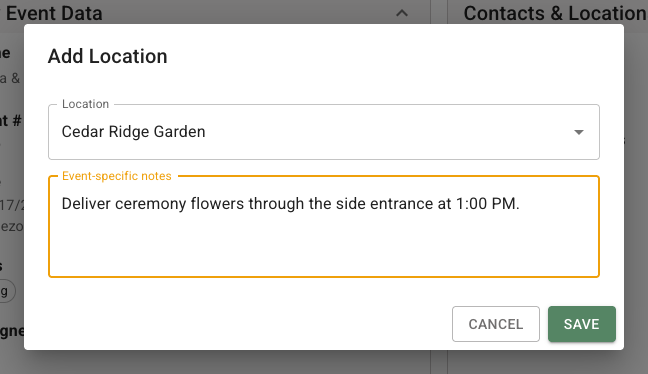
2. Expand **Contacts & Locations** and select **Add Location** under **Locations**.
3. Choose a saved **Location**. Places already used in the timeline appear under **Timeline locations**. Locations already in this event's list are not offered again.
4. Enter **Event-specific notes**, such as the delivery entrance or this event's setup instructions.
5. Select **Save**.
The dialog keeps the selected place separate from the notes that apply only to this event.
If your search has no match, select **Add location?** to create a saved place, then save its association with the event. See [Manage locations](https://help.flowerbuddy.co/reference/crm/locations/manage-locations.md) for reusable addresses, contact details, and shared location notes.
The saved place appears under **Locations** with any saved address and event-specific notes. The first location added to this list is automatically marked **Primary**.
## Use spaces within a venue
Choose a venue or one of its named spaces from the grouped location picker. Spaces inherit the venue’s address. For several spaces at one venue, the Locations list groups their names beneath one venue and address. A single selected space can appear as `Venue: Space`.
If both the parent venue and a space are selected, the display combines their event-specific notes rather than repeating the venue address. Review those notes before showing them to clients. Use **Venue location actions** to change the parent venue's primary designation, edit its event notes, or remove its event reference. A parent marked primary can show **Primary venue**.
Maintain the shared venue and its spaces in [CRM](https://help.flowerbuddy.co/reference/crm/locations/manage-venue-spaces.md). Removing a reference from this event is different from deleting the saved venue or space.
## Choose the primary location
Select the outline star beside a location, labeled **Make primary location**, to mark it as **Primary**. Only one location can be primary. Selecting another location's star moves that designation to the other place.
Select the filled star, labeled **Remove primary location**, to clear the designation. The [Events report](https://help.flowerbuddy.co/reference/reports/events.md) shows the selected place in **Primary Location**, or leaves the column blank when none is selected.
The primary designation identifies the main place for the event. It does not create a scheduled activity or control proposal visibility.
To show venues and addresses without a schedule, add a [Locations section to the proposal](https://help.flowerbuddy.co/reference/event-page/proposal/design-and-sections/add-event-information-and-text.md#add-locations). That section includes this event's Locations list and can show its **Event-specific notes**. Review those notes before sharing them with the client. Use the separate **Timeline** section and each activity's **Show in Proposal** setting for the schedule. Hiding a timeline activity does not hide a place that is also included through the event's Locations list.
## Edit or remove an event location
Select **Edit event location** beside the place to choose a different saved location or change **Event-specific notes**, then select **Save**. These notes belong to this event, not to the reusable location in CRM.
Select **Delete event location**, review **Remove Event Location**, and select **Delete** to remove the place from this list. This does not delete the saved location or a timeline item that uses it. Removing the primary location clears that designation; select another place's star to set a new primary location.
[Build recipe location choices](https://help.flowerbuddy.co/reference/event-page/build/recipe-details-and-locations.md#choose-a-recipe-location) include places in this list and places used by timeline items, with each place listed once. A place can therefore remain available in Build through the timeline after you remove it from the separate Locations list.
Changes require event edit access and an unlocked event.