> For the complete documentation index, see [llms.txt](https://help.flowerbuddy.co/llms.txt). Markdown versions of documentation pages are available by appending `.md` to page URLs; this page is available as [Markdown](https://help.flowerbuddy.co/reference/event-page/details/apply-event-template.md).
# Apply an event template
Use **Apply event template** when an existing event needs a different starting setup. Two common reasons are:
* You recorded an inquiry before knowing which template fit, and can now choose one after qualifying the lead.
* The event was created with the wrong template or no template, and you want to correct it without recreating the event.
Applying a template is a one-time update. Later changes to that saved template do not automatically update this event.
## Open the template choices
1. Open the event and select **Details**.
2. Scroll to **Event Actions**.
3. Select **Apply event template**.
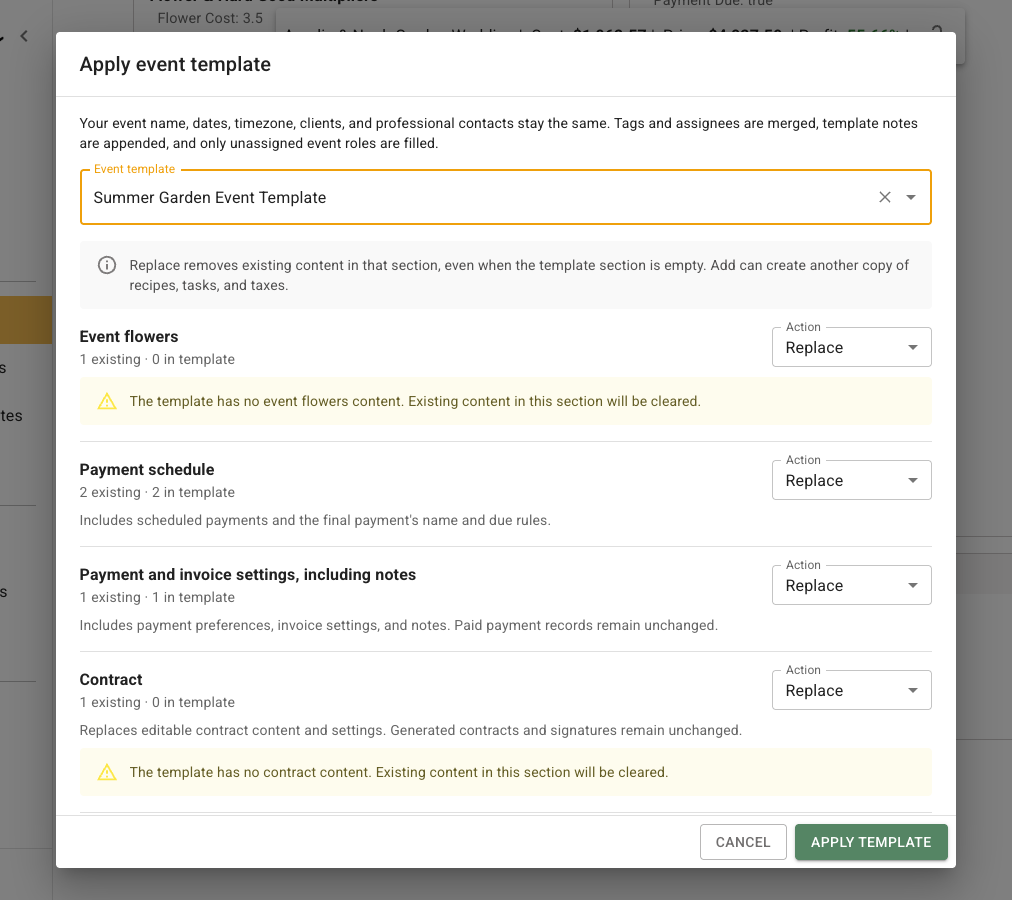
4. Choose the **Event template**.
The event name, dates, timezone, clients, and professional contacts stay the same. Tags and assignees are merged, template notes are appended, and a template fills only Event Roles that are currently unassigned.
The dialog shows the selected template and compares its content with the existing event, section by section. Review those counts before deciding what to keep or replace.
## Add, replace, or keep content
Review the existing and incoming counts for every section. The available actions depend on the type of information:
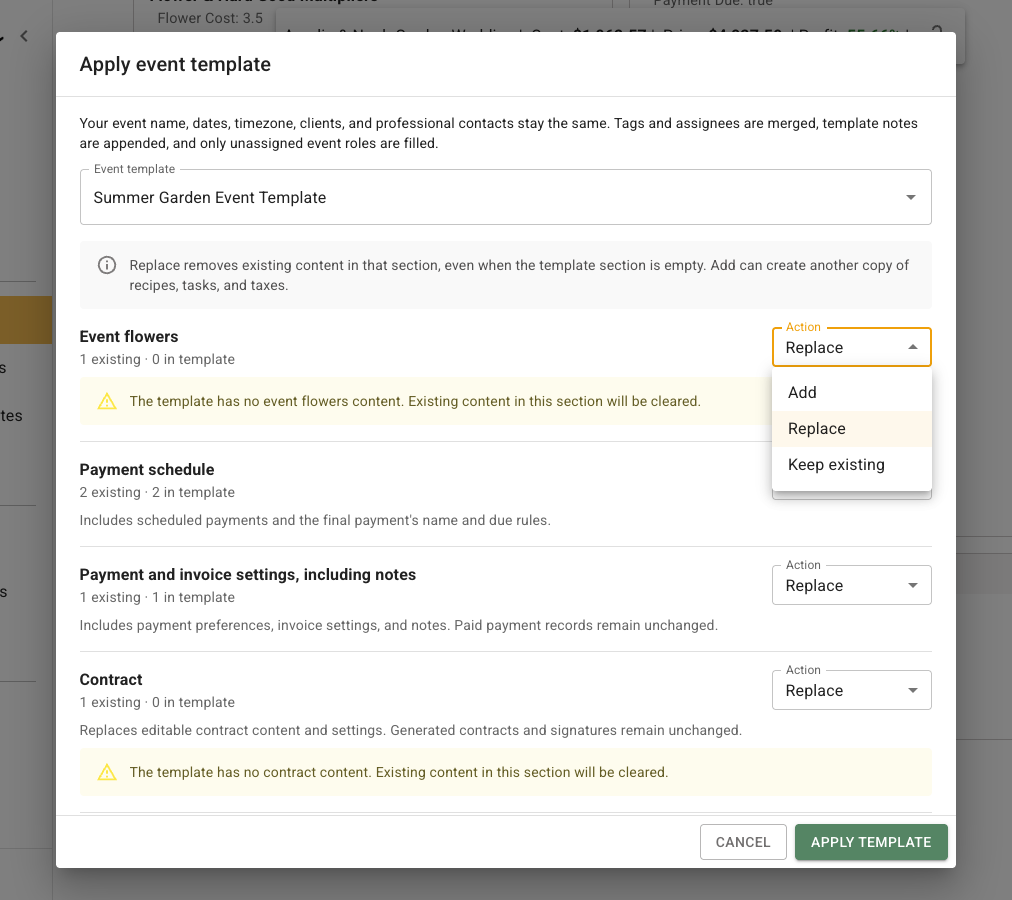
* **Add** keeps the current content and adds template content. It is available for Event Flowers, tasks, recipes and discounts, and taxes. Adding can create another copy of similar content.
* **Replace** removes the editable content in that section and uses the template content instead. If the template section is empty, the existing section can be cleared.
* **Keep existing** leaves that section unchanged.
Each section has its own **Action** menu. This Event flowers example offers all three choices; other sections may offer fewer choices or be protected from replacement.
Review these section-specific effects before applying:
* Tasks include task groups and dependencies. Replacing them removes existing tasks, including completed tasks.
* Recipes and discounts include groups, other costs, discounts, manual fees, and recipe dividers. Payment-generated fees remain.
* Taxes include tax rows and tax-group memberships separately from recipes.
* Payment schedule includes the scheduled rows and the final payment's name and due rules.
* Payment and invoice settings include payment preferences, invoice settings, and notes. Paid payment records remain unchanged.
* Contract replacement changes editable terms and settings. Generated documents and signatures remain unchanged.
* Proposal replacement changes its design, content, palettes, images, and expiration settings. If the proposal is already published, its existing client link changes immediately. A template expiration countdown can restart.
FlowerBuddy can lock a choice when existing paid payments or generated contract records must be protected. Read the reason shown in the dialog rather than trying to replace that section indirectly.
## Apply the template
1. Recheck every section set to **Add** or **Replace**.
2. Pay particular attention to empty incoming sections and published proposal content.
3. Select **Apply template**.
4. Wait for **Event template applied**.
5. Review the affected Details sections, tasks, recipes, taxes, proposal, contract, and payment schedule before sharing the event again.
Applying the template can change several event areas at once and cannot be treated as a preview-only action. Keep the event locked when you are not intentionally making this change.