> For the complete documentation index, see [llms.txt](https://help.flowerbuddy.co/llms.txt). Markdown versions of documentation pages are available by appending `.md` to page URLs; this page is available as [Markdown](https://help.flowerbuddy.co/reference/event-page/build/recipe-details-and-locations.md).
# Recipe details and locations in Build
Each recipe card in **Build** starts with the recipe name and quantity. Expand the card to review the details your team needs to make the design. Expand a recipe group to see the individual recipes inside it.
## Expand a recipe
1. Open the event and select **Build**.
2. Find the recipe or recipe group.
3. Select the card or its expand control.
4. Read the sections inside the expanded card.
The expanded card can include:
* **Proposal Notes**, which can be shown in the proposal, and **Florist Notes**, which are notes for you and the people preparing the designs.
* Inspiration or key images associated with the recipe.
* **Stems & Hard Goods**, including each-unit and total quantities.
* **Progress**, including the status of each unit.
* In-studio and onsite labor estimates.
On a smaller screen, the expanded details open in a side drawer. Close the drawer when you are finished reviewing the recipe.
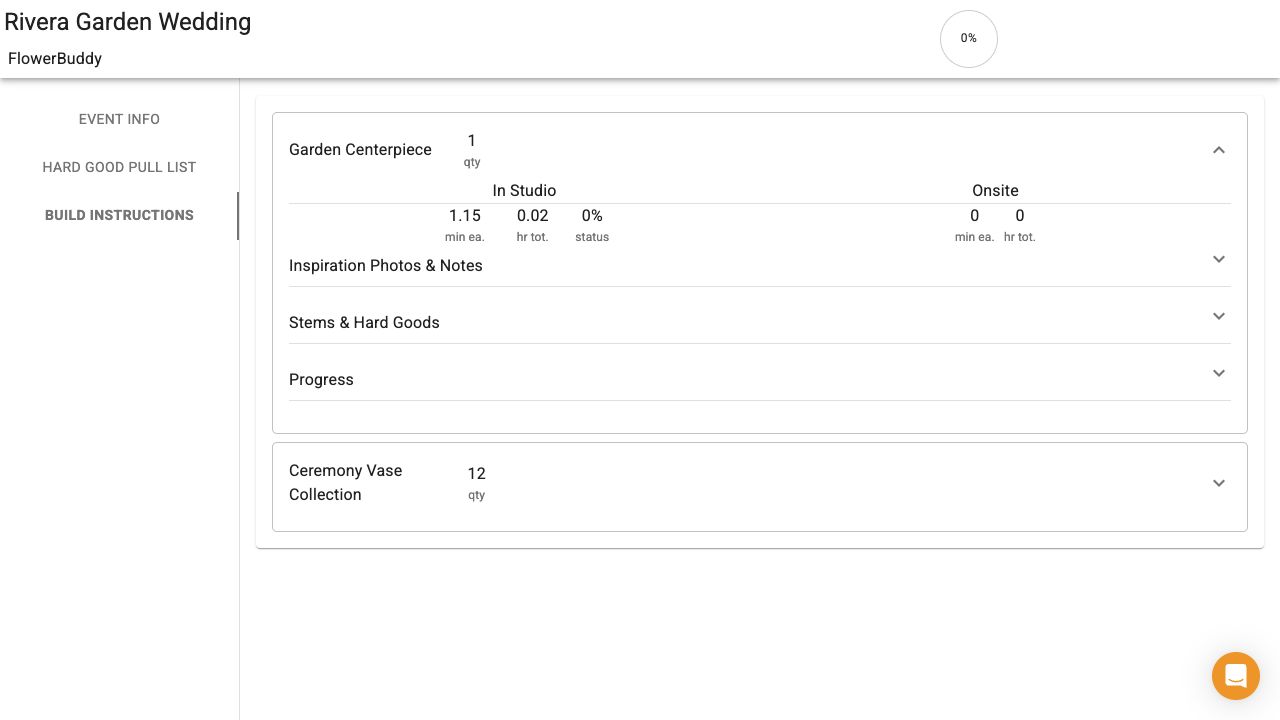
The same production sections appear when a recipient opens the shared Build page. In that view, an expanded recipe looks like this:
The label **Florist Notes (for your eyes only)** means that these notes are not part of the client proposal. It does not make them private from shared Build recipients. The shared Build page and Build PDFs can include florist notes, so review them before publishing Build or generating a PDF.
For a printed copy, use **Build > Print > Recipe Pages > Show Recipe Notes**. That includes both Proposal Notes and Florist Notes. See [print the recipe notes](/reference/event-page/build/print-and-pdf-configurations.md#print-proposal-notes-and-florist-notes) for saving the configuration and checking the generated PDF.
## Review quantity and assignment
The quantity on a recipe card is the number of units to make. For a recipe inside a group, Build can show the quantity for each group unit and the resulting total. Review both values when the group affects how many arrangements the team must prepare.
If the workspace and event access allow assignment, use the **Assignee** control on the recipe card to choose the person responsible for the recipe. Assignment identifies responsibility for the recipe. It does not mark any unit as complete.
The choices include regular workspace members and **Lite Workspace Members**. A lite member lets you assign an arrangement to a designer who does not have a FlowerBuddy account. Their name appears on printed and digital Build instructions without giving them workspace access. Add these people in [Workspace Settings > Members](/reference/workspace-settings/members/manage-lite-workspace-members.md).
## Choose a recipe location
Use the **Location** control on the recipe card to choose the saved location associated with that recipe's production work. A recipe location helps the team know where that recipe should be handled. It is separate from a timeline location used for event activities such as delivery or setup.
The choices combine places in **Details > Contacts & Locations > Locations** with places used by timeline items. Each saved place appears once, even when several activities use it. You can therefore assign a venue before creating a scheduled delivery or setup activity.
Use [Manage event locations](/reference/event-page/details/manage-event-locations.md) to add a place, or [Plan the event timeline](/reference/event-page/details/plan-event-timeline.md) to add a timed activity there. A recipe location remains a separate assignment for that design's production work.
The **Location** list appears on the recipe card, beside its production quantity and assignment.
## Review recipe information
The review is complete when the recipe quantity, group total, assignee, location, instructions, materials, labor, and progress areas match the work the team needs to perform. Use [Track Build progress, completion, and photos](/reference/event-page/build/progress-completion-and-photos.md) when the team is ready to record production progress.