> For the complete documentation index, see [llms.txt](https://help.flowerbuddy.co/llms.txt). Markdown versions of documentation pages are available by appending `.md` to page URLs; this page is available as [Markdown](https://help.flowerbuddy.co/reference/event-page/build/print-and-pdf-configurations.md).
# Build PDF configurations
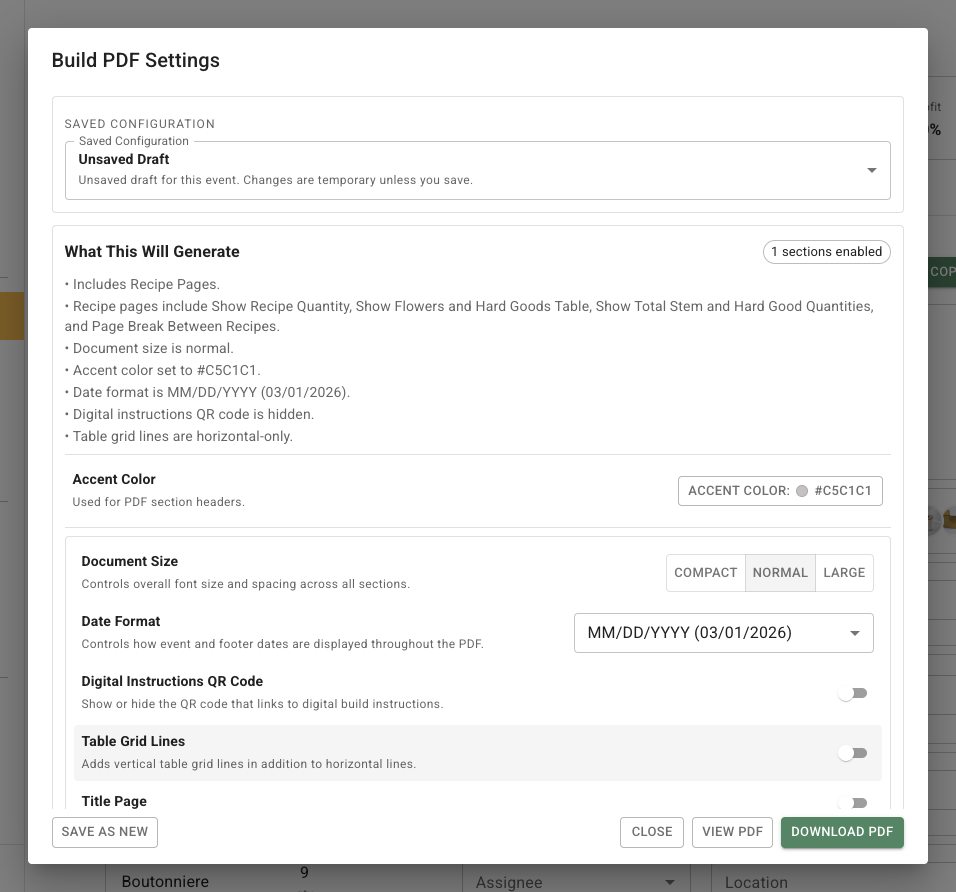
Use **Print** on the **Build** tab when the team needs a production PDF. The **Build PDF Settings** dialog lets you choose which production information belongs in that document, review the summary before generation, and reuse a saved set of choices later.
## Choose the PDF content
1. Open the event and select **Build**.
2. Select **Print**.
3. In **Saved Configuration**, choose an existing configuration or **Unsaved Draft**.
4. If a saved configuration shows only its summary, select **Show Controls**. Turn on the document sections that the team needs, such as **Title Page**, **Event Summary**, **Delivery Checklist**, **Hard Goods Pull List**, or **Recipe Pages**.
5. Review the summary of enabled sections before generating the PDF.
The selected sections determine what the team receives in the PDF. **Recipe Pages** can include recipe images, notes, unit prices, and quantities. A studio preparation copy may need recipe notes and materials, while a shorter reference copy may need fewer sections.
You can also choose:
* **Accent Color** for section headers and accent elements.
* **Document Size** for overall font size and spacing.
* **Date Format** for event and footer dates.
* **Digital Instructions QR Code** to show or hide a link to digital Build instructions.
* **Table Grid Lines** to add vertical lines to tables as well as horizontal lines.
## Print Proposal Notes and Florist Notes
To print the instructions written on the recipe:
1. Open the event's **Build** tab and select **Print**.
2. Choose the intended **Saved Configuration**, or start with **Unsaved Draft**.
3. Select **Show Controls** if the saved configuration's options are hidden. Enable **Recipe Pages** to reveal its options.
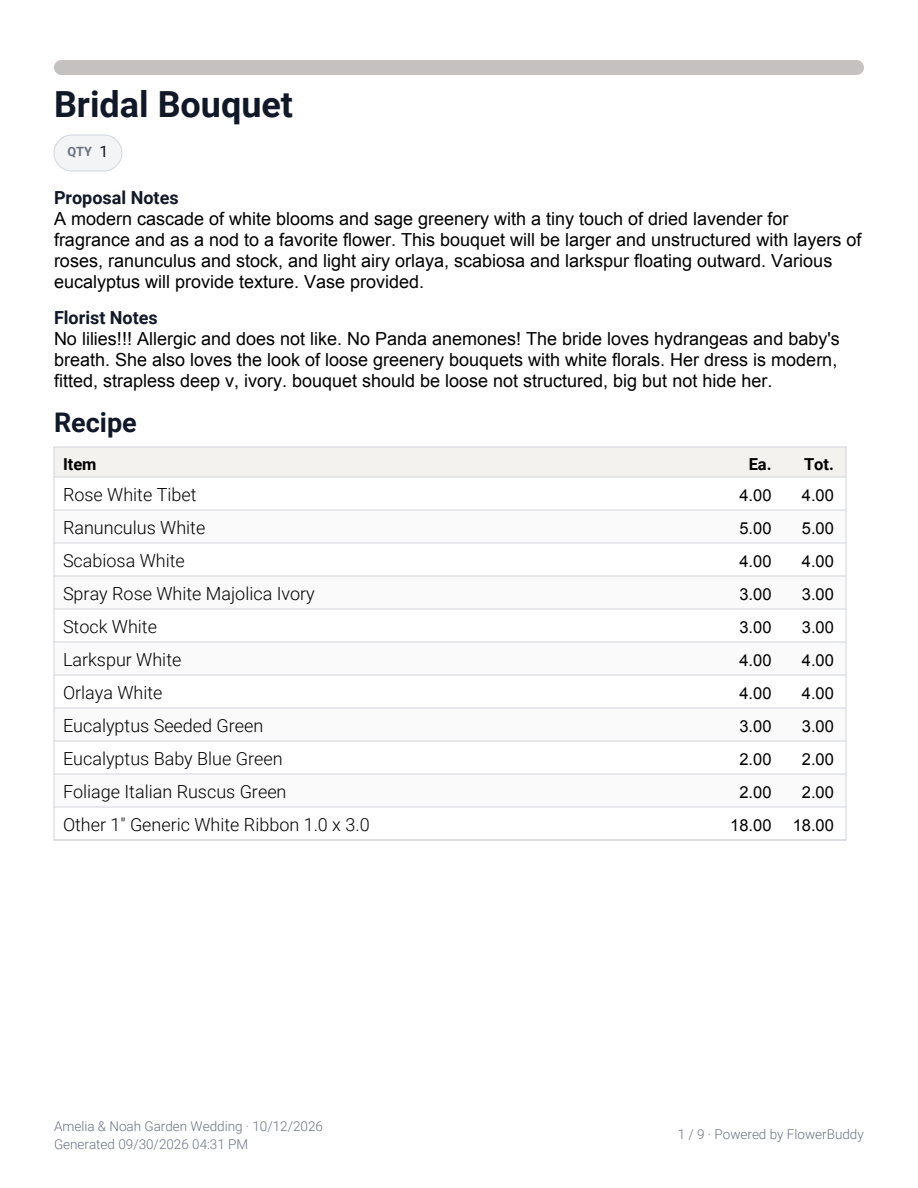
4. Enable **Show Recipe Notes**. This includes both **Proposal Notes** and **Florist Notes** on the recipe pages.
5. Select **View PDF** and review a recipe with populated notes. Confirm that both note fields appear in the generated document.
**Include Proposal Design** alone does not include Florist Notes. Those belong to the production recipe pages. If a recipe has no saved notes, enabling the option does not create any.
The **Recipe Pages** options place **Show Recipe Notes** beside the choices for recipe images, prices, and quantities.
To keep these choices, use **Save as New**, or **Update** followed by the selected configuration's name. If prompted while generating, choose **Save and Continue** to save a reusable configuration or **Continue Without Saving** for this PDF only. Reopen the same saved configuration and check **Recipe Pages > Show Recipe Notes** when preparing the next copy.
## Include the proposal design
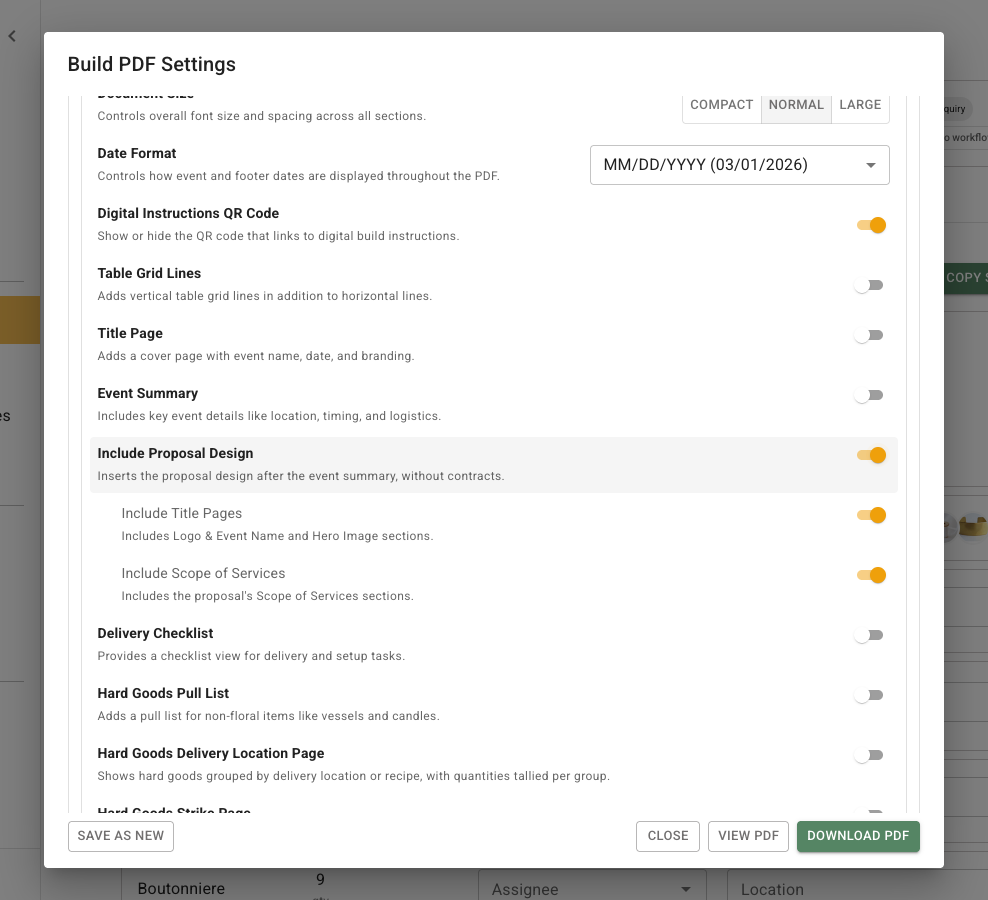
Turn on **Include Proposal Design** to put the event's proposal design into the Build PDF, after the event summary. This gives the team the visual presentation alongside production instructions. It does not include the contract.
* **Include Title Pages** includes the proposal's **Logo & Event Name** and **Hero Image** sections.
* **Include Scope of Services** includes the proposal's Scope of Services sections. Review their pricing display before giving the PDF to your team.
You can turn either option off while keeping other proposal design sections. You can also leave the production sections off to generate only the selected proposal content. If the selection has no printable content, change the selection or add content to the proposal before generating again.
With **Include Proposal Design** enabled, the two choices below it control the proposal's title pages and Scope of Services separately.
## Save or reuse a configuration
Use **Unsaved Draft** when the choices are for one PDF only. To reuse the choices later, select **Save as New**, enter a **Name**, optionally add a **Description**, and select **Save**. When a saved configuration is selected in the Print dialog, use the **Update** button followed by that configuration's name to update it. **Save Changes** is the label used when editing a configuration in the configuration library.
When you select **View PDF** or **Download PDF** after changing an unsaved draft, FlowerBuddy asks whether to save the draft before continuing. Choose **Save and Continue** when you want to keep it as a reusable configuration. Choose **Continue Without Saving** when the choices are only for the current PDF.
Saved configurations can also be managed from the **Build PDF** tab in **Event Settings**. Deleting a saved configuration there does not delete event recipes or previously generated PDFs.
## View or download the PDF
Before generating the PDF, make sure at least one document section is enabled and the accent color is valid. Use **What This Will Generate** to confirm the selected content and options. Select **View PDF** to inspect the generated document in FlowerBuddy. Select **Download PDF** to save a copy.
The generated recipe page places Proposal Notes and Florist Notes above the materials table when **Show Recipe Notes** is enabled.
## Review the generated PDF
The PDF is ready when its enabled sections, recipe details, dates, images, notes, and QR code match the work the team needs. If a setting is missing from the PDF, return to **Build PDF Settings**, check whether its section is enabled, and generate the document again.