> For the complete documentation index, see [llms.txt](https://help.flowerbuddy.co/llms.txt). Markdown versions of documentation pages are available by appending `.md` to page URLs; this page is available as [Markdown](https://help.flowerbuddy.co/reference/core-data/flowers/set-flower-units-and-prices.md).
# Set flower units and planning prices
The unit and price information on a flower record provide a reusable planning starting point. They are not an instruction to buy the same amount for every event, and they do not replace a vendor's actual purchase-order price.
## Choose a unit for a workspace-created flower
1. From **Core Data**, open **Flowers** and select **Add Flower**.
2. Select **Add New Item** when you need a workspace-created flower rather than a catalog flower.
3. Choose **Individual Name** for the unit one recipe quantity represents, such as a stem.
4. Set **Processing Time Estimate (minutes)** when the unit needs a preparation estimate, then select **Create Flower**.
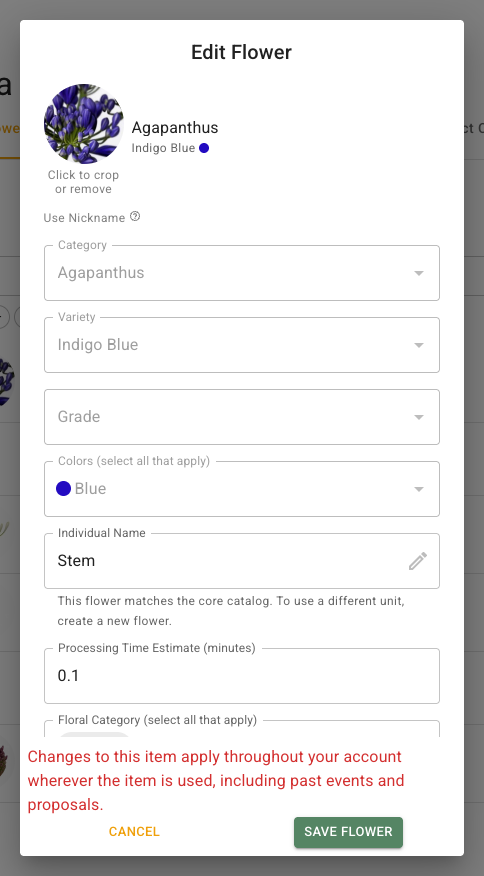
A flower added from FlowerBuddy's catalog keeps the catalog unit. Its **Individual Name** field says, **This flower matches the core catalog. To use a different unit, create a new flower.** Do not try to change that catalog flower into a differently measured workspace record. Create a new flower instead, then choose the needed unit as part of its setup. See [Add and manage flowers](/reference/core-data/flowers/add-and-manage-flowers.md) for the catalog and workspace-created paths.
The catalog restriction appears in the flower editor beside **Individual Name**.
## Change an eligible shared unit
For a workspace-created flower whose **Individual Name** has an edit icon, select the icon and wait for FlowerBuddy to load the recipe and price counts. Review the number of recipes and prices, including templates and saved event versions. Choose **New individual name**, select **Use selected unit**, then select **Save Flower** in the editor.
Changing an eligible shared unit changes its meaning everywhere that flower is used. FlowerBuddy does not convert existing quantities or prices. A bunch price and a stem price can both be valid for the same flower, but the recipe unit must match how quantities are planned and the associated pricing needs review.
## Fix reversed stems and bunches
FlowerBuddy builds the quantity label in a price from two settings:
* **Individual Name** on the flower defines what one recipe quantity represents, such as one stem.
* **Group Name** on the price defines the buying group, such as a bunch.
If a price says **Bunches per Stem**, the flower's **Individual Name** is set to **Bunch** and the price's **Group Name** is set to **Stems**. For ordinary bunch pricing, these settings are usually reversed. The intended result is **Stems per Bunch**.
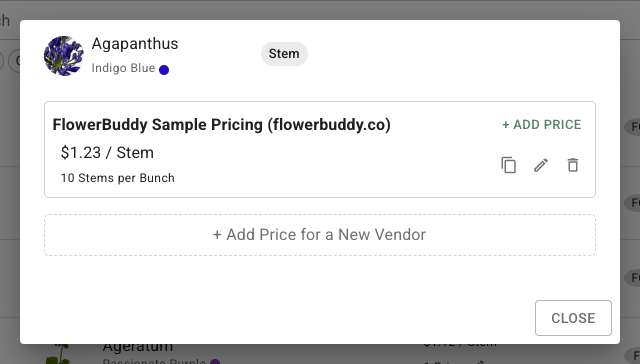
In the corrected example, the flower's shared unit is **Stem**, and the planning price shows ten **Stems per Bunch**.
To correct an eligible workspace-created flower:
1. Before changing anything, decide whether existing recipe quantities were entered as stems or as bunches. Open the flower's unit edit control and review the recipe and price counts so you understand how widely the change will apply.
2. From **Core Data**, open **Flowers**, find the flower, and select its edit icon.
3. Select the edit icon in **Individual Name**. Under **New individual name**, choose **Stem**, select **Use selected unit**, then select **Save Flower**.
4. Open the flower's price control and add or edit the planning price.
5. Set **Group Name** to **Bunches**. Enter the number of stems in one bunch in **Stems per Bunch**.
6. Check **Cost per Bunch** and **Cost per Stem**, then save the price.
If **Individual Name** is locked because the flower matches the core catalog, create a new workspace flower with the correct unit instead of changing the catalog flower.
### Review existing recipe quantities
Changing **Individual Name** changes the unit label everywhere the flower is used, but it does not change any number already entered.
* If a recipe says 12 bunches but you entered 12 because you meant 12 stems, changing **Individual Name** to **Stem** makes the recipe show 12 stems. The number already matches your intent.
* If a recipe says 0.5 bunch and you meant half a bunch, changing **Individual Name** to **Stem** makes it show 0.5 stem. Update that recipe quantity to the intended number of stems.
Review affected event recipes, recipe templates, and saved prices after the change. A price that was entered while the units were reversed may also need its **Group Name**, group quantity, or price amount corrected. Do not assume that changing the label converts any of those values.
## Add or update a planning price
1. In the **Flowers** table, select the edit icon beside the flower's price count.
2. In the pricing dialog, add a price or select the edit control for an existing price.
3. Select at least one vendor location under **Vendors**. Use **Add Vendor** to choose a wholesaler location when none is listed, then confirm that it is selected.
4. Set the price amount, the group name, and the number of individual units in that group.
5. Save the price after checking that the group quantity matches the amount you entered.
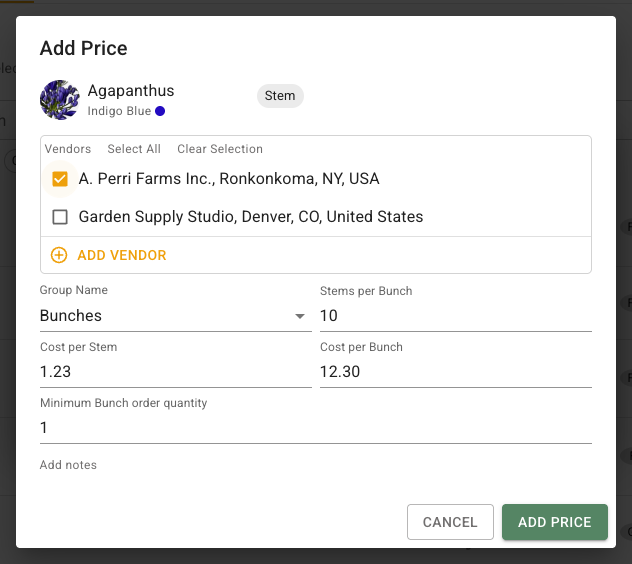
**Add Price** stays unavailable until a vendor location is selected, even when you have entered the cost. A missing vendor selection is different from a restriction on editing prices. Check **Vendors** first rather than assuming that an unavailable button means your workspace role is wrong.
The selected vendor below makes **Add Price** available for the entered flower price.
A planning price estimates what you expect to spend while building recipes. It is different from a purchase-order price and from an event-specific price, which applies only in that event and does not become a Core Data price. For example, a price for a bunch must include the number of stems in the bunch so FlowerBuddy can estimate the cost of a recipe that calls for individual stems.
Use [Purchasing](/reference/purchasing.md) when you are ready to review order needs or record the actual amount on a purchase order.