> For the complete documentation index, see [llms.txt](https://help.flowerbuddy.co/llms.txt). Markdown versions of documentation pages are available by appending `.md` to page URLs; this page is available as [Markdown](https://help.flowerbuddy.co/reference/calendar/review-event-payment-and-task-details.md).
# Review event, payment, and task details
Select an item in the Calendar to open a detail dialog without leaving the date view. The dialog shows the record's most useful date and status information, and links to the page where the full record is managed.
## Event details
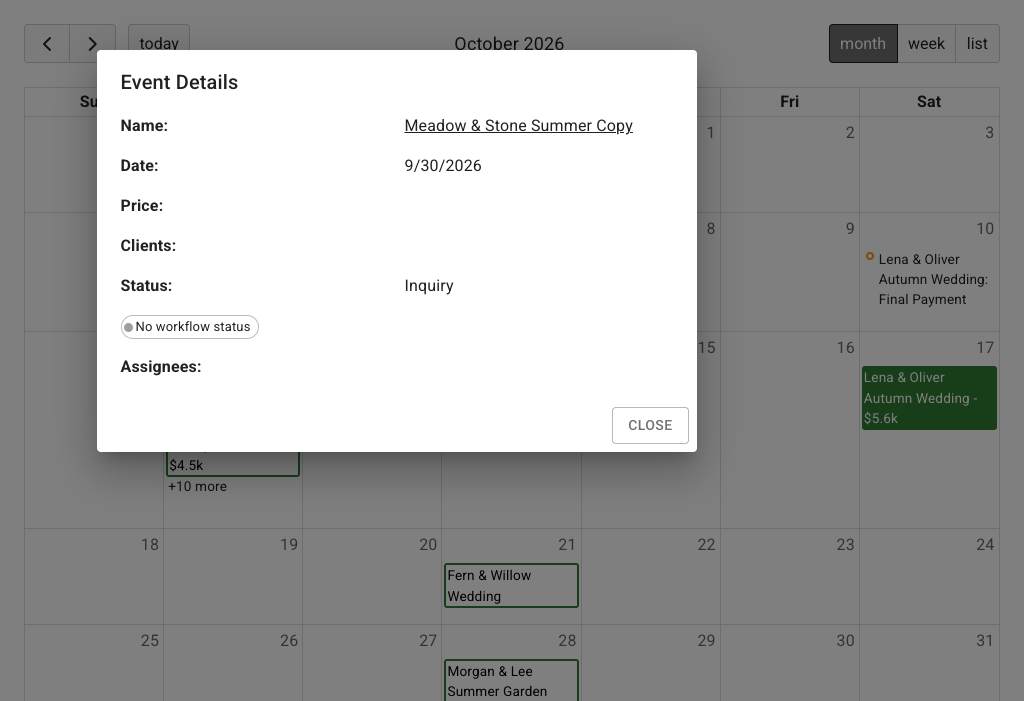
Select an event entry to open **Event Details**. The dialog can show the event name, date, price, clients, main status, **Workflow Status**, and assignees. Select the event name to open the Event Page.
The event dialog is a quick read of the event record. Use the [Event Page](/reference/event-page.md) when you need to edit event details, pricing, recipes, payments, or preparation.
## Payment details
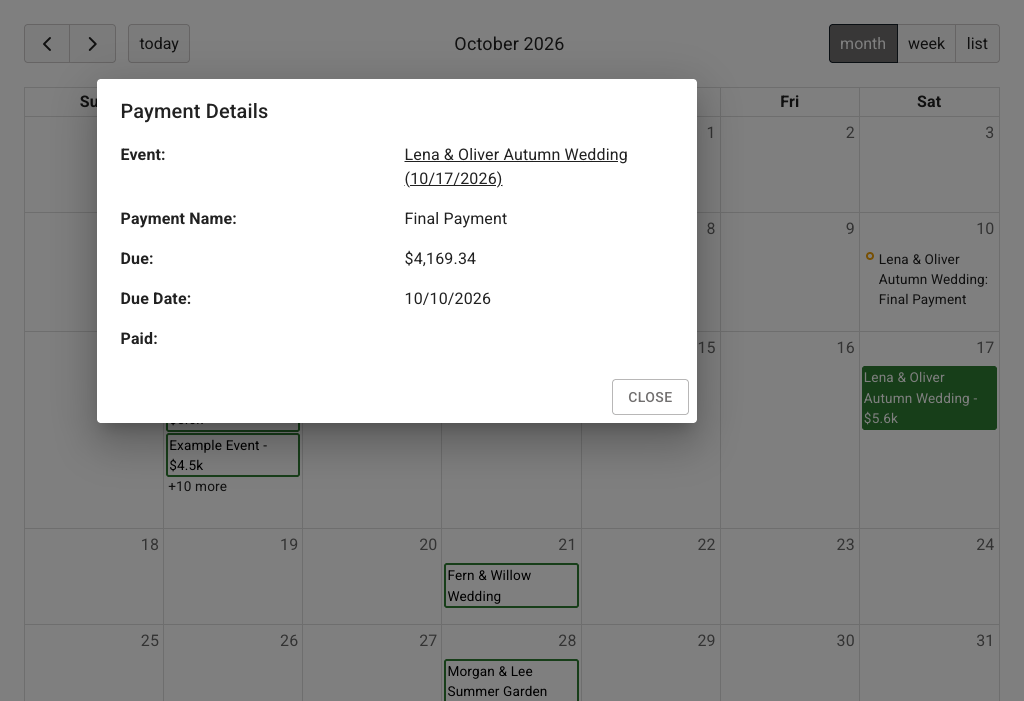
Select a payment entry to open **Payment Details**. The dialog can show the event link, payment name, amount due, due date, amount paid, and whether the payment is paid or overdue. Select the event link to open the Event Page and review the payment under **Details**.
The Calendar provides payment timing in context. It does not replace the payment controls on the Event Page.
## Task details
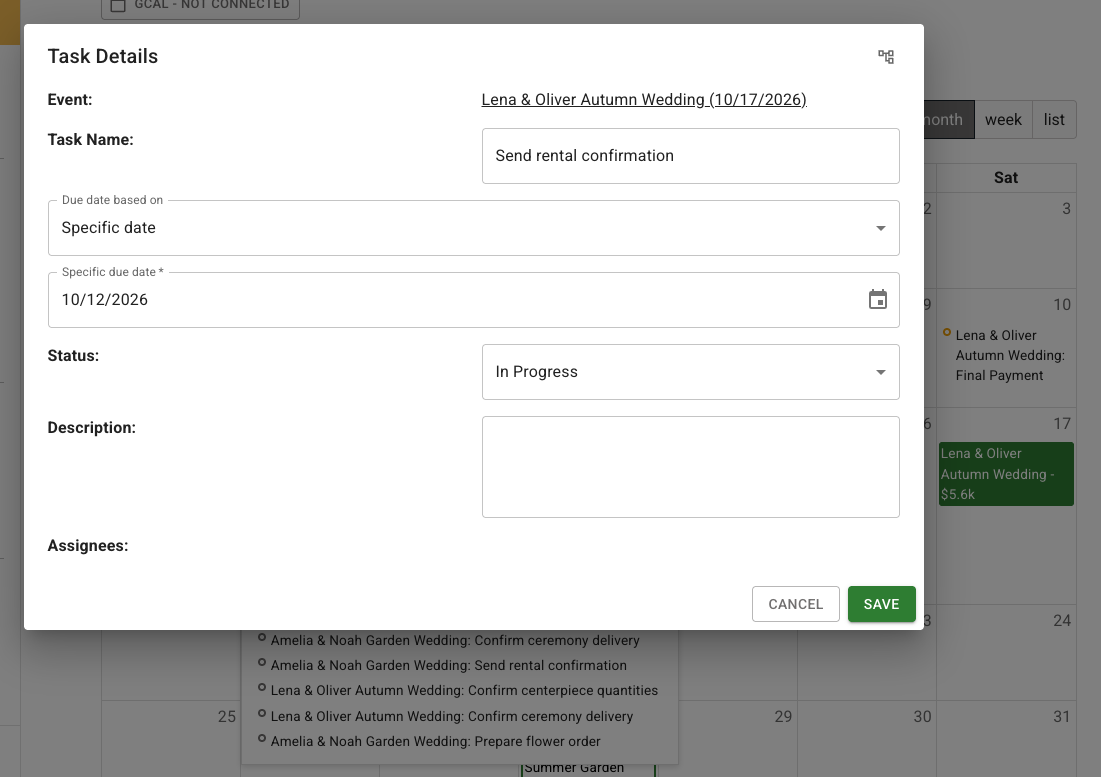
Select a task entry to open **Task Details**. The dialog can show the event link, task name, due-date rule, calculated due date, status, description, assignees, and completion Workflow Status.
The due-date rule can be relative to the event date or another supported anchor. A task can also use **Specific date**, as in the example below, where the due date is October 12, 2026. The Calendar uses the resulting date to place the task.
Select **Save** after changing task fields, or **Cancel** to close without saving. If you change a task from **Complete** to **To Do** or **In Progress** while it belongs to a completed group, FlowerBuddy opens **Reopen Task**. **Keep Group Complete** leaves the group complete and makes the unfinished task no longer required. **Reopen Group as To Do** or **Reopen Group as In Progress** changes the group status as well. A task opened from the Calendar is the same task that appears on the Event Page **Tasks** tab and on the workspace [Tasks](/reference/tasks.md) page.
For detailed task rules, see [Set a task due date and completion dependency](/reference/tasks/set-task-due-date.md) and [Change a task status](/reference/tasks/change-task-status.md). For the event-specific task list, see the [Event Page Tasks tab](/reference/event-page/tasks.md).
## Return to full records
Use the links in event and payment dialogs to continue on the Event Page. Use the task event link to open the related event, or close the dialog and use the Tasks page when you want to compare work across events.