> For the complete documentation index, see [llms.txt](https://help.flowerbuddy.co/llms.txt). Markdown versions of documentation pages are available by appending `.md` to page URLs; this page is available as [Markdown](https://help.flowerbuddy.co/reference/calendar/navigate-calendar-views-and-dates.md).
# Navigate Calendar views and dates
The Calendar gives you three ways to scan dated work. Use the view that matches the decision you are making, then move through the selected period with the date controls.
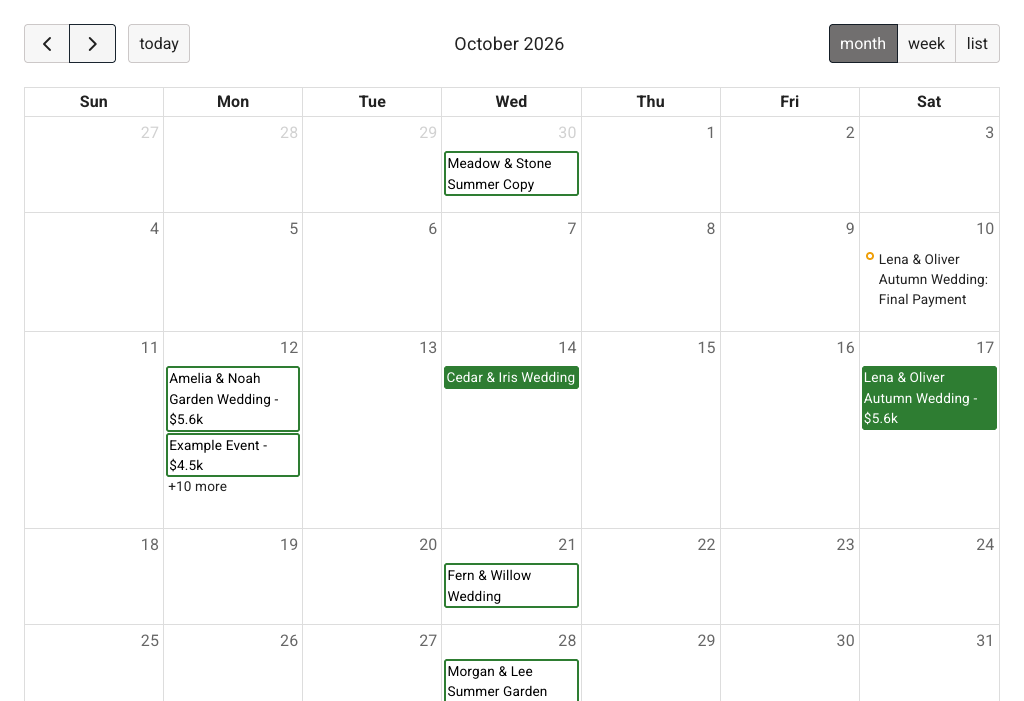
The controls below show the period title, **Today**, previous and next arrows, and the three view choices.
## Choose a view
* **Month** shows the selected month as a grid. It is useful for seeing the overall shape of event work and busy dates.
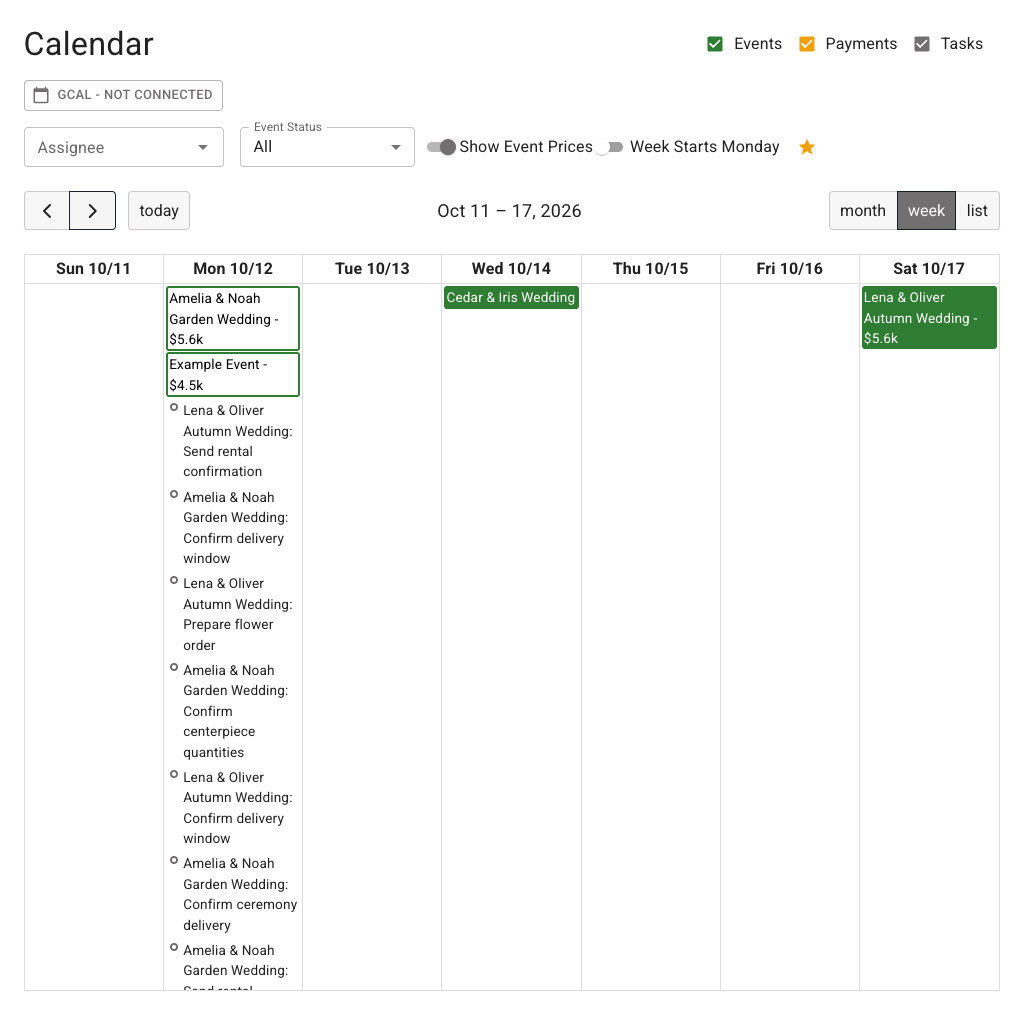
* **Week** shows a closer view of the selected week. It is useful when timing across several days matters.
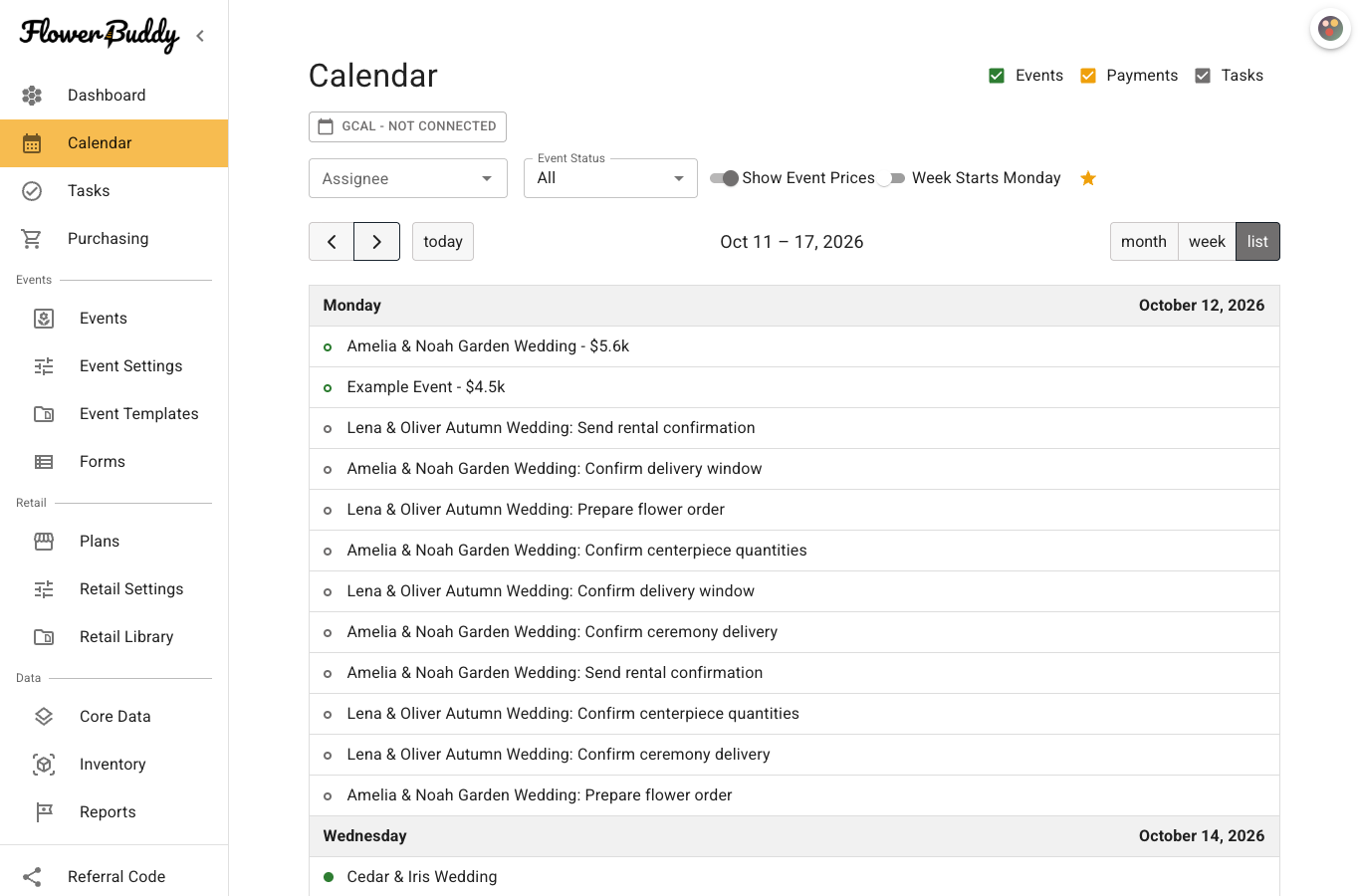
* **List** shows dated items in a full-width list for the selected period. It is useful for reading event, payment, and task entries in order.
Selecting a view changes how the same Calendar items are arranged. It does not change an event, payment, or task.
In **Week** view, each date has its own column. This example shows events on Monday, Wednesday, and Saturday, with several preparation tasks listed on Monday.
## Move through dates
Use the left arrow to move to the previous period and the right arrow to move to the next period. The size of the period follows the current view: a month in **Month**, a week in **Week**, and the selected range in **List**.
Select **Today** to return to the period containing the current date.
The Calendar uses the selected period while you switch between views. For example, moving to a week and then selecting **List** keeps the same date range while changing the arrangement.
## Read List view
List view expands the Calendar into a full-width dated list. Each item keeps its type and event context, so event, payment, and task entries can be reviewed in chronological order.
The example shows the selected week with event, payment, and task rows.
Select an item in List view to open its details. Use the filters above the list when you need to focus on specific item types, statuses, or assignees.
## Change the week start
In the Calendar filters, turn on **Week Starts Monday** when Monday should be the first day of the Month or Week grid. Turn it off to use the other week-start setting. This choice affects the grid layout, not the dates assigned to any item.
See [Filter Calendar items](/reference/calendar/filter-calendar-items.md) for this setting and the other display controls.